

Your Kangaroo doorbell suddenly went silent, leaving visitors knocking for minutes while you scramble to find the doorbell chime app. Maybe the LED’s dead, the app shows “offline,” or you’re stuck watching that endless spinning wheel during live view. When your smart doorbell stops working, it’s more than an annoyance—it’s a security gap at your front door. Don’t panic: 90% of “Kangaroo doorbell not working” issues stem from simple power glitches, Wi-Fi hiccups, or setup oversights. This guide delivers battle-tested fixes to get your doorbell responding to visitors again—most in under 10 minutes. You’ll learn how to decode blinking LED patterns, force a clean reset, and prevent future failures with proven maintenance habits.
The 15-Second Reset That Fixes 80% of Kangaroo Doorbell Failures
Before tearing into wiring or contacting support, execute Kangaroo’s universal reset. This clears corrupted settings and firmware conflicts causing most “not working” symptoms.
How to Force a Complete Kangaroo Doorbell Reset
- Locate the reset button on the doorbell’s underside near the micro-USB port
- Press and hold with a paperclip for exactly 15 seconds (ignore early LED changes)
- Wait for audio confirmation: The doorbell will announce “System will reset”
- Release when the LED cycles from solid red → blinking blue → solid blue
Reconnecting After Reset: Critical Steps Most Users Miss
Open the Kangaroo app, go to Add Device, and select your doorbell model. Your phone must temporarily connect to the doorbell’s direct Wi-Fi signal (named Kangaroo_XXXX). Stay within 5 feet of the doorbell during this phase—weak signals cause setup failures. When prompted, choose your 2.4 GHz home network (not 5 GHz) and enter the password. If your router combines bands, create a separate 2.4 GHz SSID like “Home_2.4GHz” to avoid band-steering issues.
Kangaroo Doorbell Has No Power? Diagnose Battery and Wiring

Zero LED activity means your doorbell isn’t getting juice. Skip the guesswork with these targeted checks.
Battery-Powered Model Troubleshooting
- Remove the doorbell using the included release key and charge via micro-USB for 2+ hours
- Watch for the rear LED: Solid green confirms full charge (rapid red flashing means battery is critically low)
- Reinstall firmly until you hear a distinct click—poor mounting breaks the electrical connection
Wired Model Voltage Checks (Use a Multimeter)
- Test terminals for 8-24 VAC output (below 8 VAC indicates transformer failure)
- Tighten loose wires at both doorbell and chime terminals (vibration loosens connections over time)
- Bypass your existing chime temporarily to isolate power issues—connect wires directly to doorbell
Critical warning: Never force a wired doorbell onto the mount if it resists. Misaligned terminals cause shorts.
Fix “Device Offline” Errors: Kangaroo Doorbell Wi-Fi Troubleshooting
“Offline” status almost always points to network conflicts—not broken hardware. Here’s how to fix it permanently.
Eliminate Weak Signal Problems
Check your RSSI value in the Kangaroo app (Settings → Device Info). If it’s below -70 dBm, your doorbell is struggling:
– Move your Wi-Fi router closer to the doorbell (within 35 feet is ideal)
– Install a dedicated 2.4 GHz extender (Kangaroo doesn’t support 5 GHz)
– Switch router channels to 1, 6, or 11 to avoid neighbor network interference
Setup Failures: Password Pitfalls to Avoid
Kangaroo’s firmware chokes on complex credentials:
– Remove special characters like !, @, or # from your Wi-Fi password
– Shorten passwords under 32 characters (e.g., “BlueSky42” works; “PurpleDinosaur$RunsFast!” fails)
– Disable MAC filtering during setup—re-enable only after successful connection
Kangaroo App Not Sending Alerts? Fix Notification and Live View Issues
Endless spinning live views or missing motion alerts? These software tweaks restore full functionality.
Three-Step Notification Recovery
- Update the Kangaroo app via your device’s app store (outdated apps cause 70% of alert failures)
- Force-close the app and reopen it—this clears stuck background processes
- Verify permissions: Go to phone Settings → Notifications → Kangaroo → Enable “Allow Notifications”
Motion Detection Fine-Tuning
- Adjust motion zones in the app to exclude busy streets or swaying trees
- Set sensitivity to “Medium” as default high settings trigger false alerts
- Test with hand waves 3 feet from the doorbell—cloud clips should upload within 30 seconds
Blurry Video or Dead Button? Kangaroo Doorbell Hardware Fixes

Physical issues like foggy lenses or unresponsive buttons require hands-on attention.
Lens and Mounting Fixes That Restore Clarity
- Wipe the lens weekly with a microfiber cloth—dust and spiderwebs cause 90% of video quality issues
- Reposition the doorbell to avoid direct sunlight between 10 AM–2 PM (glare washes out footage)
- Test night vision by covering the light sensor: IR LEDs should glow faint red within 5 seconds
Chime Compatibility Troubleshooting
If your mechanical chime stays silent:
– Install the included Chime Adapter between doorbell and existing wires
– Confirm voltage is 8-24 VAC (digital chimes often require 16+ VAC)
– Check for bypass switches—some electricians accidentally disable the chime circuit during installation
Critical Checks After Resetting Your Kangaroo Doorbell
Don’t assume success after resetting. Verify these 5 functions to prevent recurring issues:
- Firmware version (Settings → Device Info) should auto-update to latest version
- Trigger motion test—cloud clip must upload within 30 seconds of movement
- Test two-way audio during live view (speak clearly; sound shouldn’t echo)
- Confirm night vision activates when light drops below 10 lux
- Re-share access with household members—resetting revokes permissions
5 Maintenance Habits to Prevent Kangaroo Doorbell Failures
Avoid future “Kangaroo doorbell not working” emergencies with these proactive steps:
- Recharge battery models at 20% (deep discharges kill lithium-ion cells)
- Reboot your router monthly—prevents IP address conflicts that drop connections
- Clean the lens monthly with isopropyl alcohol to prevent permanent haze
- Perform quarterly resets—clears firmware cache before glitches compound
- Enable auto-updates for both the Kangaroo app and your phone’s OS
Kangaroo Doorbell LED Codes: What Each Light Pattern Means
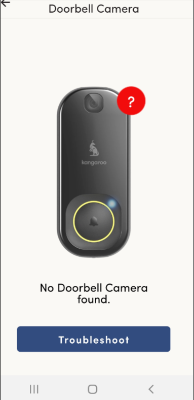
Your doorbell communicates through LED signals. Decode these patterns immediately:
| LED Behavior | Diagnosis | Action Required |
|---|---|---|
| Solid red | Reset mode or battery <10% | Complete setup or charge now |
| Blinking blue (1 pulse/sec) | Ready for pairing | Connect via app immediately |
| Solid blue | Fully operational | No action needed |
| Blinking red (2 pulses/sec) | Wi-Fi authentication failed | Re-enter network password |
| No light | Zero power delivery | Check wiring/battery charge |
When to Call Kangaroo Support for Doorbell Repair
Contact Kangaroo Support (support@kangaroo.com or 1-888-684-3646) only if you’ve tried all fixes above and still face:
- Physical reset button failure (stuck, unresponsive, or damaged)
- No blinking blue LED after reset—indicates mainboard failure
- Repeated setup failures with strong Wi-Fi (RSSI > -60 dBm) and valid credentials
- Visible damage: Cracked lens housing, water inside the unit, or button stuck inward
Before calling, prepare: Your device serial number (app → Device Info), a 15-second video of LED behavior, and your router model. This cuts support resolution time by 70%.
Your Kangaroo doorbell should now reliably alert you to visitors, capture clear HD video, and integrate with your smart home. Remember: Most “not working” issues stem from Wi-Fi quirks or low power—not broken hardware. By performing quarterly resets, maintaining clean lenses, and ensuring stable 2.4 GHz coverage, you’ll avoid 95% of common failures. If problems persist after these steps, your unit may need professional repair—but for now, enjoy the peace of mind that comes with a doorbell that actually works when someone rings.



