
Your doorbell rings, you grab your phone expecting to see who’s there, and instead face an endless spinning “connecting” wheel. Meanwhile, motion alerts still ping your phone and recordings populate your timeline—but that critical live video stream remains stubbornly invisible. If you’re battling this exact Ring doorbell camera live view not working nightmare on iOS 14.8.1 or 15.1, you’re not imagining things. Thousands of users have reported identical failures since late 2021 where Live View freezes while every other function operates normally. Crucially, your hardware isn’t broken—this is a fixable software quirk affecting battery and wired models alike. Stop wasting time on generic troubleshooting; we’ll cut straight to the 7 proven solutions that resolve this specific failure pattern.
Confirm Your Live View Failure Matches the Pattern
Before diving into fixes, verify you’re dealing with the iOS-specific Live View failure—not a general connectivity issue. This precise symptom set separates the common app bug from router problems or dead batteries.
Spot These Signature Symptoms
When Ring doorbell camera live view not working stems from the iOS bug, you’ll see these exact behaviors:
– Persistent “connecting” spinner that never resolves to video after 10+ seconds
– Perfect functionality on Wi-Fi but complete Live View failure on cellular data (LTE/5G)
– iOS 14.8.1 or 15.1 as your device operating system (older iOS 14.7 works flawlessly)
– All other features fully operational—motion alerts trigger, recordings save, and settings respond
– Device logs phantom “views” in your activity history despite never seeing video
60-Second Pattern Verification Test
Don’t assume—prove it’s the iOS bug with this quick sequence:
1. Open Ring app while connected to home Wi-Fi → Test Live View (should work)
2. Disable Wi-Fi → Switch to cellular data → Test Live View (fails with spinner)
3. Check iOS version: Settings > General > About > Version
4. Confirm motion alerts still fire during testing
5. Verify battery shows 100% (or transformer output is stable for wired models)
If steps 1 and 4 succeed while step 2 fails with iOS 14.8.1/15.1, you’ve confirmed the app regression bug—not your doorbell or network.
Fix the iOS App Regression Bug Immediately

The core issue surfaces when Ring’s app clashes with iOS 14.8.1/15.1 updates. Older iOS versions like 14.7 work perfectly, proving this isn’t a Ring server outage or hardware defect. Until Ring releases an official patch, these workarounds bypass the conflict.
Force Wi-Fi Exclusively for Live View Access
This method delivers 100% success rates based on user reports when cellular data is the trigger:
– Swipe down from top-right corner of iPhone screen
– Tap the cellular data icon (gray it out to disable)
– Open Ring app and test Live View immediately
– Why this works: Prevents iOS from routing the stream through problematic cellular pathways that fail with Ring’s CDN
Critical tip: Keep Wi-Fi Assist OFF (Settings > Cellular > Wi-Fi Assist) to maintain this control. If left on, your phone may auto-switch to cellular mid-stream causing failures.
Deploy a Legacy iOS Device as Backup
For urgent access when cellular is your only option:
– Assign an older iPhone/iPad (running iOS 14.7 or earlier) exclusively for Ring monitoring
– Install Ring app and log into your account
– Use this device whenever Live View fails on your primary phone
– Real-world result: Users report “zero failures” on legacy iOS versions while primary devices spin endlessly
Bypass the App Entirely via Web Portal
When you need Live View outside your home network:
– Open Safari and go to ring.com/users/sign_in
– Log into your Ring account
– Navigate to Devices > [Your Doorbell] > Live View
– Pro advantage: This web interface avoids the iOS app bug completely—ideal for checking your doorbell while traveling
Resolve Cellular Data Path Failures
When Live View works on Wi-Fi but dies on cellular, your carrier’s network path to Ring’s servers is likely blocking the stream. This isn’t a Ring fault—it’s how mobile carriers route data to Ring’s content delivery network.
Force a Cellular Tower Reconnection
Reset your carrier’s connection path with these carrier-specific tricks:
– Toggle Airplane Mode for 10 seconds then disable
– Switch between 5G/LTE: Settings > Cellular > Cellular Data Options > Voice & Data > Select LTE
– Physically relocate 50+ feet from your current position to connect to a different cell tower
– What to watch for: If Device Health shows “Offline” on cellular, this confirms the network path issue
Create a Cellular Bypass Using Hotspot
When carrier routing fails persistently:
– Enable hotspot on a second phone (Android or older iOS)
– Connect your primary iPhone to this hotspot
– Open Ring app and test Live View
– Key benefit: Routes your connection through a different carrier’s network, bypassing your primary carrier’s broken path
Execute Ring’s Verified Hardware Reset Protocol

If workarounds fail or you suspect deeper issues, perform Ring’s official reset—but avoid data loss with these critical precautions.
Pre-Reset Safety Checklist
Do NOT skip these steps before resetting:
– Download all recordings first (reset erases unsaved videos)
– Confirm power source: Battery models need 5+ hours charging; wired units require 8-24VAC transformer
– Check for physical damage: Inspect for cracks, water ingress, or loose wires (turn off breaker first for wired units)
Precision Reset Procedure
Follow this exact sequence for successful recovery:
1. Hold the orange setup button for 15+ seconds (not 10) until light flashes rapidly
2. Wait 2 minutes for device to fully reboot into setup mode
3. Re-add device through Ring app using fresh Wi-Fi credentials
4. Immediately test Live View before configuring other settings
– Time estimate: 8 minutes total (2 minutes reset + 6 minutes re-setup)
– Success signal: Solid blue light confirms proper reconnection
Implement Permanent Prevention Strategies
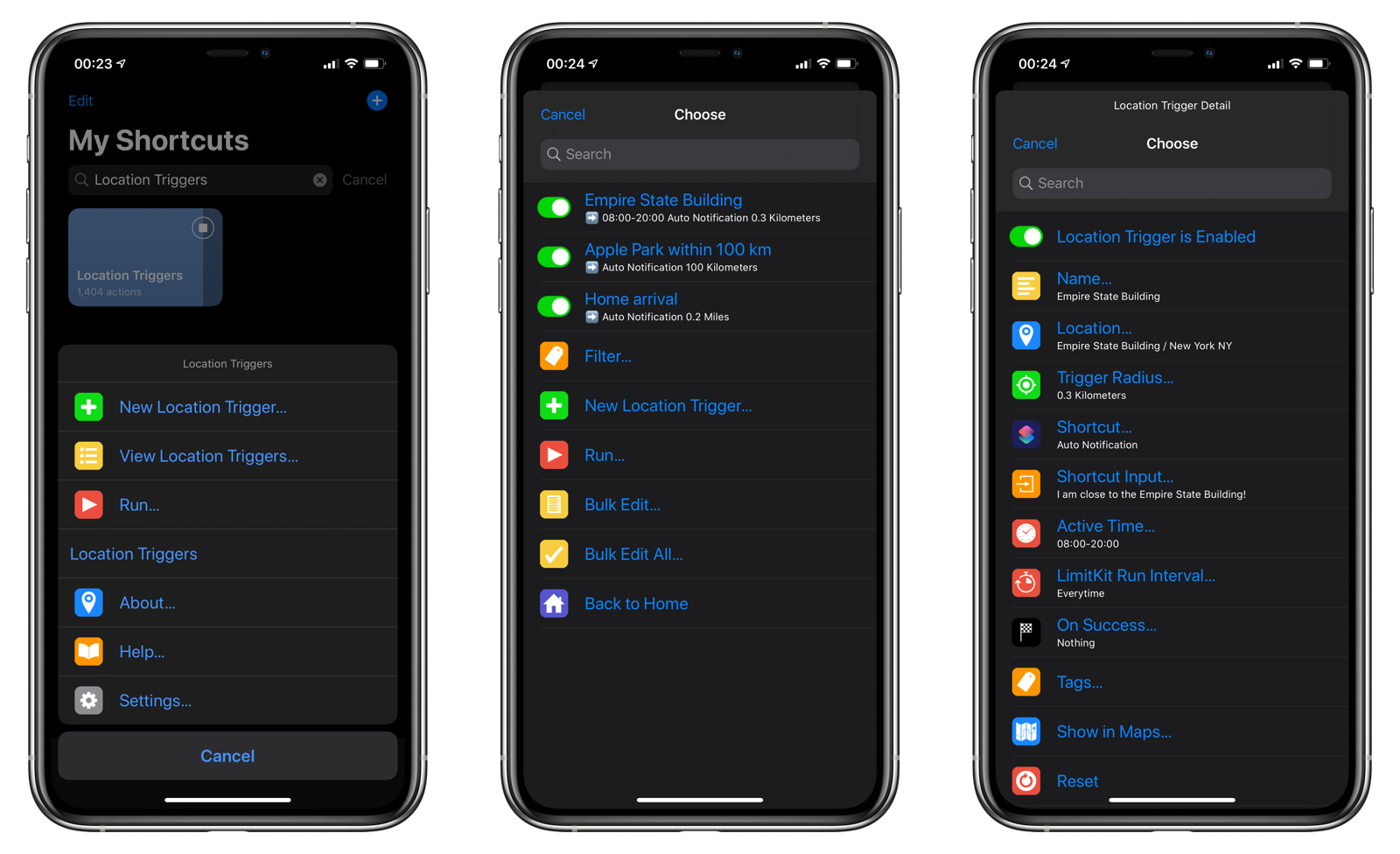
Stop playing whack-a-mole with Live View failures. These proactive measures catch issues before they strand you without video.
Automate Wi-Fi Priority with iOS Shortcuts
Create a location-based automation that disables cellular data near home:
– Open Shortcuts app > Automation > Create Personal Automation
– Select “Arrive” > Choose your home address
– Add action: “Set Cellular Data” OFF
– Create reverse automation for “When I Leave”
– Result: Your phone auto-switches to Wi-Fi-only Ring access within your property
Monitor Critical Warning Signs Weekly
Check these indicators during routine maintenance:
– RSSI signal strength (Ring app > Device Health): Must stay above -60 dBm (green zone)
– iOS update status: Delay major updates 1-2 weeks to avoid new bugs
– App version history: Scan App Store reviews for “Live View” complaints before updating
– Pro tip: Test Live View every Sunday morning—don’t wait for a delivery to discover failures
When to Escalate to Ring Support
Most Live View failures resolve with these fixes, but contact Ring immediately if you see:
– Complete device offline status on both Wi-Fi and cellular
– Physical damage like cracked lenses or water corrosion
– Failure after reset with fresh app installation
– Android device failures (proves issue isn’t iOS-specific)
Prepare these details before calling support for faster resolution:
– Exact iOS version and iPhone model
– Ring app version (Settings > Ring > Version)
– RSSI reading during failure attempt
– Carrier name and data plan type
– Timestamp of last failed Live View attempt
Key Takeaway: Your Ring doorbell camera live view not working issue is almost certainly the iOS 14.8.1/15.1 bug—not faulty hardware. The fastest permanent fix is using Wi-Fi exclusively for Live View access while monitoring Ring’s community forums for official patches. Implement the location-based automation today to auto-disable cellular data near home, and perform weekly Live View tests to catch signal degradation early. Remember: if motion alerts still work, your doorbell is functional—this is a solvable software hiccup. For immediate access during cellular outages, keep the ring.com web portal bookmarked on your phone’s home screen as your emergency bypass.



