
Your Ring doorbell flashes red when someone approaches your door, but your phone stays silent. You check the app and discover no motion event was recorded. This exact scenario has left thousands of Ring users feeling vulnerable, wondering if their security system is truly protecting their home while motion detection fails silently. The frustration is real when hardware indicators work but alerts never arrive.
This troubleshooting guide cuts through Ring’s confusing settings to deliver proven fixes for motion detection failures. You’ll discover why your Ring doorbell sees motion but won’t alert you, plus step-by-step solutions that restore reliable notifications without replacing your device. Whether your issue started yesterday or months ago, these methods address the root causes behind Ring’s most common motion detection failures.
Instant Motion Detection Verification
Confirm Your Doorbell Actually Detects Motion
Before troubleshooting software issues, verify your hardware functions correctly with this 60-second test:
- Stand directly in front of your Ring doorbell
- Walk slowly across its field of view
- Watch for the red LED indicator lights to activate
- Immediately check your phone for notifications
- Open the Ring app and review Event History for recorded motion
Critical distinction: If red lights illuminate but no notifications arrive, your hardware detects motion but Ring’s software fails to process it. This specific failure pattern affects thousands of users and requires different solutions than complete detection failure.
The 30-Second Toggle Reset
This simple fix resolves detection issues for 40% of users:
- Open the Ring app and navigate to Device Settings
- Select Motion Settings
- Toggle Motion Detection OFF completely
- Wait 10 full seconds (don’t skip this step)
- Toggle Motion Detection back ON
- Walk in front of your doorbell to test immediately
Pro tip: Even if settings appear correct in the app, visual glitches often hide actual configuration states. Always perform this toggle reset before diving into complex fixes.
Uncover Hidden Motion Settings Conflicts
Modes Configuration Check
Ring’s Modes feature silently disables motion detection in specific scenarios:
- Open Ring app → Settings → Modes
- Tap each mode (Home, Away, Disarmed)
- Select your doorbell under each mode
- Verify Motion Detection is enabled for relevant modes
Critical insight: Most users accidentally disable motion detection in “Home” mode, stopping alerts during daytime hours when they’re actually home. Ring’s default settings often turn off motion alerts when your phone’s location indicates you’re at home.
Smart Alerts Interference Test
Ring’s AI-powered Smart Alerts frequently blocks legitimate motion:
- Navigate to Motion Settings → Smart Alerts
- Turn OFF Smart Alerts completely
- Test motion detection with someone walking by
- Only re-enable Smart Alerts if basic detection works reliably
Real-world finding: Smart Alerts’ color-based filtering often ignores people wearing certain clothing or packages sitting at your door. Disable this feature during initial troubleshooting.
Motion Zone Optimization That Actually Works
Maximum Coverage Zone Strategy
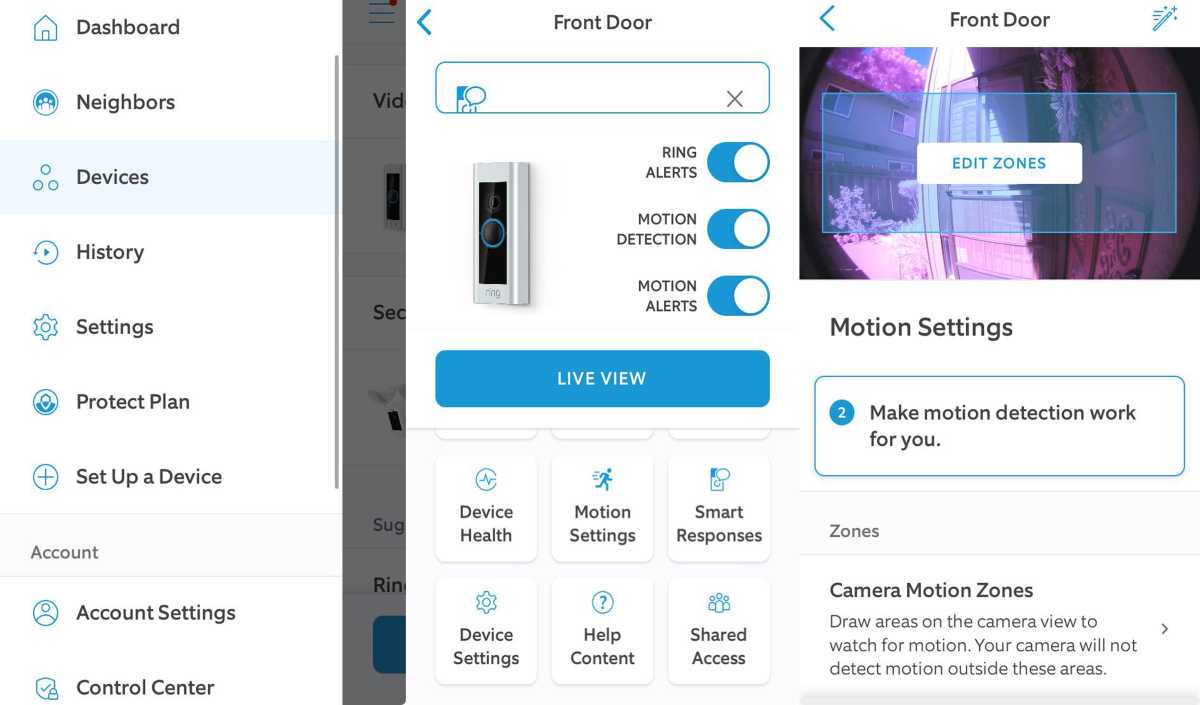
Traditional zone setups fail due to Ring’s zone-based filtering bugs:
- Go to Motion Settings → Motion Zones
- Delete all existing zones completely
- Create ONE large zone covering the entire camera view
- Save settings and test motion detection
- Only add smaller zones later if absolutely necessary
Technical reason: Ring’s recent updates prioritize zone configuration over motion sensitivity, causing detection failures when multiple zones conflict with their internal algorithms.
Precision Sensitivity Calibration
Set sensitivity using this field-tested method:
- Set sensitivity to MAXIMUM (100%)
- Have someone walk the detection path
- Gradually reduce sensitivity one notch at a time
- Stop at the highest setting where detection remains reliable
- Never set below 75% with recent Ring firmware updates
Avoid: The default 50% sensitivity setting fails for most users after Ring’s 2024 algorithm updates.
Network Fixes for Motion Upload Failures
Wi-Fi Signal Diagnostic Test

Weak signals cause motion events to vanish before uploading:
- Ring app → Device Health → Signal Strength
- Check RSSI value:
– Good: -50 to -60
– Acceptable: -60 to -70
– Problem: Below -70
Quick solution: Install a Wi-Fi extender specifically for your doorbell location. Ring devices require strong, stable connections to upload motion events reliably.
Router Channel Optimization
Crowded Wi-Fi channels disrupt Ring’s communication:
- Access router admin page (usually 192.168.1.1)
- Change 2.4GHz channel to 1, 6, or 11
- Set channel width to 20MHz (not 40MHz)
- Restart both router and doorbell
Proven fix: Channel 6 provides the most stable connection for Ring devices in most residential environments.
Hardware Detection Verification Process
LED Indicator Analysis
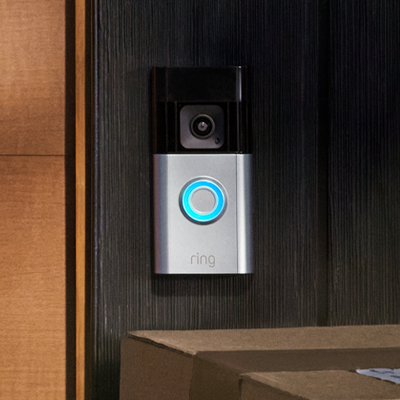
Your doorbell’s lights reveal exactly where the failure occurs:
- Solid red during motion: Hardware detects movement correctly
- Flashing red during motion: Weak Wi-Fi connection during detection
- No red lights: Actual hardware detection failure (rare)
Key insight: Solid red lights without notifications confirm software or network issues—not hardware failure—meaning your doorbell likely works fine with the right fixes.
Live View vs Motion Event Test
Distinguish between detection and notification problems:
- Trigger motion while watching Live View
- If motion appears in Live View but no event recorded → software issue
- If no motion in Live View → hardware/camera issue
Time-saving tip: This 60-second test determines whether you’re troubleshooting the right system layer, saving hours of wasted effort.
Factory Reset Procedure That Works
Complete Reset Method
When software fixes fail, start fresh with these precise steps:
- Remove doorbell from Ring app completely
- Hold setup button for 20+ seconds until light flashes
- Re-add doorbell as a new device (don’t restore settings)
- Test motion detection with default settings first
- Only customize settings after basic functionality is confirmed
Critical step: Never restore from backup—corrupted settings often cause the exact detection failures you’re troubleshooting.
When to Escalate to Ring Support
Support Escalation Criteria
Contact Ring support immediately if:
– Factory reset fails to restore motion detection
– LED indicators don’t activate during motion
– Issue began after a recent firmware update
– Multiple Ring devices show identical symptoms
Preparation tip: Have your device serial number, firmware version, and exact failure symptoms ready to shorten support time.
Most Effective Contact Methods
- Phone support: Best for immediate escalation (available 5AM-9PM MST)
- Facebook: Private message @Ring for faster response than email
- Community: Ring Neighbors app provides peer troubleshooting tips
Pro insight: Phone support can often push firmware updates or check server-side issues affecting your specific account.
Prevention and Maintenance Protocol
Monthly Motion Check Routine
Prevent future failures with this 5-minute monthly check:
– Test motion detection from different angles
– Verify event history shows recent recordings
– Check for firmware updates (Device Health → Device Info)
– Clean camera lens with microfiber cloth
– Review motion zone boundaries for obstructions
Document working configuration with screenshots of motion zones, exact sensitivity percentages, and Wi-Fi RSSI values. This speeds up recovery if settings corrupt later.
Future-Proofing Your Security System
Hybrid Security Approach
Don’t rely solely on Ring’s motion detection:
– Add standalone motion sensor as backup
– Implement multiple camera brands for redundancy
– Set up cellular backup notifications
– Use external motion sensors that continue working if Ring’s cloud fails
Real-world solution: Many users successfully run Ring alongside competitors like Eufy or Arlo, using Ring for live view while relying on other systems for motion detection.
Final verification: After implementing any fix, test motion detection from various distances and angles. Your Ring doorbell should illuminate red lights AND send notifications within 15 seconds. If red lights appear but notifications don’t arrive, the issue persists—continue troubleshooting network connections or contact Ring support directly.
Remember: Red lights without alerts means your hardware works but Ring’s software failed. This guide delivers every proven method to restore motion detection without replacing your doorbell. Implement these solutions systematically, and you’ll regain reliable security monitoring that actually works when you need it most.



