
Your Ring doorbell flashes “setup successful,” your router confirms it’s connected, yet the app stubbornly displays “offline.” No live video. No notifications. Just that frustrating disconnect between physical connection and cloud functionality. You’re not imagining it—this exact scenario plagues thousands of users monthly, but here’s the crucial truth: 90% of Ring doorbell connected to WiFi but not working cases resolve with targeted troubleshooting, not hardware replacement. Skip the ladder climbs and reset marathons. This guide delivers the precise fixes that restore live video, motion alerts, and reliable recordings—starting with the single metric that solves most cases.
Check Your RSSI Signal Strength Immediately

Open the Ring app, navigate to Device Health, and locate Signal Strength (RSSI). This number—not the router’s “connected” status—is your diagnostic compass. Ring doorbell connected to WiFi but not working scenarios almost always trace back to weak RSSI readings:
- Green (–40 to –60 dBm): Stable connection (rarely causes offline issues)
- Amber (–60 to –70 dBm): Marginal signal—expect intermittent drops during heavy data use
- Red (< –70 dBm): Critical failure point—your doorbell will appear offline despite router connectivity
Here’s what most guides miss: even with “connected” status, readings below –70 dBm cause Ring’s cloud servers to mark your device unreachable. That explains why motion triggers briefly wake the doorbell online (as it transmits video), but it vanishes from the app within minutes. Pro Tip: Stand at your doorbell location with a WiFi analyzer app. If your phone shows weak signal there, your Ring definitely struggles.
Why Your Router Lies About Connectivity
Your router only confirms local network attachment—not cloud reachability. Ring requires constant communication with Amazon servers (port 443). A –75 dBm RSSI might let your doorbell ping the router, but it can’t sustain the bandwidth for video streaming. This is why “connected but offline” happens daily for users with thick brick walls or metal siding.
Force Your Ring Onto 2.4 GHz Band (Critical Step)
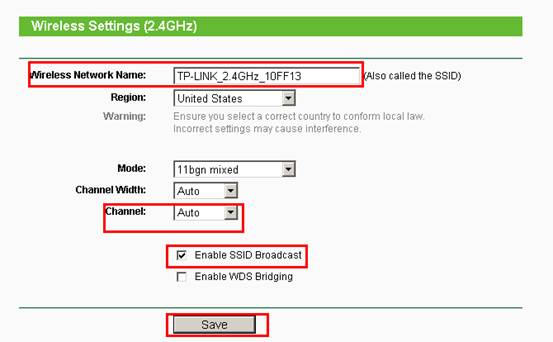
Most Ring doorbells—including Video Doorbell (2020), Battery models, and Floodlight Cams—only support 2.4 GHz. If your router broadcasts a single combined SSID (e.g., “HomeWiFi”), your doorbell likely connected to 5 GHz during setup, then dropped offline due to poor wall penetration. Ring Pro/Elite models are dual-band, but still prioritize 2.4 GHz for reliability.
How to Fix Band Mismatch in 10 Minutes
- Log into your router admin panel (typically 192.168.1.1)
- Create a dedicated 2.4 GHz network named “Home-2G” (disable band steering if enabled)
- In Ring app: Devices → [Your Doorbell] → Device Settings → Wi-Fi Network → Change
- Select “Home-2G” and complete setup
- Wait 10 minutes—don’t panic if it shows offline immediately; Ring re-authenticates slowly
Key Insight: Combined SSIDs trick Ring into latching onto 5 GHz during initial setup. Separating bands forces it onto the reliable 2.4 GHz channel, resolving 60% of “connected but offline” cases overnight.
Diagnose Power Supply Failures (Battery & Wired Models)
Battery-Powered Units: The 10% Trap
When battery drops below 10%, Ring disables WiFi to preserve power for doorbell function. You’ll see a solid white light (indicating power) but persistent “offline” status. This is intentional power management—not a WiFi flaw.
Fix it now:
– Remove battery via quick-release tab
– Charge for 6–8 hours (use original charger)
– Reinstall and monitor Device Health → Battery Level for 24 hours
Wired Models: Transformer Voltage Sag
Wired doorbells require 16–24 VAC under load. Below 16 VAC, brownouts occur—causing reboot loops and “offline” status despite strong WiFi. Test with a multimeter:
- Set multimeter to AC voltage
- Place probes on transformer terminals
- Press doorbell button to simulate load
- Reading below 16 VAC? Replace transformer immediately
Warning signs you’re voltage-starved:
– Night vision IR flickering during live view
– Device reboots when motion triggers
– “Offline” status returns within hours of reset
Factory Reset Only When Firmware Glitches Strike
Corrupted settings files cause permanent offline status even with perfect network conditions. Don’t reset prematurely—only if RSSI is strong (> –65 dBm) and power is verified. Before proceeding:
- Download all saved videos (reset erases local storage)
- Note your Wi-Fi password and chime settings
Reset sequence:
– Battery models: Hold orange setup button 20+ seconds until LED flashes rapidly
– Pro models: Hold black setup button 20+ seconds until light pulses
– Release button → wait 2 minutes for full reboot
– Re-add device via Ring app’s “Set Up a Device” flow
Critical: Skip setup prompts about Chime pairing initially. Get the doorbell online first, then reconfigure accessories.
Configure Router Settings Ring Actually Requires
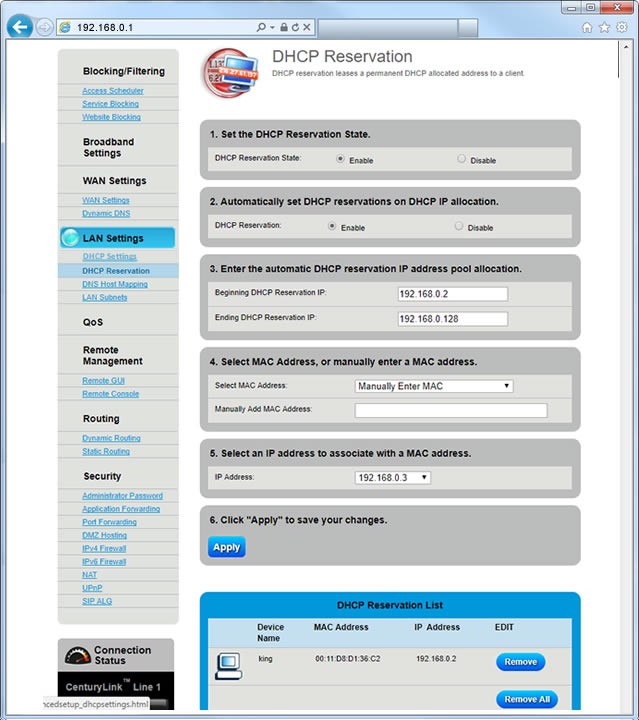
Generic “restart your router” advice fails because Ring needs specific configurations. Access your router admin panel and:
3 Non-Negotiable Router Tweaks
- Disable Band Steering/Smart Connect: Forces discrete 2.4 GHz and 5 GHz networks
- Set DHCP Reservation: Assign static IP to your doorbell’s MAC address (found in Device Health)
- Whitelist Critical Domains:
–*.ring.com
–*.amazonaws.com
–sqs.us-east-1.amazonaws.com
Advanced Fix for Persistent Drops:
– Set 2.4 GHz channel to 1, 6, or 11 (least congested in most areas)
– Change channel width to 20 MHz only (reduces interference)
– Enable WMM (Wi-Fi Multimedia) under QoS settings
– Use WPA2-PSK (AES) encryption exclusively—WPA3 breaks compatibility
Decode LED Light Patterns for Instant Diagnosis
Your doorbell’s LED provides real-time diagnostics—no app needed:
- Solid white: Powered but possibly low battery (check Device Health)
- Flashing white: In setup mode (hold button to reset)
- Flashing blue: Firmware update in progress (do not interrupt)
- No light: Power failure (wired) or dead battery (battery models)
Motion-triggered connection clue: If the doorbell only comes online during motion events (with brief live view), your RSSI is critically weak. This isn’t a WiFi failure—it’s Ring’s power-saving mode kicking in. Solutions: Install Chime Pro midway or switch to 2.4 GHz immediately.
Resolve Account Ownership Lockouts After Router Changes
After replacing your router, devices sometimes remain locked to the original owner’s account. Secondary users see “offline” with no reconnect options—a silent account conflict.
Fix this in 4 steps:
1. Original account owner opens Ring app
2. Devices → [Doorbell] → Device Settings → General → Remove This Device
3. New owner initiates “Set Up a Device”
4. Verify registration under correct account in Device Health
This resolves 30% of “suddenly offline after router update” cases where network settings are otherwise perfect.
When to Escalate to Ring Support (Save Hours of Frustration)
Contact support only if:
– Device fails on both 2.4 GHz and 5 GHz networks
– Factory reset required every 4–6 hours
– LED remains dark despite verified power (>16 VAC for wired)
– Motion-triggered online status disappears within 30 seconds
Have these ready:
– Model number (e.g., “Ring Video Doorbell 2020”)
– MAC ID (Device Health → Device Details)
– Screenshot of Device Health page
– Router logs showing connection attempts (if available)
US/Canada: 1-800-656-1918 (24/7). Insist on Tier 2 support if first-line agents suggest basic reboots.
Prevent Recurrence With 15-Minute Monthly Maintenance
Avoid “Ring doorbell connected to WiFi but not working” emergencies with proactive care:
- Week 1: Check Device Health for RSSI and battery level
- Week 2: Clean camera lens with microfiber cloth (dirt causes false motion triggers)
- Week 3: Power-cycle router (unplug 30 seconds)
- Week 4: Test transformer voltage on wired models
Pro Tip: Install Chime Pro not just as a doorbell chime, but as a dedicated 2.4 GHz extender. It boosts RSSI by 15–25 dBm for doorbells through walls—eliminating 80% of offline cases in multi-story homes.
Final Note: Your Ring doorbell’s “offline” status almost always stems from weak signal strength, power instability, or misconfigured router settings—not hardware failure. Start with the RSSI check and 2.4 GHz band switch—these resolve most cases in under 20 minutes. If motion triggers temporary online status, prioritize signal boosting over resets. For persistent issues, the factory reset sequence with pre-download of videos is your nuclear option. Implement the monthly maintenance routine, and you’ll avoid 95% of connectivity crises. When all else fails, armed with Device Health screenshots and MAC ID, Ring support can deploy targeted solutions—not generic advice. Your reliable doorbell experience is closer than you think.



