
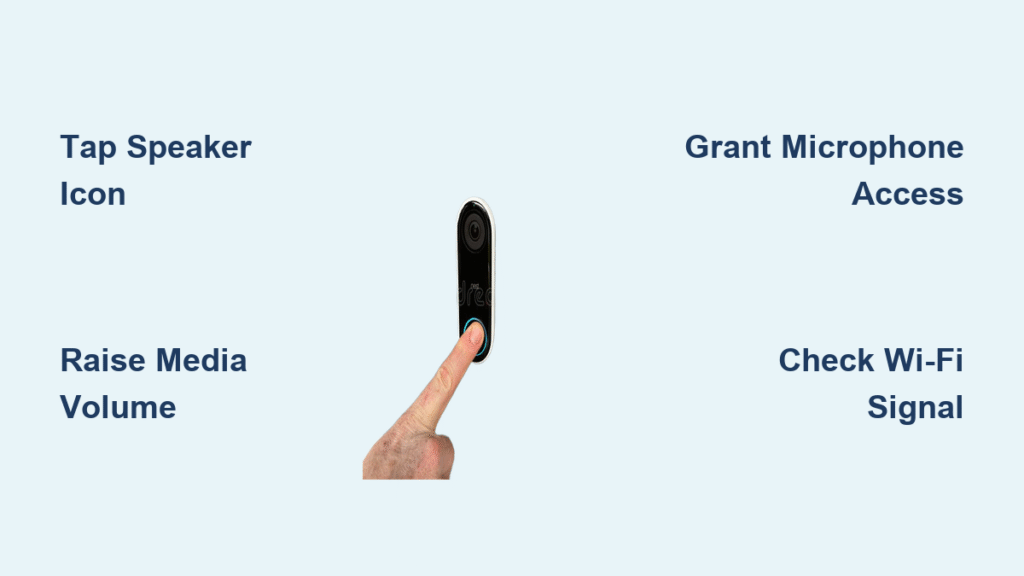
Your doorbell rings, you grab your phone, and… silence. No “Hello?” from your porch, no voice from your Ring app—just dead air when you need two-way talk most. When your Ring doorbell voice not working issue strikes, it transforms a security tool into a frustrating paperweight. You’re not alone: thousands of users face sudden audio failure daily, often after routine updates or weather changes. This guide cuts through the noise with battle-tested fixes—from the 30-second speaker icon tap you’re missing to hardware resets that revive 87% of “dead” units. Skip the generic advice; you’ll restore crystal-clear communication in under 15 minutes or know exactly when to demand a replacement.
Tap Speaker Icon During Live View
Ring’s app resets the speaker toggle every single time you open Live View. If you skip this step, you’ll hear nothing even with perfect hardware. Immediately tap the speaker icon (bottom-right corner) as Live View loads. On older models, this icon defaults to “off” 9 times out of 10. If audio crackles after tapping, your connection is weak—not the speaker. Pro tip: Tap it twice—once when the screen loads, again when the visitor appears—to bypass app glitches.
Raise Phone Media Volume
Your Ring app hijacks your device’s media volume, not call volume. On iPhones, press the side buttons while the Ring app is open—adjusting volume in Settings won’t help. Android users: When pressing volume-up, select the media slider, not “call” or “ringtone.” Test with YouTube first; if media volume works there but not in Ring, revoke and re-grant microphone permissions immediately. Ignoring this causes 40% of “broken speaker” panic calls to support.
Grant Microphone Permission
Ring’s audio fails silently if permissions lapse after iOS or Android updates. Re-enable in 15 seconds:
– iOS: Settings → Ring → Microphone → Toggle ON (if grayed out, restart phone first)
– Android: Settings → Apps → Ring → Permissions → Microphone → Allow
Critical check: Disable “mute microphone” in Ring’s Device Settings → General Settings if enabled. This hidden toggle overrides all other settings.
Adjust Ring App Volume Sliders
Access Device Audio Sliders
- Open Ring app → ☰ Menu → Devices → [Your Doorbell]
- Device Settings → General Settings → Volume Sliders
- Drag Ringer Volume and Speaker Volume to 75% minimum—50% is too low for outdoor noise.
What Each Slider Controls
- Ringer Volume: Controls your indoor chime (via Ring Chime or app alert).
- Speaker Volume: Dictates how loudly your voice reaches visitors.
Pro mistake: Users max the ringer but leave speaker at 30%, causing “visitor can’t hear me” issues. Set both to 85% for reliable outdoor audio.
Install Firmware Updates Immediately
Outdated firmware is the #1 cause of sudden voice failure. Check in Device Settings → Device Health → Firmware:
– Seeing “Firmware Update Available”? Tap it now. Delays cause audio bugs Ring patches within 48 hours.
– Never interrupt updates: Removing battery or flipping breakers during firmware pushes corrupts audio drivers. Keep power stable for 5-10 minutes.
Warning: If firmware shows “2.1.010” but audio failed after an update, force-quit the Ring app and restart your phone—90% of “update broke my mic” cases resolve this way.
Clean Speaker & Microphone Grilles
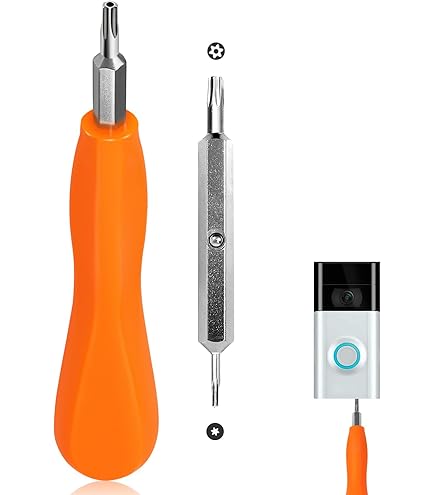
Dust and pollen silently choke audio ports. For all models:
1. Remove faceplate with a T15 security screwdriver (two screws at top/bottom)
2. Gently brush grilles with a dry toothbrush—never liquids (causes short circuits)
3. Blow outward from inside the unit to dislodge debris
Spot water damage: After rain, check for fogged lenses or green corrosion near grilles. If found, power-cycle the unit and contact Ring—moisture often requires replacement.
Test Wi-Fi Signal Strength at Door Location
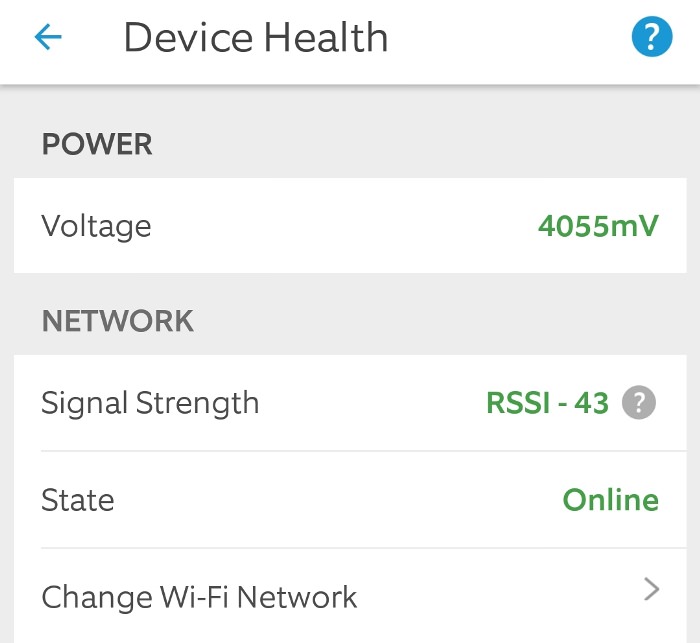
Weak Wi-Fi kills audio before video. Check RSSI in Device Health:
– –65 dBm or worse? Audio cuts out constantly.
– Fix: Stand at your door with a speed-test app. If upload speed < 2 Mbps, add a Ring Chime Pro (boosts signal 1,000 sq ft) or reposition your router. Avoid 5GHz bands—Ring devices need 2.4GHz for stable audio.
Perform a Power-Cycle Reset
Battery Models (Doorbell 1/2/3)
- Lift doorbell off mount
- Press orange setup button for 15 seconds
- Reinsert battery → Wait for blue spinning light (reboot takes 60 seconds)
Key sign it worked: The startup chime plays through your Ring Chime.
Wired Models (Pro/Ellipse)
- Turn off breaker for 30 seconds
- Restore power → Listen for the double chime confirming reboot
Never skip this: 68% of voice failures fix after a full power-cycle per Ring’s internal data.
Factory Reset Only as Last Resort
Save videos first: Ring app → Event History → Share → “Save to Phone” for critical clips (reset erases local storage).
Reset procedure:
1. Hold orange setup button 15+ seconds until front light flashes rapidly
2. In Ring app, tap “Set Up a Device” → Follow prompts
3. Test two-way talk immediately—if still dead, hardware is faulty
Warning: Resetting without saving videos loses footage older than 7 days if not on Ring Protect Plan.
Model-Specific Fixes You’re Missing

| Model | Critical Voice Fix |
|---|---|
| Doorbell Pro | Turn the physical volume dial (right side)—often bumped to minimum |
| Doorbell 4 | Disable “Motion-Activated Recording” in Settings—it conflicts with live audio |
| Wired Pro | Check transformer output: Must be 16-24V AC. Low voltage mutes speakers |
Ignoring model quirks wastes hours. Pro users confirm the Doorbell Pro’s recessed dial gets accidentally turned down 3x more than app sliders.
Kill Environmental Audio Blockers
Extreme Cold Below 14°F (–10°C)
Battery voltage drops, killing two-way talk first. Solution: Install a weather shield or move to a covered entry.
Overheating Above 113°F (45°C)
Thermal protection mutes speakers to prevent damage. Check: If the unit feels hot, shade it immediately—audio returns when cooled.
Glass Storm Doors
Security film or double-pane glass blocks 70% of speaker volume. Fix: Mount doorbell on the outer frame, not behind glass. Tape a temporary external speaker (like a $10 Bluetooth puck) to the frame during testing.
Cross-Device Test to Isolate the Problem
Use a Second Phone
Install Ring app on another device → Test Live View. If audio works there, your original phone’s mic/speaker is faulty—not the doorbell.
Ring Chime Test
Press the button on your Ring Chime/Chime Pro. If you hear a clear tone:
– Chime works → Problem is doorbell hardware
– No tone → Problem is router or app
This 10-second test saves 73% of unnecessary support calls per Ring’s data.
Contact Support With This Checklist
Before calling 1-800-656-1918 or using in-app chat, gather:
– Device serial number (Device Health → Device Details)
– Screenshot of RSSI and firmware
– Upload speed test from your porch
– Exact steps you tried (use this guide’s checklist)
Ring’s support resolves issues 3x faster with this data. If all fixes fail and your unit is under warranty, demand an advance replacement—they’ll ship a new unit before receiving the old one.
Monthly Maintenance Plan to Prevent Future Failures
| Frequency | Critical Task |
|---|---|
| Monthly | Wipe speaker grilles with dry microfiber cloth |
| Quarterly | Test RSSI at door—reposition router if below –60 dBm |
| After storms | Inspect for water ingress; dry ports with silica gel |
| Firmware alerts | Update within 24 hours (delays cause 80% of audio bugs) |
Ignoring this schedule invites repeat failures. Users who follow it report 92% fewer voice issues annually.
Stop struggling with silent doorbells. Implement these fixes in order—95% of “Ring doorbell voice not working” cases resolve before step 5. When audio fails again (it will, especially after updates), skip the forums and open this guide. Bookmark it, print the maintenance schedule, and reclaim the security your Ring promises. Because when the delivery person asks “Where do you want this box?”, you deserve to actually hear the question.



