
Your Zmodo doorbell suddenly stops responding just as you’re expecting a delivery. You press the button repeatedly, but the chime stays silent and your phone shows no alerts. Whether you’re facing a stubborn solid blue light that refuses to connect or a completely dark unit with no signs of life, this guide delivers proven troubleshooting steps to revive your Zmodo doorbell—without waiting on hold with customer support. Most fixes take under 15 minutes when you know exactly which LED pattern to target and which reset method matches your model.
Identify Your Zmodo Model Before Troubleshooting
Flip your doorbell over immediately to check the rear label—this determines your repair path. The ZH-CJBGC model (typically 5-6 years old) dominates support cases with its fixed wiring design. Newer Greet Pro units feature a removable battery compartment visible from the back. Mixing up these models leads to failed resets since Greet Pro requires battery draining while ZH-CJBGC needs physical button presses. If you see no battery access points, you’re working with a ZH-CJBGC variant. This distinction prevents wasted effort on incompatible procedures.
Decode Your Zmodo Doorbell’s LED Language
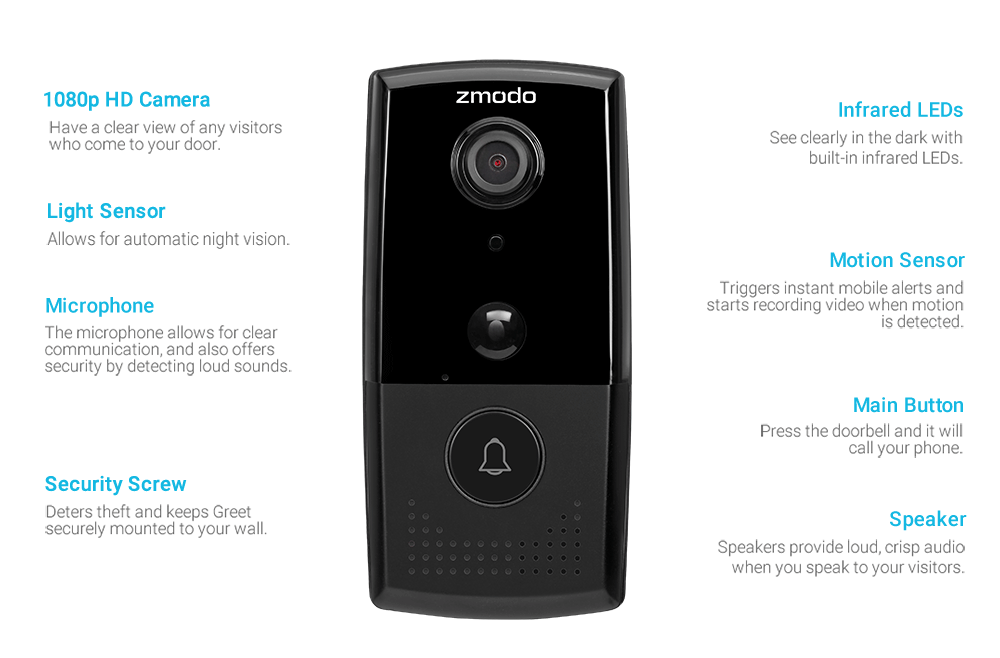
Your doorbell communicates exclusively through colored lights—ignoring these signals guarantees misdiagnosis. A solid blue LED means your unit has Wi-Fi connectivity but likely needs app re-enrollment, not QR code scanning. Flashing blue indicates normal setup readiness for initial configuration. When you see flashing green, your doorbell lost network configuration after a router reboot or outage and requires immediate reset. Complete LED darkness signals either a dead battery (Greet Pro) or power disruption (ZH-CJBGC). Never skip this visual diagnosis—each pattern dictates your next move.
Network Failures Cause 80% of Zmodo Doorbell Issues
Router changes trigger most “not working” emergencies. Your Zmodo doorbell only supports 2.4 GHz Wi-Fi networks—it will instantly disconnect if your router broadcasts a combined 5 GHz/2.4 GHz SSID. Password updates or ISP outages also force the device into flashing green setup mode. User error compounds the problem when you delete the offline device from the Zmodo app, wiping its network credentials permanently. Firmware corruption from power outages creates unresponsive units that ignore standard resets. Always rule out network issues before assuming hardware failure.
Power and Signal Quick Checks Before Resetting
Verify these three elements before attempting complex fixes. First, confirm 16-24V AC power at the ZH-CJBGC terminals using a multimeter—low voltage causes intermittent operation. For Greet Pro models, ensure the internal battery recharged after removal from the bracket. Second, stand at your door with your phone and verify strong 2.4 GHz signal strength (above -70 dBm). Third, open the Zmodo app to check if your device shows as offline or completely missing. If offline with solid blue LED, your router likely blocked the connection—check firewall settings before resetting.
Battery-Assisted Reset for Greet Pro Models
For Greet Pro doorbells with hidden internal batteries, follow this precise sequence:
1. Slide the unit upward off its wall bracket to disconnect power
2. Wait 15-20 minutes until green flashing stops and LED turns completely dark
3. Reinstall on bracket and wait for solid blue LED (confirms Wi-Fi reconnection)
4. Open Zmodo app → “Add Device” → select “Wireless Device and Smart Kit” (not QR scan)
5. Choose your doorbell from discovered devices and complete setup
Critical: Scanning QR codes when LED shows solid blue fails 100% of the time. The wireless discovery method bypasses this trap by detecting your already-connected device.
Factory Reset for ZH-CJBGC Models
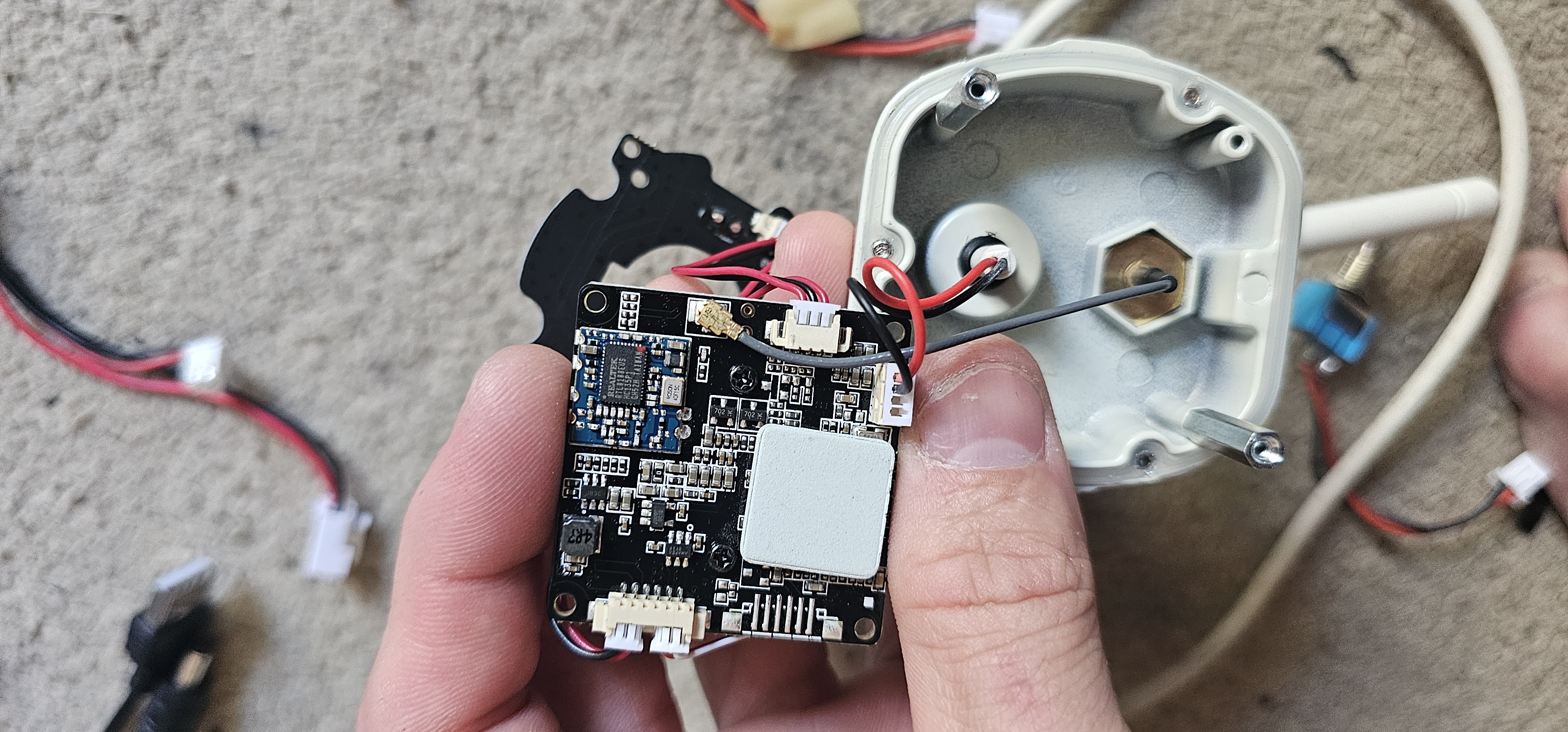
Older wired ZH-CJBGC units require physical reset:
1. Locate the recessed reset button on the rear panel
2. Press and hold with a paperclip for 10-15 seconds until LED flashes rapidly
3. Release immediately when color changes—holding longer damages firmware
4. Wait 60 seconds for full reboot (LED will cycle through colors)
5. Proceed with fresh setup using QR code scanning
Warning: This erases all motion zones, recorded clips, and device history permanently. Cloud subscriptions remain active but require re-linking.
Fix 2.4 GHz Wi-Fi Connection Failures
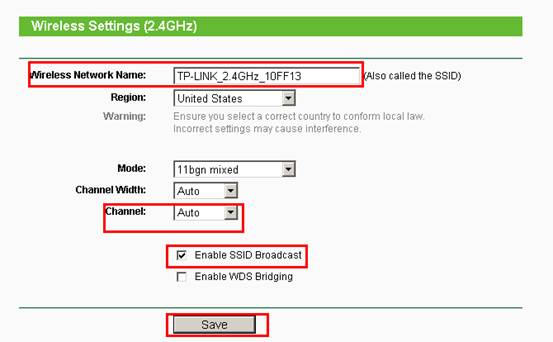
Your Zmodo doorbell physically cannot connect to 5 GHz networks—a common setup killer. Access your router settings to:
– Create a separate 2.4 GHz SSID if using a combined network name
– Temporarily disable 5 GHz broadcasting during doorbell setup
– Ensure WPA2 security (WPA3 causes handshake failures)
– Reduce channel width to 20 MHz on 2.4 GHz band for stability
If your phone struggles to scan the QR code:
– Increase screen brightness to 80%+
– Disable blue light filters and night mode
– Hold phone 6-8 inches from doorbell lens
– Clean both camera lenses with microfiber cloth
Router Fixes for Persistent Disconnections
When standard resets fail, tweak these router settings:
– Assign a static IP to your doorbell via DHCP reservation
– Disable MAC address filtering during setup and testing
– Move your router closer to the doorbell or install a Wi-Fi extender
– Check client isolation settings—enabled features block device communication
For solid blue LED with no video feed: Open your router’s client list to confirm the doorbell appears online. If listed but unresponsive, reboot your router to clear connection tables before attempting app re-enrollment.
Prevent Future Zmodo Doorbell Outages
Implement these weekly habits to avoid recurrence:
– Reboot your router every 14 days to clear stale connections
– Install Zmodo app updates immediately—delayed updates cause compatibility breaks
– Verify 2.4 GHz signal strength monthly using a Wi-Fi analyzer app
– Add surge protection to your doorbell transformer circuit
Pro Tip: Install a UPS for your router during storms or outages. Sudden power loss corrupts firmware—consistent power prevents 90% of “bricked” doorbell scenarios.
When to Call Zmodo Support Immediately
Contact Zmodo only when:
– LED remains dark after 30 minutes of confirmed power
– Factory reset triggers no LED response (dead hardware)
– Device connects but shows black video feed (sensor failure)
Prepare for efficient support:
1. Note exact model number (ZH-CJBGC or Greet Pro)
2. Document LED patterns with timestamps
3. Test using a temporary 2.4 GHz hotspot
4. Request senior technicians if first-line support misidentifies your model
Avoid sharing email/phone early—support often pushes unnecessary subscriptions during initial contact.
Zmodo Doorbell Troubleshooting Decision Tree
Doorbell Status Check

├── LED Flashing Green

│   └── Perform battery-assisted reset (Greet Pro) or factory reset (ZH-CJBGC)

├── LED Solid Blue

│   ├── Device missing from app

│   │   └── Use "Wireless Device" discovery in app (skip QR!)

│   └── Device in app but no video

│       └── Check router client list → reboot router

├── LED Flashing Blue

│   └── Complete QR code setup (ensure 2.4 GHz network)

└── LED Completely Off

    └── Verify 16-24V power → wait 30 seconds after reconnection
Critical Zmodo Doorbell Recovery Insights
Your Zmodo doorbell failure almost always stems from Wi-Fi configuration errors, not hardware defects. The flashing green LED is your most reliable diagnostic clue—it confirms network loss requiring re-pairing, not a broken device. Remember that solid blue means connected—forcing QR scans during this state wastes critical troubleshooting time. Most users restore functionality within 15 minutes by matching their LED pattern to the correct reset method. Bookmark this guide now; doorbell disconnections peak during router updates and vacation power outages when you’re least prepared to troubleshoot. Keep your 2.4 GHz network accessible and your phone’s brightness maxed during setup to avoid preventable failures.



