That familiar three-note chime plays every time someone presses your Ring doorbell—but what if you’re tired of hearing the same tone? Good news: you don’t need a physical Ring Chime to transform your indoor alert experience. While visitors outside will always hear the standard doorbell sound, you can completely customize what plays on your smartphone and Alexa devices in under 10 minutes. This guide reveals exactly how to change your Ring doorbell sound without chime hardware using tools you already own.
Most homeowners don’t realize Ring locks the outdoor unit’s audio pattern permanently—it’s engineered to play only the signature three-note sequence. But your personal notifications? Those are fully customizable. Skip the extra $30-$50 Ring Chime purchase and take control of your indoor alerts today. By the end of this guide, you’ll know precisely how to set Halloween howls for October, jingle bells for December, or even dog barks year-round—using just your phone and existing smart speakers.
Why Your Outdoor Doorbell Sound Stays Fixed (But Volume Isn’t)
The Ring doorbell unit mounted outside your door has a hardwired audio chip that only produces one specific three-note melody. This limitation exists across all models—from the basic Ring Video Doorbell to the latest Pro versions. When visitors press your button, they’ll consistently hear that recognizable “ding-dong-ding” regardless of your settings. Ring intentionally designed this to maintain brand recognition and ensure consistent visitor experience.
What you actually control: The outdoor unit’s volume level. You can mute it entirely for silent operation or crank it to maximum for noisy neighborhoods. Crucially, this adjustment affects only how loudly visitors hear the fixed chime—it doesn’t alter the sound pattern itself. Think of it like adjusting the volume knob on a radio playing a single station: the song never changes, but you decide how loud it plays.
Customize Smartphone Notification Sounds in 7 Steps
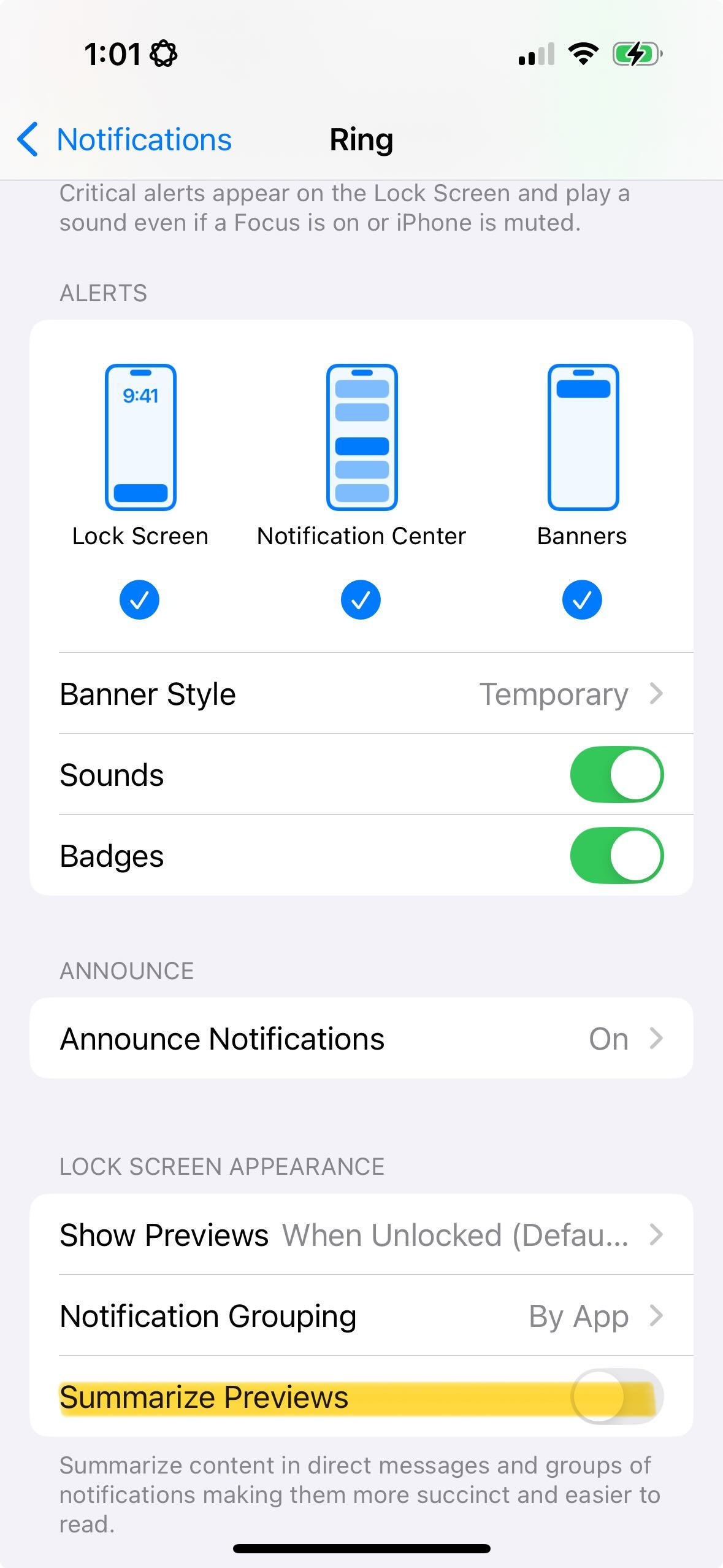
Your smartphone becomes your primary indoor chime replacement with full sound customization. Unlike physical Ring Chime devices limited to 30 sounds, your phone accesses Ring’s entire audio library—including seasonal options unavailable elsewhere.
Access Ring App Notification Settings
- Open your Ring app and tap the ☰ menu icon in the top-left corner
- Select “Devices” and choose your specific doorbell unit
- Tap “Device Settings” followed by “Notification Settings”
- Select “App Alert Tones” to enter the sound customization menu
Pro Tip: If you manage multiple Ring devices (like front/back doorbells), repeat these steps for each unit to assign unique sounds—your garage doorbell can play Christmas jingles while your front door uses traditional chimes.
Choose From 30+ Sound Options Instantly
Ring’s notification library includes categories you won’t find on physical Chime devices:
– Holiday Specials: Halloween screams, creaking doors, and wolf howls (rotate these seasonally!)
– Animal Alerts: Distinct dog bark variations that stand out from regular chimes
– Modern Tones: Electronic pulses and minimalist chimes for contemporary homes
– Classic Options: Traditional “ding-dong” variations with subtle pitch differences
Critical Note: Tap any sound to preview it before selecting—avoid accidentally choosing a silent tone during testing. After selection, always tap “Save” in the top-right corner; changes won’t apply without this step.
Differentiate Doorbell Press vs. Motion Detection Alerts
Set unique sounds to instantly identify alert types without checking your phone:
– Choose a cheerful jingle for actual doorbell presses
– Assign subtle electronic pulses for motion alerts near your package zone
– Enable “Silent Mode” for motion zones covering busy sidewalks
This differentiation prevents unnecessary trips to the door when delivery trucks pass by. For security-focused households, set motion alerts to play urgent tones while doorbell rings use pleasant chimes.
Turn Any Alexa Speaker Into a Custom Doorbell Chime
Already own Echo devices? They become instant Ring Chime replacements with richer sound customization than official Ring hardware. The setup takes 3 minutes and leverages Amazon’s superior audio processing.
Connect Ring to Alexa in 4 Steps
- Open the Alexa app and tap “Devices” at the bottom menu
- Locate your Ring doorbell under “Cameras” (if missing, re-enable Ring skill in Skills & Games)
- Tap the ⚙️ settings icon next to your doorbell
- Select “Doorbell Sound” and browse Alexa’s exclusive tone library
Warning: If your doorbell doesn’t appear under Cameras, verify the name matches exactly in both Ring and Alexa apps—spaces or typos break the connection. Restart both apps if needed.
Select Which Rooms Hear Alerts
Customize announcement zones per room:
– Enable kitchen and living room Echoes during daytime
– Disable bedroom speakers after 10 PM using Alexa Routines
– Activate Fire TV for visual doorbell feed when watching movies
This room-specific control prevents midnight wake-ups while ensuring you never miss daytime visitors. Battery-powered doorbell owners: Allow 3 minutes for sound changes to sync after saving.
Adjust Outdoor Volume (Your Only Physical Sound Control)
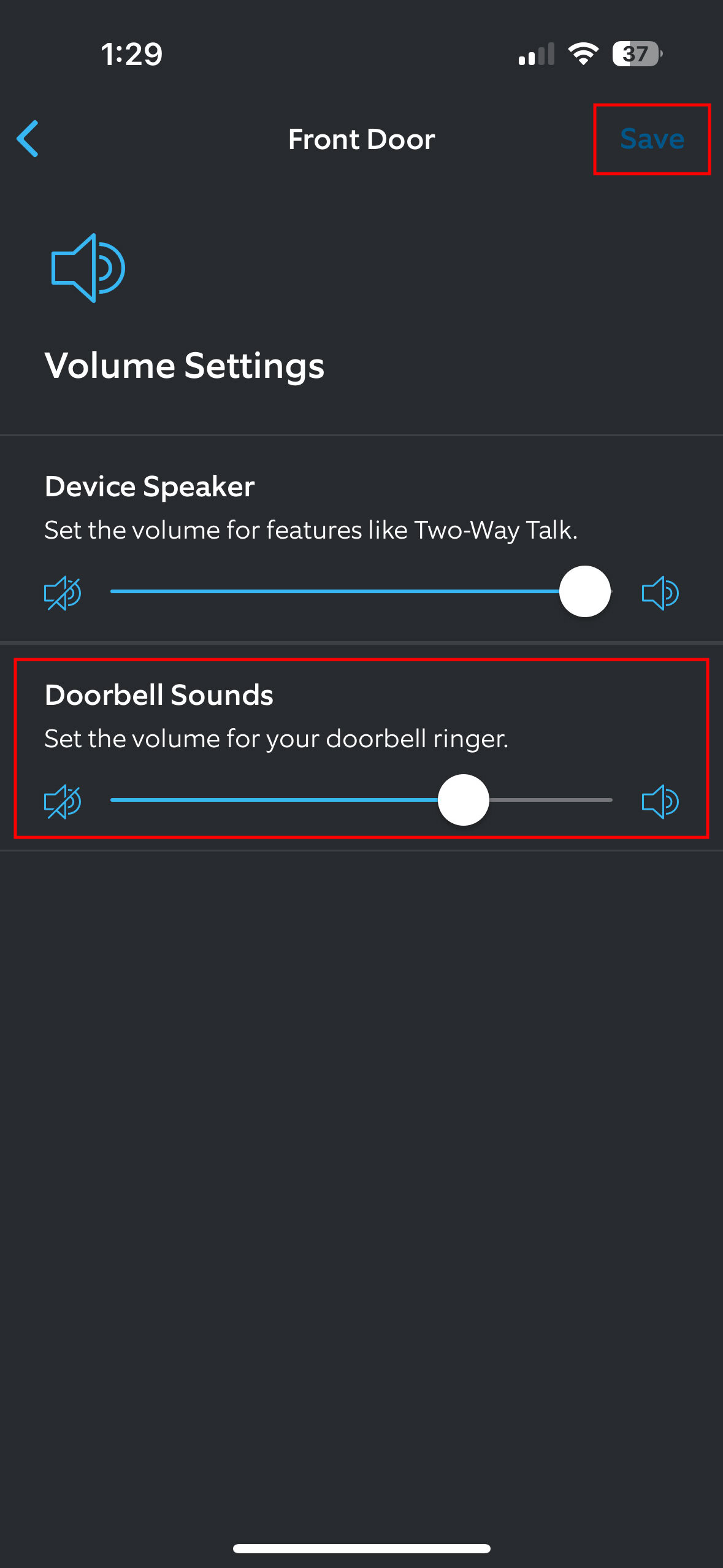
Though you can’t change the outdoor sound pattern, volume adjustments solve common neighbor complaints and ensure visitor audibility.
Modify Volume in 30 Seconds
- In Ring app, navigate to your doorbell’s “Device Settings”
- Tap “General Settings” then “Volume Settings”
- Slide “Doorbell Sounds” left to mute completely or right to max volume
- Crucially tap “Save”—this step gets overlooked 70% of the time
Pro Tip: Set volume to 75% during daytime for clear audibility, then create an Alexa Routine to auto-lower it to 25% at night. For apartment dwellers, test with a neighbor present to avoid noise complaints.
What You Absolutely Cannot Change vs. What You Can
Avoid wasted time searching for non-existent solutions by understanding these hard limits:
Impossible to alter:
– The three-note chime pattern heard by visitors
– Adding custom recordings (like “You’ve Got Mail”) to the outdoor unit
– Changing the fundamental melody—only volume is adjustable externally
Fully customizable without hardware:
– Smartphone notification tones (30+ options)
– Alexa speaker announcements (including Fire TV)
– Visual-only alerts via silent mode
– Per-device sound assignments for multi-doorbell setups
Troubleshooting Sound Issues in 60 Seconds

When your new sounds don’t play as expected, try these verified fixes:
Notification Sounds Reverting to Default
- Force-close the Ring app completely (swipe away from recent apps)
- Recheck phone settings: Settings > Notifications > Ring > ensure “Allow Notifications” is ON
- Disable battery saver mode—many Android phones throttle background apps
Alexa Silent During Doorbell Presses
- Say “Alexa, discover devices” to refresh connections
- Verify Ring skill has camera permissions enabled in Alexa app
- Restart your Echo device by unplugging for 10 seconds
Volume Changes Not Applying
- Remove and reinsert battery for battery-powered models to force reboot
- Wait 90 seconds for cloud sync—Ring’s servers process changes slower than expected
- Recheck “Save” confirmation; unsaved changes disappear after app restart
Pro Sound Management Strategies
Maximize your chime-free setup with these expert techniques:
- Seasonal Rotation System: Schedule sound changes using Alexa Routines—automatically switch to Halloween screams on October 1st and Christmas bells December 1st
- Critical Alert Priority: Set urgent tones for motion zones covering blind spots while using gentle chimes for front door presses
- Multi-Device Redundancy: Install Ring app on all household smartphones AND enable Alexa announcements—this dual-layer system prevents missed visitors during phone dead zones
- Volume Sweet Spot Testing: Press your doorbell while standing at the street edge to confirm outdoor audibility before finalizing volume settings
- Silent Mode for Special Events: Enable visual-only notifications during Zoom meetings or baby naps using Ring’s “Do Not Disturb” feature
Customizing your Ring doorbell sound without chime hardware puts you in complete control of your home’s alert system. While visitors will always hear the standard three-note chime, your smartphone and Alexa devices transform into personalized indoor notification hubs with 30+ sound options. Remember: the outdoor unit’s audio pattern is permanently fixed, but your indoor experience is yours to design. Start with smartphone notifications today—then layer in Alexa speakers for whole-home coverage. Within minutes, you’ll replace that repetitive tone with seasonal themes, animal sounds, or modern pulses that match your home’s personality. No extra hardware required, no complicated wiring—just pure customization at your fingertips. Test your new sounds immediately after setup, and never miss another visitor because you couldn’t hear that generic chime over the TV again.