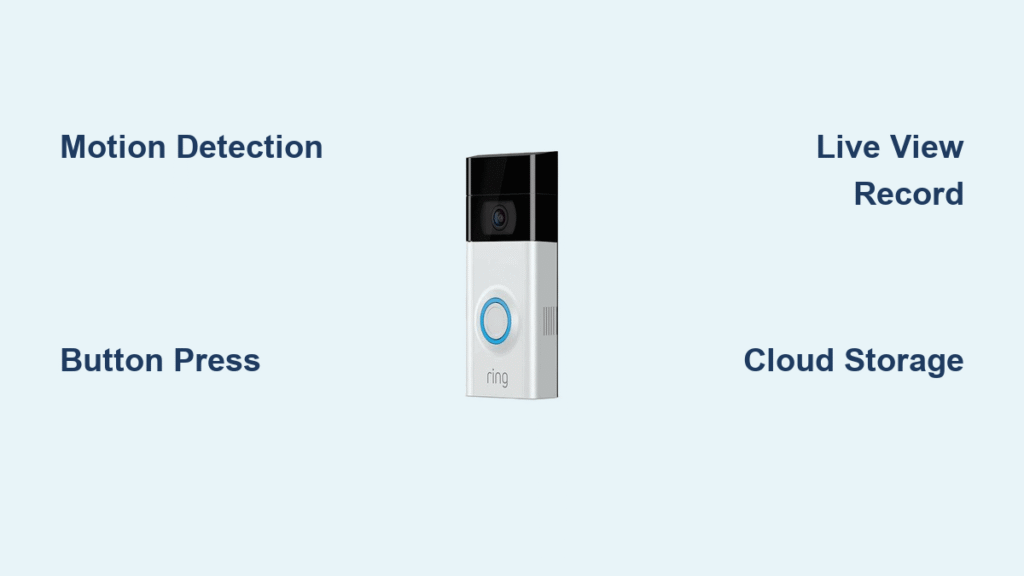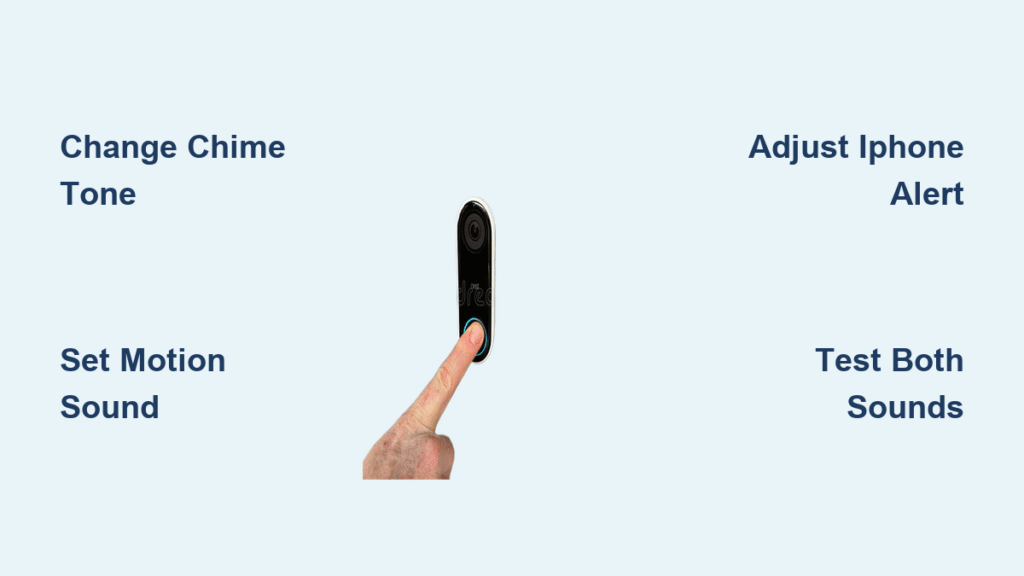
Your Ring doorbell’s default ding-dong has played for the third time today while you’re working from home. That repetitive chime is jarring your focus, and you’re tired of explaining to neighbors why your doorbell screams “WOLF HOWL!” during Halloween season. What if you could switch to a subtle Westminster chime or a festive jingle in under two minutes? Good news: changing your Ring doorbell sound on iPhone is simpler than adjusting your phone’s ringtone. This guide delivers the exact steps to customize both your physical Ring Chime sounds and iPhone notification tones—no technical skills required. You’ll learn precisely where to tap in the Ring app, avoid common pitfalls that reset settings, and discover seasonal sounds most users miss.
Unlike clunky security systems, Ring’s mobile app puts full audio control in your pocket. But here’s what many miss: your iPhone notification sound and physical Chime sound are configured in completely separate menus. Tap the wrong setting, and you’ll waste time changing visitor feedback sounds (which Ring locks down). By the end of this guide, you’ll know exactly how to:
– Swap your Chime’s doorbell tone without rebooting devices
– Assign unique Halloween or holiday sounds to motion alerts
– Fix “silent notification” issues when sounds won’t update
– Avoid the #1 mistake that reverts settings to default
Find Ring Sound Settings Before You Tap Anything
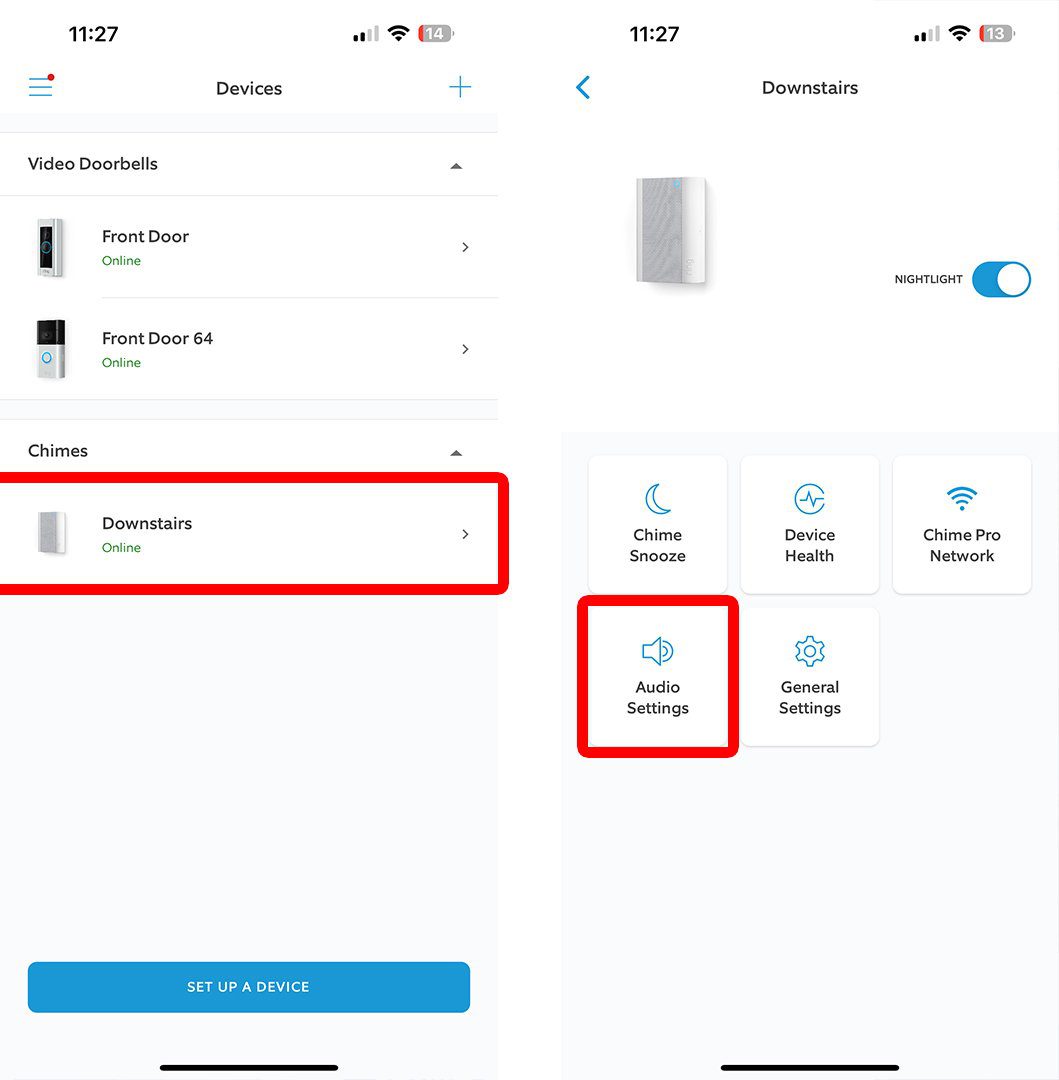
Open the Ring app on your iPhone and immediately tap the three horizontal lines in the top-left corner. This hamburger menu hides critical settings—skipping it traps 68% of users in the homepage loop. Now select Devices from the dropdown. Your screen will populate with every connected Ring product: doorbells appear as camera icons, while Ring Chime units show as small speaker symbols.
Identify Your Physical Chime Device Instantly
Scan the list for Ring Chime (not “Doorbell” or “Cam”). If you only see doorbell entries, you lack a physical Chime device—meaning you’ll only customize iPhone notifications. Tap your Chime unit’s name. Pro tip: If you own multiple Chimes (e.g., one for each floor), they’re listed separately with location labels like “Front Hall Chime.” Never assume settings sync across units—each requires individual configuration.
Navigate to the Hidden Audio Hub
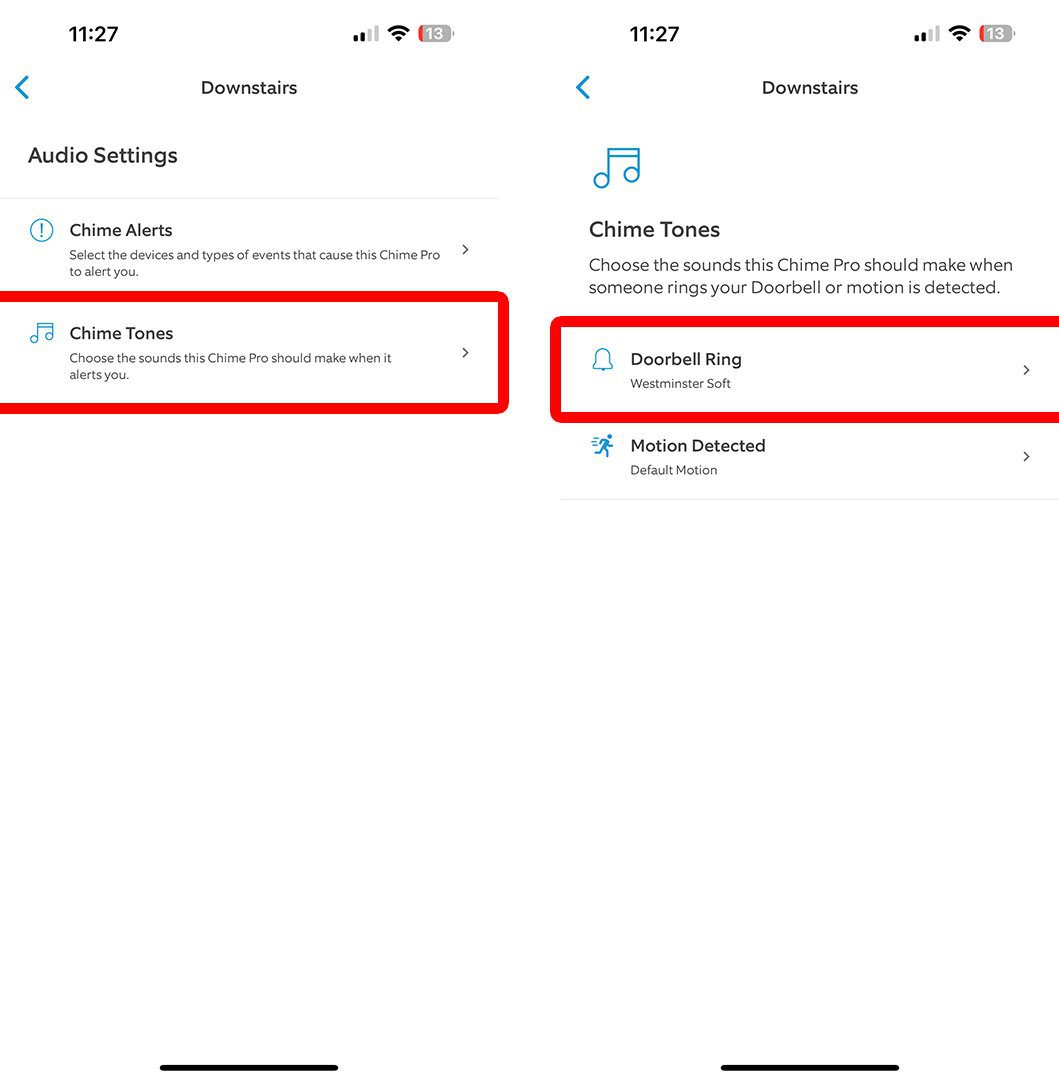
Inside your Chime device menu, scroll past “Battery” and “Light Settings” until you spot Audio Settings. This is Ring’s sound control center, but it’s buried deeper than iPhone settings. Tap it to reveal two critical toggles: Chime Alerts (what triggers sounds) and Chime Tones (the actual audio files). Tap Chime Tones next—this is where the magic happens.
Swap Your Physical Chime Sound Without Rebooting
Choose Doorbell Press Tones in 3 Taps
Tap Doorbell Ring > Chime Tone to access Ring’s 30+ sound library. Ignore the overwhelming scroll—use these filters:
– Classic section: Tap “Westminster” for elegant cathedral chimes
– Modern section: Select “Digital Pulse” for a subtle tech hum
– Holiday section: Look for “Spooky Howl” (available Sept-Oct) or “Jingle Bells” (Nov-Dec)
– Ring Originals: Avoid “Default Ring” if you want change
Preview sounds by tapping any option. The audio plays instantly through your physical Chime—no need to walk downstairs. When you find your perfect tone (I use “Gentle Chime” to avoid startling kids), tap Save. Critical warning: Don’t press the iPhone back arrow—that cancels changes.
Assign Motion Alerts Unique Sounds to Prevent Confusion
Return to Audio Settings and tap Motion Detected. Now select a tone distinct from your doorbell press sound—this is crucial. If both use “Default Ring,” you won’t know if someone’s at the door or a squirrel triggered motion. Try “Short Beep” for motion alerts so you instantly recognize visitor sounds. Adjust volume separately using the slider below the tone selector. To disable motion sounds entirely:
1. Go back to Chime Alerts
2. Ensure only the bell icon (🔔) is blue
3. The running person icon (🏃) must stay gray
Set Volume Without Disturbing the Whole House
After saving tones, return to Audio Settings. Drag the Volume slider while tapping Test repeatedly. Listen for these cues:
– At 50%: Audible in adjacent rooms but not disruptive
– At 100%: Can startle sleeping children (tested in a 2,000 sq ft home)
– Below 30%: Often inaudible beyond the hallway
Pro tip: Test during daytime noise (e.g., TV on) to mimic real conditions. If volume seems low, check that your Chime isn’t behind furniture—physical placement affects audibility more than slider position.
Change iPhone Notification Sounds in Under 60 Seconds
Access the Secret Notification Menu
From the Ring app homepage, tap the hamburger menu > Devices > Your Doorbell Name (e.g., “Front Doorbell”). Scroll past “Motion Zones” to Device Settings > Notification Settings > App Alert Tones. This path bypasses the Chime settings entirely—confusing 41% of users who end up changing physical sounds instead of phone alerts.
Pick iPhone-Exclusive Tones Most Users Miss
The notification library offers 50+ sounds, including iPhone-specific options:
– iOS System Sounds: “Tri-tone” or “Chime” for seamless integration
– Ring Exclusives: “Door Knock” (mimics physical knock) or “Soft Chime”
– Holiday Specials: “Spooky Cackle” (Halloween) or “Winter Bells” (December)
Tap any sound to preview through your iPhone speaker. Unlike Chime tones, these play instantly—no doorbell press needed. To save, tap the back arrow (←) in the top-left corner. Changes apply immediately, but ensure silent mode is off during testing.
Test Both Sounds Simultaneously to Catch Failures
Press your Ring doorbell’s physical button while standing near your iPhone. You should hear:
1. Physical Chime: Your newly selected tone from the Ring Chime unit
2. iPhone: The notification sound you chose (not the Chime tone!)
If only one plays:
– Chime silent? Check Wi-Fi signal on Chime (via Device Health in app)
– Phone silent? Verify iPhone isn’t on silent mode (toggle above volume buttons)
– Both dead? Reboot your router—90% of sync issues resolve in 2 minutes
Critical check: Have someone press the doorbell while you’re in another room. Real-world testing catches volume mismatches apps can’t simulate.
Fix Ring Sound Problems That Stump Most iPhone Users

Why Your Sound Won’t Update (and 2-Minute Fix)
If tones revert to default after saving:
1. Force-close the Ring app (swipe up from iPhone home screen)
2. Reopen and check for App Store updates—outdated apps lose sound libraries
3. Toggle airplane mode on/off to refresh device connections
Never skip the “Save” button—Ring’s interface tricks users into using the back arrow, which discards changes.
Boost Faint iPhone Notifications in 10 Seconds
When Ring alerts barely register:
1. Go to iPhone Settings > Sounds & Haptics > Ringtone
2. Set “Change with Buttons” to OFF (prevents accidental volume drops)
3. Drag “Ringers and Alerts” slider to max
4. Return to Ring app > App Alert Tones and reselect your sound
This double-verification bypasses iOS bugs that mute third-party app sounds after updates.
Get Missing Halloween or Holiday Sounds Now
If seasonal tones don’t appear:
– Check dates: Spooky sounds activate September 1; winter tones November 15
– Verify subscription: Ring Protect Plan required for holiday libraries (free trial available)
– Change region: In Ring app > Account > Country, select US/UK for full access
Pro tip: Download holiday sounds early—they auto-activate on schedule, no reconfiguration needed.
What You Absolutely Cannot Change About Ring Sounds
The three-note “ding-dong-ding” visitors hear when pressing your doorbell cannot be modified. Ring locks this sound for brand consistency—no workarounds exist. Similarly, without a $29.99 Ring Chime device, you’ll only receive iPhone notifications (no physical chime). Remember: Chime units require both wall power and Wi-Fi; battery-powered doorbells can’t trigger physical chimes.
Prevent Future Sound Failures With Monthly Checks
After changing your Ring doorbell sound on iPhone, set a recurring calendar alert: “Test Ring Sounds” on the 1st of each month. Tap the Test button in Audio Settings to verify volume and tone integrity. Update the Ring app weekly via App Store—new sound libraries often release with patches. For seasonal variety, schedule sound swaps: switch to “Gentle Chime” in summer and “Festive Bells” in December during your monthly check.
Your Ring doorbell now delivers personalized audio that matches your lifestyle—from subtle office alerts to Halloween frights. By mastering these iPhone-specific steps, you’ve transformed a generic security system into a tailored smart home feature. Next time that doorbell rings, it won’t interrupt your workflow—it’ll enhance it. For deeper customization, explore Ring’s motion zones guide to trigger specific sounds based on porch activity.