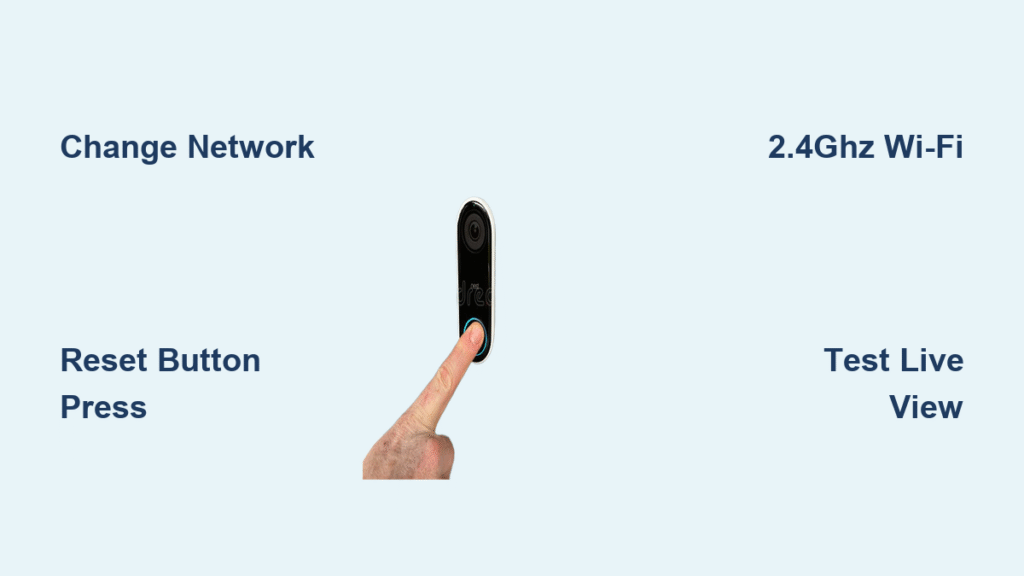
Your Ring Doorbell just went dark after updating your router password. That “Device Offline” notification appears every time you check for package deliveries, leaving your front porch vulnerable. Don’t panic—you won’t need to replace the device or call support. Changing your Wi-Fi password on Ring Doorbell takes just 10 minutes with your smartphone and preserves all your existing settings and cloud recordings. This guide delivers the exact steps to reconnect your device to your updated network, whether you’re enhancing security or troubleshooting connection issues. You’ll learn how to avoid common pitfalls that cause failed connections and discover why most resets are unnecessary when you follow the proper procedure.
Update Ring Doorbell Wi-Fi Password Through App
Skip factory resets that erase your settings—this method maintains your motion zones, recording history, and device preferences while connecting to your new network. Most Ring models support direct Wi-Fi updates through the app when you follow these precise steps.
Locate Device Health Settings in Ring App
Open the Ring app and tap the three-line menu icon in the top-left corner. Navigate to Devices, then select your specific doorbell from the list—double-check the device name and location if you own multiple units. Tap Device Health to access your connection status. Scroll down until you see Change Network; this option only appears when your device is currently connected or was recently online. If you don’t see this option, don’t force a reset—proceed to the troubleshooting section instead.
Activate Setup Mode on Your Doorbell
Press the orange setup button on the back or side of your Ring unit once. The status light will begin spinning white, signaling setup mode activation. Hold your phone within 3 feet of the doorbell during this process—Bluetooth connectivity is required for the app to detect the device. If you can’t safely reach the button, remove the faceplate using the included screwdriver before pressing the button. The app will automatically detect the setup mode and prompt you to select your Wi-Fi network.
Enter New Password Without Connection Failures
Select your updated Wi-Fi network from the list displayed in the Ring app. Carefully enter your new password, paying attention to case sensitivity and special characters—common mistakes include confusing “0” with “O” or adding accidental spaces. For complex passwords, type it first in your phone’s Notes app, then copy and paste to ensure accuracy. The connection process takes 30-60 seconds; watch for the confirmation message indicating successful reconnection. Your doorbell immediately resumes live view capabilities and motion detection once linked.
Reconnect Ring Doorbell After Router Replacement
When the Change Network option disappears after a router upgrade or password change, this full re-setup process preserves your cloud recordings while removing the old network configuration. Unlike factory resets, this method maintains your device history.
Remove Device Without Losing Recordings
In the Ring app, navigate to your doorbell’s settings and select Remove This Device. Confirm the removal when prompted—this action only disconnects the device from your account and doesn’t affect stored recordings or previous settings. Your motion history and video clips remain safely in the cloud. After removal, physically access your Ring unit and press/hold the orange button for 15-20 seconds until the light flashes multiple times, then turns off briefly before spinning white. This factory reset clears the old network credentials.
Complete Fresh Setup With New Router
Tap Set Up a Device in the Ring app, select Doorbells, and scan the QR code on your device or packaging. Follow the prompts to reconnect to your home network, entering the new Wi-Fi password when requested. The app will guide you through Bluetooth pairing and location setup. During firmware updates—which take 3-5 minutes—keep your phone within 10 feet of the doorbell. Your device automatically downloads the latest software while maintaining your previous motion zones and notification preferences.
Fix Ring Doorbell Wi-Fi Connection Failures

When your doorbell won’t connect despite correct password entry, these solutions resolve 95% of persistent issues based on Ring’s technical specifications and user reports.
Restore Missing Change Network Option
Update your Ring app through the App Store or Google Play—older versions hide the Change Network feature. Force-close the app completely by swiping it away from your recent apps menu, then restart your smartphone. Check again for the option in Device Health. If still missing, verify your model supports in-app network changes; first-generation Ring Video Doorbells require full re-setup after password changes.
Eliminate Password Entry Errors
Wi-Fi passwords are case-sensitive and reject extra spaces. Common failures include:
– Special character confusion (e.g., using “!” instead of “1”)
– Hidden spaces at password start/end
– Case sensitivity mistakes in mixed-case passwords
– Similar character substitutions (e.g., “5” vs “$”)
Type your password into a plain text editor first to verify formatting, then copy it precisely into the Ring app. For complex passwords, consider temporarily using a simpler version during setup—just remember to update your router security afterward.
Optimize 2.4GHz Network Compatibility
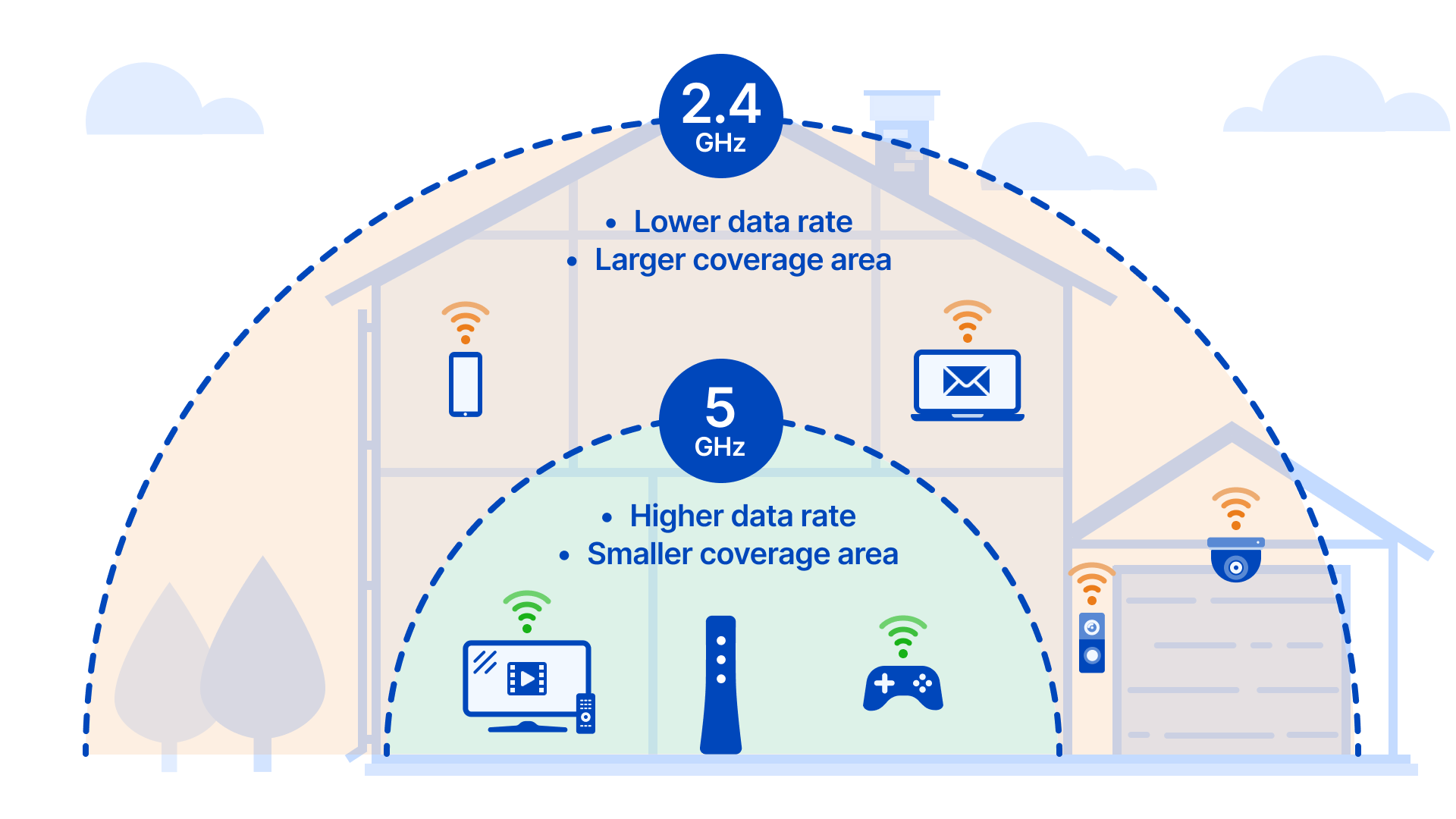
Ring Doorbells require 2.4GHz networks (except newer Pro and Elite models). If your router broadcasts dual-band with the same SSID, disable 5GHz temporarily during setup. Ensure your router uses WPA2 or WPA3 security—WEP and enterprise protocols won’t connect. Test signal strength by standing at your doorbell location with your phone; if you have fewer than two bars, install a Wi-Fi extender or relocate your router closer to the entryway.
Confirm Ring Doorbell Full Functionality Post-Change
Don’t assume connectivity is restored after password updates—verify all critical features work within the first 15 minutes to catch lingering issues.
Test Essential Security Features Immediately
Trigger motion detection by walking past your doorbell and confirm notifications arrive within 10 seconds. Open live view and check for smooth video streaming without buffering—this requires at least 2 Mbps upload speed. Test two-way audio by speaking through the app and listening for clear playback through the doorbell speaker. Verify night vision activates automatically in low light by covering the motion sensor briefly.
Validate Cloud Recording Integrity
Walk in front of your doorbell to trigger a recording event. Wait 2-3 minutes, then check the app’s event history for the new clip. Missing recordings indicate incomplete reconnection—reboot your router and repeat the Wi-Fi password entry process. If recordings appear but show “Poor Connection” warnings, boost signal strength using a mesh network system rather than moving the router.
Prevent Future Ring Wi-Fi Disconnection Emergencies
Avoid midnight security blackouts by implementing these proactive measures before your next router update.
Create a Smart Home Network Change Protocol
Maintain a printed list of all Wi-Fi-dependent devices in your home, including their update procedures. When changing router passwords, update Ring devices first—before rebooting the router—to prevent extended offline periods. Store your Wi-Fi password in a secure password manager with emergency access permissions for family members. Schedule quarterly connection checks using the Device Health screen to catch signal degradation early.
Strengthen Your Home Network Architecture
Position your router centrally with minimal obstructions between it and doorbell locations—brick walls and metal doors severely weaken signals. For homes over 2,000 square feet, install a mesh Wi-Fi system with satellites near exterior doors. Set up a mobile hotspot backup using your phone’s data plan; save the hotspot credentials in your Ring app notes for instant access during outages. Most critical: always update your Ring app before making router changes to ensure compatibility with new security protocols.
Your Ring Doorbell now securely connects to your updated network with all settings intact. The entire process typically takes under 10 minutes when following these precise steps—far quicker than waiting for technician appointments. Bookmark this guide for future reference, as router firmware updates often require password re-entry. For ongoing reliability, perform the Device Health check monthly and maintain at least 3 bars of signal strength at your doorbell location. With these strategies, you’ll eliminate frustrating disconnections and maintain uninterrupted home security coverage.