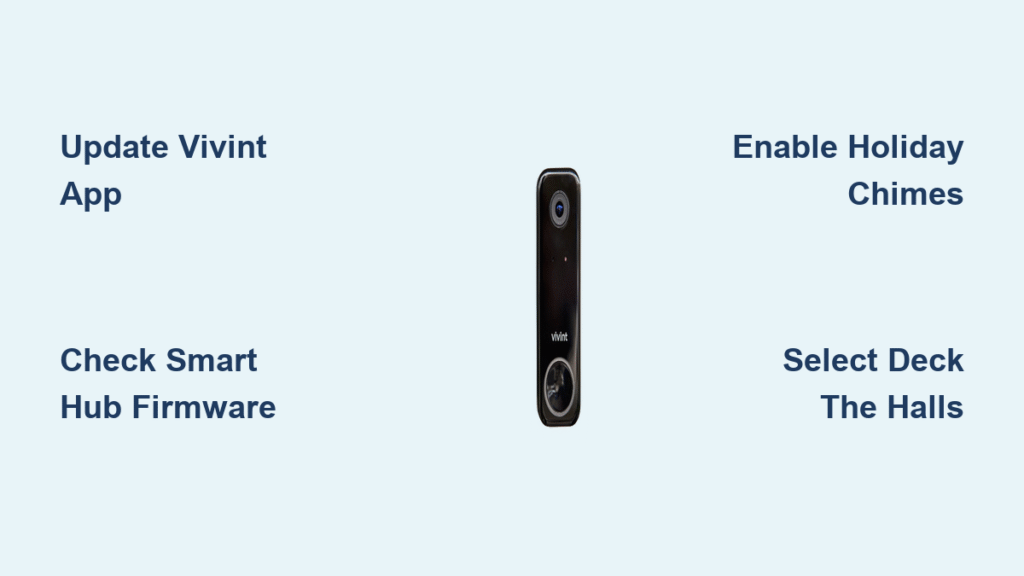
Your doorbell rings with an unexpected melody instead of the familiar chime—it’s not broken, it’s customized. Many Vivint users discover they can transform their standard doorbell experience with seasonal sounds, but struggle to find the right settings. If you’ve ever wondered how to change Vivint doorbell sound to something more festive or personalized, you’re not alone. This guide reveals exactly how to access and change your Vivint doorbell sound using the mobile app, what hardware you need to qualify, and how to troubleshoot when the holiday options don’t appear as expected. By the end, you’ll know precisely when and how to switch between standard and holiday chimes on your Doorbell Camera Pro.
Access Holiday Chimes Feature on Your Doorbell Camera Pro
Vivint’s seasonal sound feature turns your security device into a holiday ambassador during the festive season. The Holiday Chimes option becomes active annually from December 1 through January 2, giving you exactly 32 days to enjoy special seasonal audio. During this limited window, your Doorbell Camera Pro transforms from a security tool into a cheerful greeting station that announces visitors with holiday spirit.
To unlock this feature, your system must include:
– Doorbell Camera Pro (standard doorbell cameras don’t support sound customization)
– Vivint mobile app updated to the latest version
– Smart Hub running current firmware
– Full integration with your Vivint security system
Unlike permanent sound changes, the holiday feature offers only one selection during the 2024-2025 season: “Deck the Halls.” When activated, this cheerful tune replaces your standard doorbell sound for all visitors, creating a warm welcome that matches the season’s spirit. The feature automatically deactivates after January 2, so you don’t need to remember to switch back—your doorbell returns to its regular chime without any additional action on your part.
Check Your System Compatibility Before Changing Sounds

Many users waste time searching for sound options that won’t appear on incompatible systems. Avoid this frustration by verifying your setup meets all requirements before diving into the app settings. The most common reason for missing holiday chime options is having the wrong doorbell model or an outdated system configuration.
Required Hardware Specifications
Your physical equipment must meet specific criteria to access sound customization. The Doorbell Camera Pro is the only Vivint doorbell model that supports holiday chimes—standard doorbell cameras lack this functionality entirely. Additionally, your unit must be fully integrated with your Vivint security system, not operating as a standalone device. Systems relying solely on cellular connection without Wi-Fi capability cannot access holiday sound features due to bandwidth requirements for audio streaming.
Software and Service Requirements
Your digital environment needs equal attention to hardware. The Vivint mobile app must be updated to the latest version available in your device’s app store—older versions won’t display the holiday chime option even during the active period. Similarly, your Smart Hub firmware requires the most recent update, as previous versions lack the necessary programming for seasonal features. Finally, you must maintain an active Vivint service plan that includes camera functionality; discontinued or limited service plans restrict access to advanced features.
Quick compatibility test: Open your Vivint app, tap Cameras, then select your doorbell. If you see a Holiday Chimes option during December or January, you’re good to go. If not, check for app updates or contact Vivint support at 855.822.1220 for system verification.
Change Vivint Doorbell Sound Using the Mobile App
When the holiday season arrives, updating your doorbell sound takes less than a minute through the Vivint mobile app. This process works consistently across iOS and Android devices as long as your system meets the compatibility requirements outlined earlier.
Open Camera Settings in Vivint App
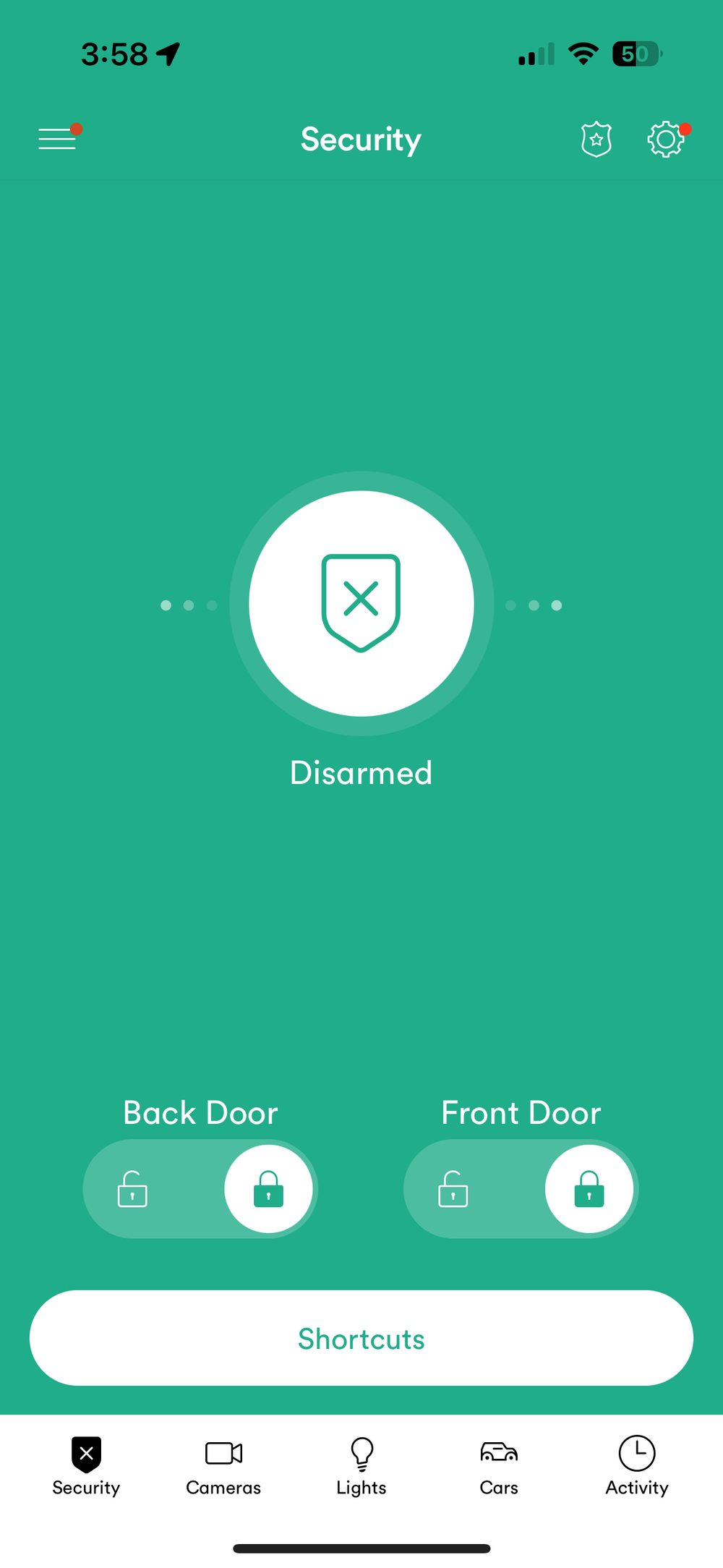
Launch the Vivint application on your smartphone or tablet—ensure you’re logged into the account connected to your security system. At the bottom navigation bar, tap the Cameras icon (it looks like a video camera). This displays all surveillance devices connected to your Vivint system in a scrollable list. If you don’t see this option, your app needs updating or your account lacks camera permissions.
Select Your Doorbell Camera Pro
Carefully scroll through your camera list until you locate Doorbell Camera Pro. This specific naming is crucial—standard doorbell cameras appear as “Doorbell Camera” without the “Pro” designation and won’t support sound changes. Tap directly on this entry to access its unique settings menu. The app may take a few seconds to load your doorbell’s live feed before showing configuration options.
Navigate to Sound Customization Menu
With your Doorbell Camera Pro selected, look for Holiday Chimes in the settings menu—this option only appears during the active holiday period (December 1-January 2). If you’re attempting this outside the seasonal window, the feature won’t be visible regardless of your system compatibility. The menu location may vary slightly between app versions but typically appears under sound settings or device customization sections.
Activate Your Preferred Holiday Chime
When you find the Holiday Chimes option, tap it to view available selections. For the 2024 season, you’ll see Deck the Halls as your only choice. Before committing, the app provides a preview button—tap this to hear a 3-second sample of how the chime will sound to visitors. This prevents accidental selection of a tune you might dislike when heard at full volume through your actual doorbell speaker.
Save and Confirm Your New Doorbell Sound
After previewing and confirming your choice, tap the Save Changes button (sometimes labeled “Apply” or “Confirm”). The app processes your selection instantly—you’ll see a confirmation message once the update completes. Your doorbell now plays the holiday chime for all subsequent rings. No reboot or manual activation is required; the change takes effect immediately across your entire Vivint ecosystem.
Troubleshoot Missing Holiday Options in Vivint App
If you can’t find the Holiday Chimes feature during the active season, don’t panic—several common issues prevent the option from appearing, most easily resolved with these steps.
Update Your Vivint Mobile Application
Outdated apps are the #1 reason for missing features. Visit your device’s app store (Apple App Store or Google Play Store), search for “Vivint,” and check if an update is available. Install any pending updates, then restart the app completely before checking for Holiday Chimes again. Many users skip this simple step and assume their system is incompatible when it’s merely running obsolete software.
Verify and Update Smart Hub Firmware
Your Smart Hub acts as the brain of your Vivint system—without current firmware, new features remain inaccessible. Physically access your Smart Hub panel, navigate to Settings > System > Check for Updates, and install any available firmware. The process typically takes 5-10 minutes with temporary system disruption. After completion, return to the Vivint app to check if Holiday Chimes now appears in your doorbell settings.
Revert to Standard Doorbell Sound After Holidays
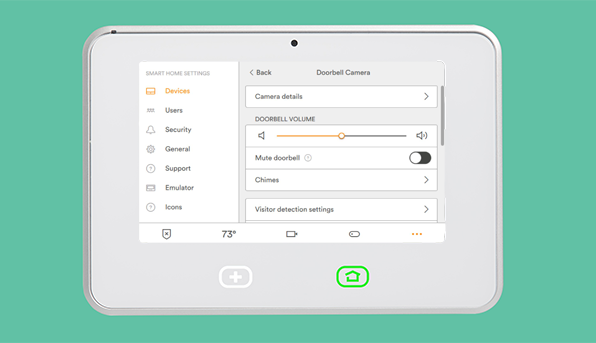
When January 3 arrives, your Doorbell Camera Pro automatically switches back to the standard chime—no action required. However, if you prefer to return to normal sounds before the automatic reset:
Access Holiday Settings Early
Navigate to Cameras > Doorbell Camera Pro > Holiday Chimes in your Vivint app. Even outside the official holiday period, this menu remains accessible if you previously activated seasonal sounds.
Select Default Sound Option
Choose Standard Chime from the available selections. The app may display this as “Default Sound” or “Original Chime” depending on your firmware version. Tap to select this option, which immediately prepares your system to revert.
Confirm Your Return to Regular Operation
Tap Save Changes to finalize the switch. Your doorbell stops playing holiday music instantly—test it by pressing the doorbell button to confirm the standard chime has returned. This manual reset is useful if you grow tired of seasonal sounds before January 2.
Prevent Common Vivint Doorbell Sound Mistakes
Don’t search for holiday options outside December 1-January 2—the feature is completely hidden in the app during off-season months. Vivint intentionally restricts access to prevent confusion about unavailable features.
Avoid attempting sound changes on incompatible systems—standalone Doorbell Camera Pros and cellular-only setups fundamentally lack this capability. Contact Vivint support at 855.822.1220 to discuss integration options if your system doesn’t qualify.
Remember that holiday chimes are temporary by design—your doorbell automatically reverts to standard sound after January 2 regardless of your manual settings. This prevents accidentally leaving festive sounds active during non-holiday months.
Maximize Your Doorbell Camera Pro Beyond Sound Features
While seasonal chimes add fun variety, your Doorbell Camera Pro offers year-round security benefits worth exploring:
- Smart Deter Technology actively discourages package thieves with warning lights
- Two-way audio lets you communicate with visitors even when away from home
- Motion detection zones allow precise alert customization for different areas
- Night vision clarity maintains security monitoring in complete darkness
- Mobile notifications deliver instant visitor alerts to your smartphone
Pro tip: Bookmark your doorbell camera settings now for quick access when December arrives. The seasonal feature activates automatically—you’ll just need to make your sound selection within the 32-day window.
When you know how to change Vivint doorbell sound properly, you transform a simple security device into a personalized welcome system. By verifying compatibility first, navigating the app correctly, and understanding the seasonal limitations, you’ll enjoy holiday cheer through your doorbell without technical frustrations. Remember that these sound options represent just one aspect of your Doorbell Camera Pro’s capabilities—explore its full feature set for comprehensive home security that works year-round.