Your SkyBell doorbell powers on but stays offline, leaving you with a silent button instead of live video alerts. Without a stable Wi-Fi connection, you’ll miss deliveries, ignore strangers at your door, and lose security coverage—especially if you own the SkyBell HD (round model) or Slim Line (sleek model). This guide cuts through the confusion with precise steps verified by Brinks Home documentation. You’ll learn exactly how to force AP mode, avoid password pitfalls, and interpret LED signals to get your doorbell streaming within minutes. No more guessing why it won’t connect to your network.
Confirm Power Supply and Network Readiness Before Setup
Skipping these checks causes 80% of failed SkyBell installations. Your doorbell needs rock-solid power and signal strength at the mounting location—not just near your router.
Test voltage with a multimeter:
– SkyBell HD/Slim Line require 16–24 VAC (10 VA minimum) or 12 VDC (0.5–1 A).
– If voltage dips below 16V under load, replace the transformer. Weak power triggers random reboots during Wi-Fi pairing.
– Pro tip: For battery-powered Slim Line models, ensure the built-in battery is charged (flashing red/blue LED) before starting.
Verify real-world network conditions:
1. Stand at your door with your phone and run a Speedtest.net test.
2. Upload speed must hit 2+ Mbps—streaming video fails below this threshold.
3. Use the Brinks Home app’s signal test: Go to Video > Settings > Signal Strength.
– Critical: Signal must read 70%+ during setup. Thick stucco walls, metal doors, or garage placement often drop signals below 40%, blocking connection.
– Fix now: Move your router closer or add a Wi-Fi extender before attempting setup.
Force SkyBell into AP Mode (The Red/Green Flash Secret)
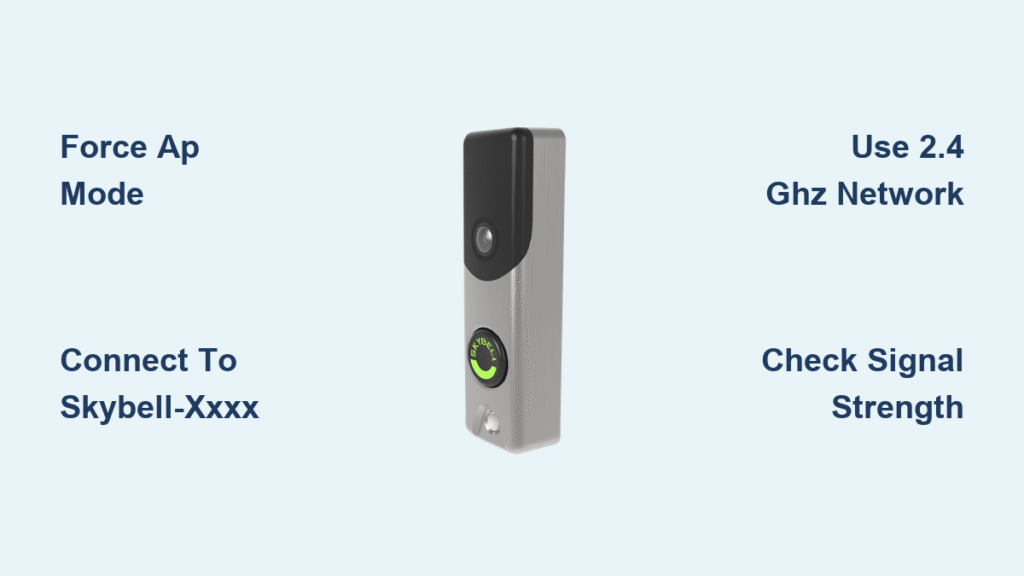
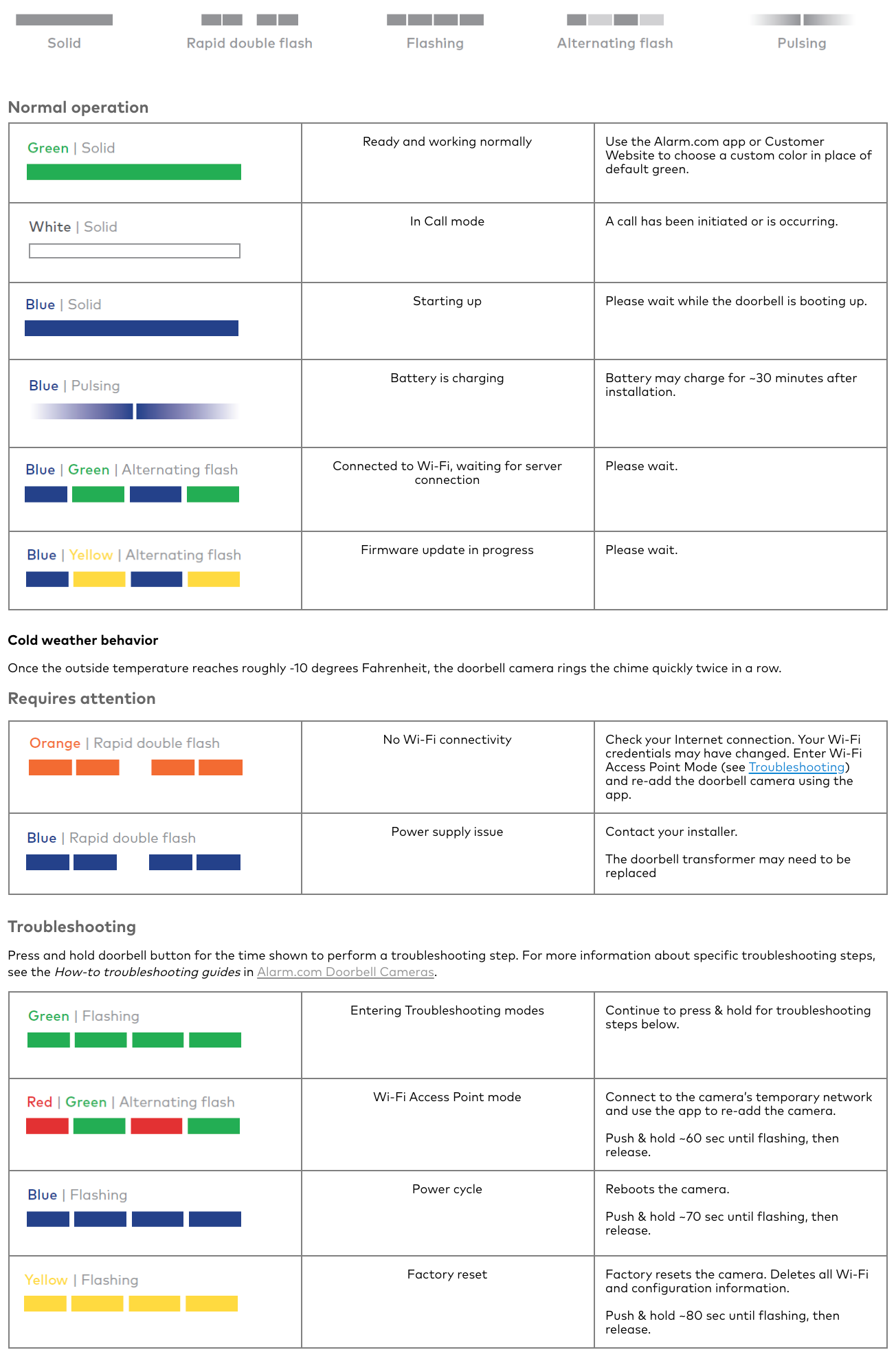
Your doorbell only accepts Wi-Fi credentials when broadcasting its temporary SkyBell-XXXX network. This happens automatically only if the LED alternates red and green. If you don’t see this pattern, you’re wasting time in the app.
Trigger AP mode manually:
1. Press and hold the doorbell button until the LED cycles:
– Green → Red/Green → Blue → Yellow
2. Release exactly when yellow flashes (not blue!).
3. Wait 10 seconds for red/green alternation to confirm AP mode.
Why this fails: Releasing too early (on blue) triggers a soft reset—keeping old Wi-Fi settings. Releasing too late (past yellow) cancels the process. Hold 12–15 seconds total for reliable results.
Connect via Brinks Home App Without Password Errors
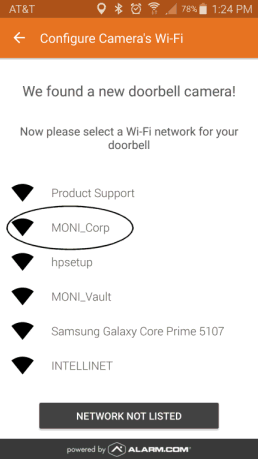
Most users fail at Step 4 by skipping a critical phone setting switch. Follow this sequence exactly:
- Open Brinks Home app > Tap Video > Settings (gear) > Add Device.
- Select Connect via Wi-Fi.
- Immediately jump to your phone’s Wi-Fi settings (swipe down from top screen).
- Connect to SkyBell-XXXX—ignore your home network temporarily.
- Return to Brinks Home app. Select only your 2.4 GHz network (SkyBell HD only supports 2.4 GHz; Slim Line supports both but 2.4 GHz is more reliable for setup).
- Type your Wi-Fi password slowly. Special characters like
@,$, or spaces are case-sensitive. If your password isMy$ecure Home!, typingmysecurehomefails. - Stay within 10 feet of the doorbell until the LED turns solid green.
Watch the LED like a hawk:
– Blinking yellow/blue = Connecting (takes 30–90 seconds)
– Solid green = Success!
– Solid red = Power issue—recheck voltage
– Never force the app to “Skip” this step—you’ll get stuck in limbo.
Decode Signal Strength Readings to Prevent Dropouts
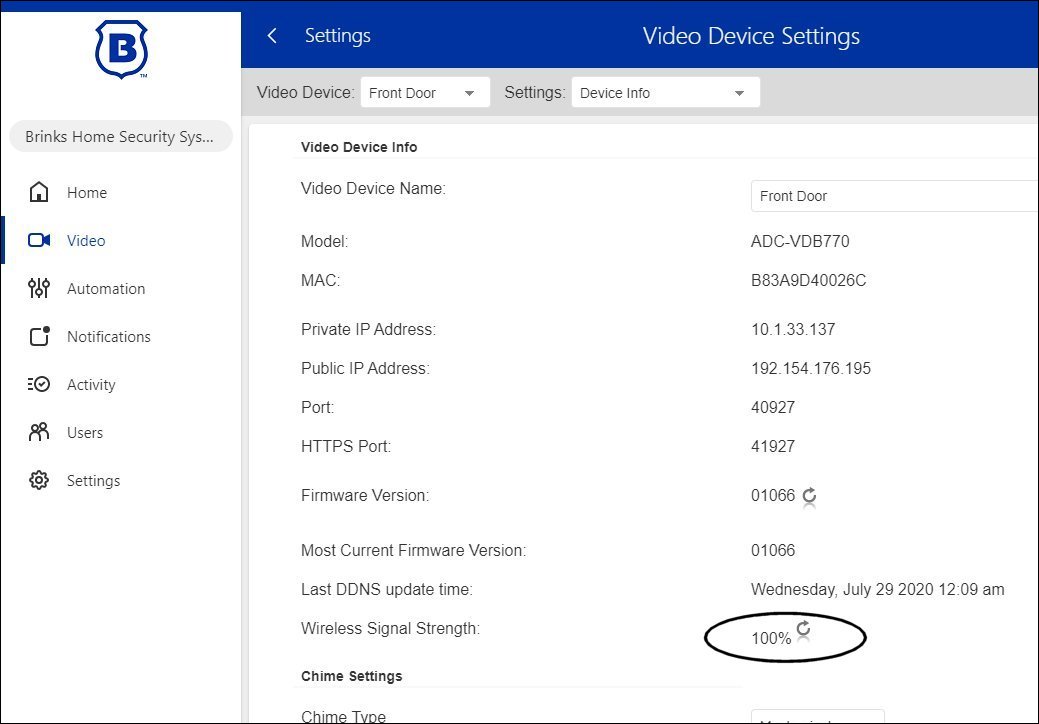
A “successful” connection often dies hours later due to weak signal. Don’t assume solid green means perfect operation.
Check true signal health:
1. In Brinks Home app, go to Video > Settings (next to doorbell).
2. Scroll to Signal Strength (%) and act immediately:
– 80–100%: Rock-solid. No action needed.
– 60–79%: Monitor for video lag. Move router 5–10 feet closer.
– 40–59%: Expect missed alerts. Add a Wi-Fi extender like TP-Link RE220.
– 0–39%: Do not proceed. Signal is unusable—relocate router or install extender now.
Critical test: Run this check at night when other devices strain your network. Many routers throttle 2.4 GHz during peak hours, dropping your doorbell offline.
Factory Reset Only When Absolutely Necessary
Resets erase settings and require re-registration with Brinks Home Support—don’t do this unless essential. Use the correct method for your issue:
When to Soft Reset (Keeps Wi-Fi Settings)
- Doorbell unresponsive but previously connected
- Steps: Hold button until blue LED flashes, then release. Reboots in 20 seconds.
When to Factory Reset (Full Wipe)
- Only for persistent connection failures after trying all fixes
- Steps:
1. Hold button until yellow LED flashes, then release.
2. Wait for red/green alternation (AP mode).
3. After reconnecting in app, contact Brinks Home Support immediately.
4. Critical: Without re-registration, cloud recording and alerts will not work.
Never skip step 4—this is why “reset” fixes often fail.
Troubleshoot 5 SkyBell Wi-Fi Failures That Stump Most Users
| Symptom | Real Cause | 2-Minute Fix |
|---|---|---|
| “Password incorrect” error | Hidden space after password | Delete password field completely; retype slowly |
| Stuck on yellow/blue blink | Physical obstruction (metal door, brick wall) | Temporarily hold phone 6 inches from doorbell during setup |
| Can’t see SkyBell-XXXX network | Phone auto-joins home Wi-Fi | Disable “Auto-Join Hotspots” in phone Wi-Fi settings |
| Solid red LED after wiring | Voltage below 16V AC | Replace transformer with 24V 30VA model |
| App times out during setup | Router blocking multicast traffic | Reboot router before retrying |
Still stuck? Power-cycle your breaker for 10 full seconds—not 5. This resets the doorbell’s internal capacitor.
Desktop Setup Backup When Your Phone Fails
Use this if mobile app glitches occur (common on iOS 17+):
- Log in to Alarm.com on Chrome/Firefox.
- Go to Video > Settings > Add Device.
- Scan the QR code on the doorbell’s back or enter the serial number.
- Name the device and save.
- Grab any phone/tablet: Connect to SkyBell-XXXX > Return to Brinks Home app > Enter Wi-Fi password.
Key insight: The desktop portal only registers the device—it cannot handle Wi-Fi handoff. You must use a mobile device for the final step.
Optimize SkyBell After Connection to Prevent Future Issues
Don’t stop at “solid green.” These tweaks prevent 90% of recurring problems:
- Firmware updates: In Alarm.com desktop portal, go to Video > Settings > Check Firmware. Update monthly.
- Motion zone tuning: Reduce false alerts by shrinking detection areas in Video Settings > Motion Zones.
- VLAN setup: Place SkyBell on a guest network—but enable DHCP and internet access. Blocking multicast traffic kills connectivity.
- Nighttime signal test: Run Speedtest at 9 PM to catch bandwidth throttling.
Your SkyBell is now fully operational—streaming video, sending alerts, and recording motion events. If signal strength drops below 60% later, revisit the extender placement. For persistent issues, contact Brinks Home Support with your doorbell’s serial number—they can push remote diagnostics. Now go answer your door from anywhere, confident your connection won’t drop when it matters most.