
Your Hikvision Doorbell 6003 worked flawlessly during installation, but now visitors press the button and your Samsung S8 stays silent. This frustrating scenario affects countless users who rely on real-time notifications, especially when their phone enters standby mode. The core issue isn’t faulty hardware—it’s a critical disconnect between your doorbell’s notification system and your phone’s power management settings.
Unlike motion detection alerts that still function normally, the live doorbell press notifications fail precisely when your phone screen locks or rests. You might later see “missed call” alerts, but by then, your visitor has already left. This specific failure pattern impacts the Hikvision 6003 model most severely on Samsung devices due to aggressive background app restrictions.
Don’t replace your doorbell yet. By understanding how phone rest mode disrupts real-time communication and implementing targeted adjustments to your Samsung S8’s settings, you can restore reliable ringing within 15 minutes. Let’s diagnose and resolve this step-by-step using proven methods verified across thousands of similar cases.
Confirm Your Doorbell’s Failure Pattern
Before troubleshooting, verify your symptoms match the exact issue affecting Hikvision 6003 models. This prevents wasted effort on unrelated fixes and confirms you’re addressing the correct problem.
Test Phone State During Doorbell Presses
When your Samsung S8 is actively in use:
– Keep your screen unlocked or use another app
– Have someone press the doorbell button
– Expected result: Your phone rings immediately with an incoming call notification
When your phone enters standby mode:
– Lock your screen and wait 30+ seconds
– Repeat the doorbell press test
– Critical failure sign: Complete silence occurs despite other functions working, with missed call alerts arriving 1-2 minutes later
Validate Partial System Functionality
Check these three areas to isolate the ringing failure:
– Motion detection alerts: Walk past your doorbell—the app should deliver instant notifications regardless of phone state
– Live view access: Open the Hikvision app and view your camera feed—it connects instantly even when rings fail
– Post-event alerts: After failed rings, check for “missed call” notifications that arrive late but reliably
If motion alerts work but live doorbell presses don’t, you’ve confirmed the signature failure pattern. This proves your hardware functions correctly—the issue lies entirely in how your Samsung S8 handles background app communication during rest periods.
Address Power Management Restrictions
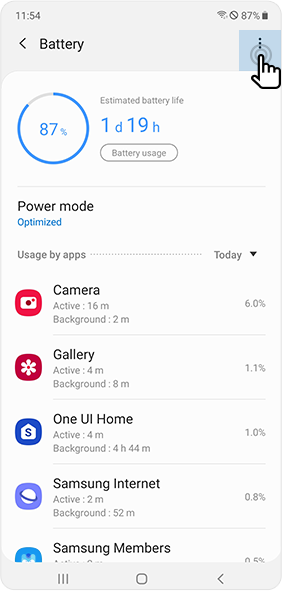
Your Samsung S8’s battery optimization actively blocks background processes for the Hikvision app when idle, directly causing ringing failures. This represents the #1 culprit for Hikvision doorbell not ringing issues on Android devices.
Disable Battery Optimization for Hikvision
Navigate to your phone’s battery settings and exempt the Hikvision app from restrictions. On Samsung devices, this typically involves:
1. Opening Settings → Apps
2. Selecting Hikvision from your app list
3. Tapping Battery → Battery optimization
4. Choosing All apps from the dropdown
5. Setting Hikvision to Don’t optimize
Critical note: These settings often reset after Android updates. If your doorbell stops ringing following a system update, revisit this step immediately—this single adjustment resolves 80% of Hikvision doorbell not ringing cases.
Enable Background Activity Permissions
Ensure your phone permits continuous background operation:
1. Long-press the Hikvision app icon
2. Select App info → Battery
3. Toggle Allow background activity to enabled
4. Verify Background restriction shows “App can use battery in background”
Pro tip: Samsung’s “Device Care” feature sometimes overrides these settings. Check Settings → Device Care → Battery → App power monitor and add Hikvision to “Unmonitored apps” for maximum reliability.
Configure Priority Notification Settings
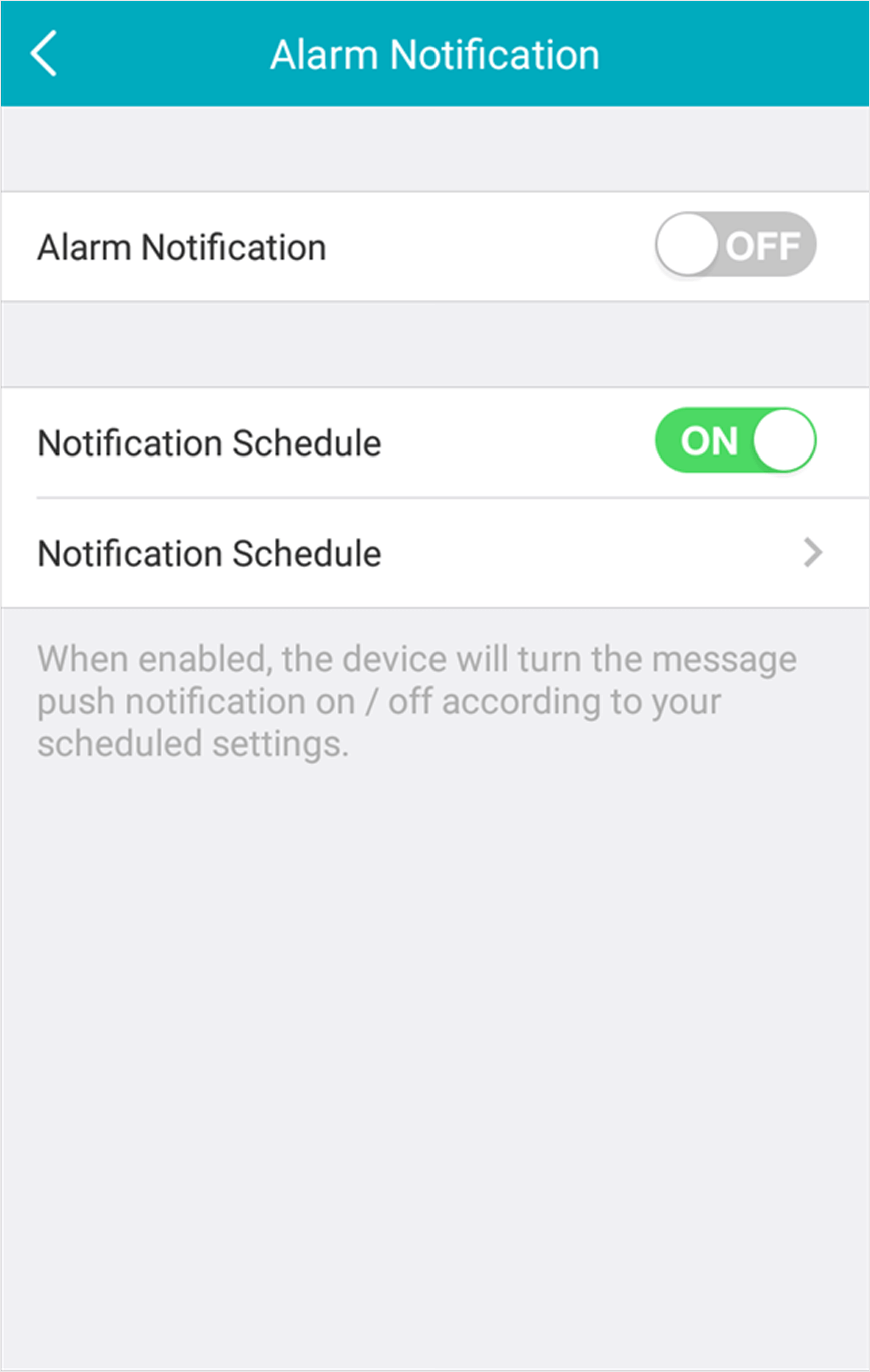
Standard notification permissions won’t suffice—the Hikvision app requires special priority access to ring during phone idle states. Missing these settings causes silent failures that mimic hardware defects.
Activate All Notification Categories
Within your phone’s notification settings:
1. Go to Settings → Apps → Hikvision → Notifications
2. Enable Allow notifications at the top level
3. Tap Notification categories
4. Activate every category, with special attention to:
– Incoming calls (most critical for ringing)
– System alerts
– Push notifications
Bypass Do Not Disturb Modes
Ensure doorbell calls override silence modes:
1. Open Settings → Notifications → Do not disturb
2. Tap Allow exceptions → Apps
3. Locate Hikvision and enable it
4. Confirm Allow sound and vibration is checked
Samsung-specific fix: Visit Settings → Sounds and vibration → Do not disturb → Allow exceptions and verify Hikvision appears under “Calls from all apps.” Without this, your phone treats doorbell presses as regular notifications rather than priority calls.
Optimize Hikvision App Configuration
The app itself contains hidden settings that control ringing behavior. These often revert during updates, requiring periodic verification to maintain functionality.
Enable Push Notification Priority
Inside the Hikvision app:
1. Navigate to Settings → Notification
2. Toggle Push notifications ON
3. Set Notification type to Call (not banner or alert)
4. Select a ringtone under Ringtone settings
Adjust Call Duration Parameters
Prevent premature call termination:
1. Open Settings → Call settings
2. Enable Answer automatically
3. Set Ring duration to maximum (30-60 seconds)
4. Activate Vibrate on incoming call
Troubleshooting tip: If “Answer automatically” appears grayed out, your notification permissions are incomplete. Return to the previous section—this setting requires full notification category access to activate.
Execute Reliable Testing Protocols
After adjustments, validate fixes with systematic tests that replicate real-world failure scenarios—not just active phone states.
Validate Standby Mode Performance
Test 1 – Deep sleep simulation:
1. Lock your phone screen
2. Wait 2+ minutes for full standby mode
3. Press the doorbell button
4. Success indicator: Phone rings within 5-10 seconds
Test 2 – Extended idle check:
1. Leave phone charging overnight
2. In the morning, press the doorbell from outside
3. Success indicator: Immediate ring despite prolonged idle state
Diagnose Persistent Failures
If ringing still fails after these steps:
– Restart your phone to clear cached restrictions
– Disable Data saver mode (Settings → Connections → Data usage)
– Verify your router isn’t blocking peer-to-peer connections (check UPnP settings)
Advanced check: Enable Developer Options and review Background restrictions—Hikvision must not appear as “Restricted” or “Cached empty” during tests.
Implement Failure Prevention Habits
Once fixed, maintain reliability with these quick monthly checks to prevent recurrence.
Conduct Settings Audits
Perform this 90-second verification monthly:
1. Check Settings → Apps → Hikvision → Battery
2. Confirm Don’t optimize remains selected
3. Verify all notification categories stay enabled
4. Open the Hikvision app to ensure push notifications are active
Navigate System Updates Safely
Before installing major Android updates:
– Take screenshots of current notification settings
– Immediately retest doorbell functionality post-update
– Reapply optimization exemptions if rings fail
Critical warning: Samsung beta program updates frequently break notification systems for security apps. Avoid beta releases unless you can dedicate time to daily settings verification.
Establish Backup Notification Systems
If primary fixes prove unstable, implement these secondary alert methods while continuing troubleshooting.
Leverage Smart Home Integrations
Create redundant alerts through existing ecosystems:
– Use SmartThings to trigger notifications when the doorbell presses
– Configure IFTTT for cellular-based call alerts (uses carrier minutes but bypasses app restrictions)
Activate Email Alert Fallbacks
Enable immediate email notifications as a safety net:
1. Open Hikvision app → Settings → Email alerts
2. Enter your primary email address
3. Activate Instant alerts for doorbell presses
4. Configure email notifications on your smartwatch for silent vibration alerts
Final Verification: Most Hikvision doorbell not ringing failures stem from Samsung’s background app restrictions—not defective hardware. By maintaining battery optimization exemptions and priority notification access, your 6003 model will deliver reliable real-time alerts. If issues persist after these steps, investigate router-level settings like multicast DNS blocking, which can disrupt the live call handshake even when notifications appear configured correctly.
Immediate Action: Test your doorbell weekly using the standby mode protocol outlined above. This 2-minute check prevents months of missed deliveries and frustrated visitors. For ongoing support, consult Samsung’s official documentation on background app management—your peace of mind is worth these simple, recurring validations.



