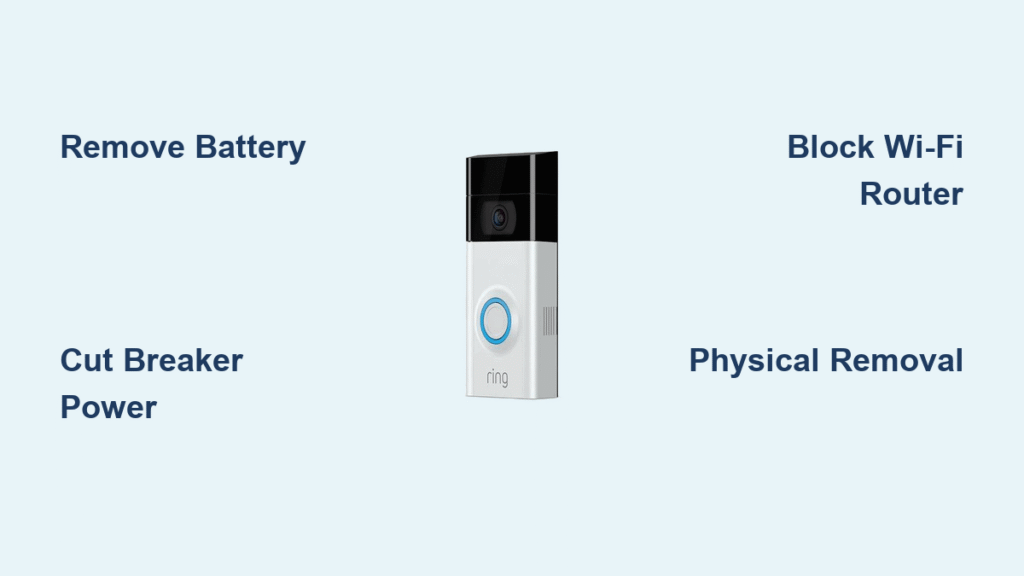
Your Ring doorbell keeps recording while the app crashes repeatedly or your phone won’t cooperate. Maybe you’re heading out of town and need to disable monitoring, or perhaps you simply want privacy without digital surveillance. Whatever your reason, you can completely shut down your Ring doorbell without ever opening the mobile application. The good news? Every Ring model offers at least one physical method to disable recording and monitoring functions when app access fails.
Most homeowners don’t realize their Ring doorbell can be powered down through straightforward physical techniques that bypass the app entirely. Whether your unit runs on battery power, connects to your home’s electrical system, or uses Power over Ethernet, you’ll find a reliable shutdown method below. Your specific approach depends entirely on your model’s power configuration, but these proven techniques work even when your phone dies or your account gets locked.
Remove Ring Doorbell Battery Through Faceplate Access
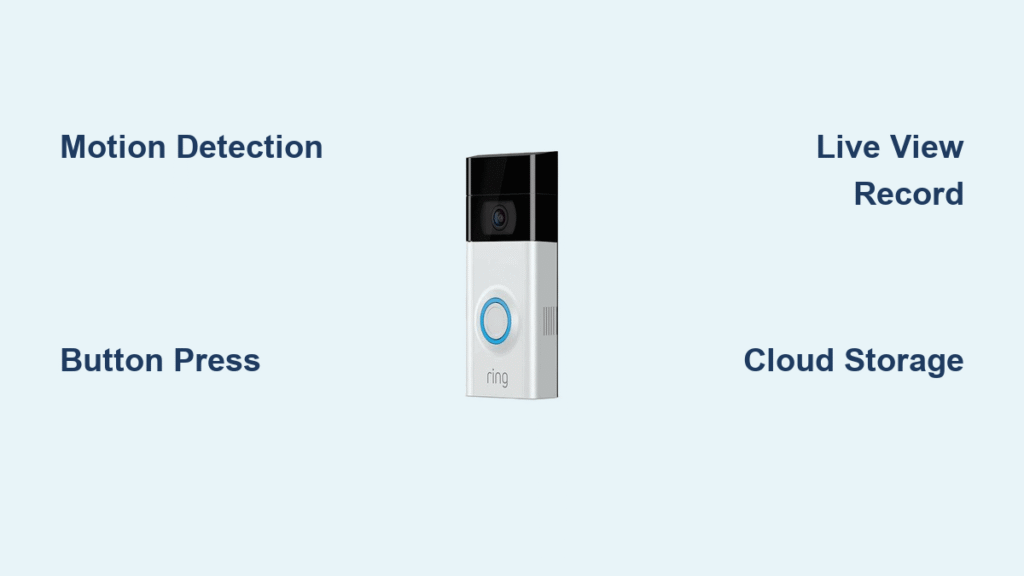
Battery-powered Ring models (including Doorbell 1st-4th generation and Doorbell 2) require direct battery disconnection for complete shutdown. This method stops all recording and Wi-Fi connectivity instantly when the app won’t cooperate.
Locate and Remove Security Screws
Identify your specific Ring model before gathering tools—most battery units feature two security screws at the bottom using either T6 Torx or Phillips head patterns. Using the wrong screwdriver risks stripping these tiny fasteners. Gently remove both screws completely, keeping them in a safe place where they won’t get lost. These security screws prevent casual removal, so apply steady pressure without forcing them.
Safely Disconnect the Battery Pack
Lift the faceplate upward in one smooth motion—it pivots on a top hinge rather than coming straight off. Behind the faceplate, you’ll see the battery compartment with a white plastic connector housing the wires. Important: Grip this connector firmly and pull straight outward—never twist or yank sideways, as this can damage the delicate connection points. Once disconnected, slide out the entire battery pack. Your Ring doorbell immediately loses all power, stopping recording and Wi-Fi connectivity within seconds.
Pro tip: Take a photo of the wire orientation before disconnecting—this ensures perfect reconnection when you’re ready to reactivate your system.
Cut Power to Hardwired Ring Models at Circuit Breaker

Hardwired Ring models (Pro, Pro 2, and hardwired standard versions) connect directly to your home’s electrical system. When the app fails, your fastest shutdown option involves your home’s circuit breaker—no tools required beyond basic electrical knowledge.
Identify and Switch Off Correct Breaker
Head to your electrical panel and search for breakers labeled “Doorbell,” “Front Door,” or “Low Voltage.” Most doorbell circuits use 15-20 amp breakers, often grouped with other low-voltage devices like thermostats. If labels are unclear, switch off breakers one by one while testing your doorbell’s status—look for the LED lights turning off completely. Never assume—incorrect identification could leave your doorbell still active.
Verify Complete Power Disconnection
After switching off the suspected breaker, confirm power loss using a voltage tester at the doorbell’s wire connections. Any residual voltage means you’ve switched the wrong breaker. The doorbell’s status lights should remain dark—illumination indicates live power still flowing. For complete shutdown, unscrew the unit from its mounting bracket and disconnect the wire harness. Cap exposed wires with wire nuts or electrical tape to prevent dangerous shorts, especially if leaving the bracket installed.
Block Ring Doorbell Wi-Fi Through Router Settings
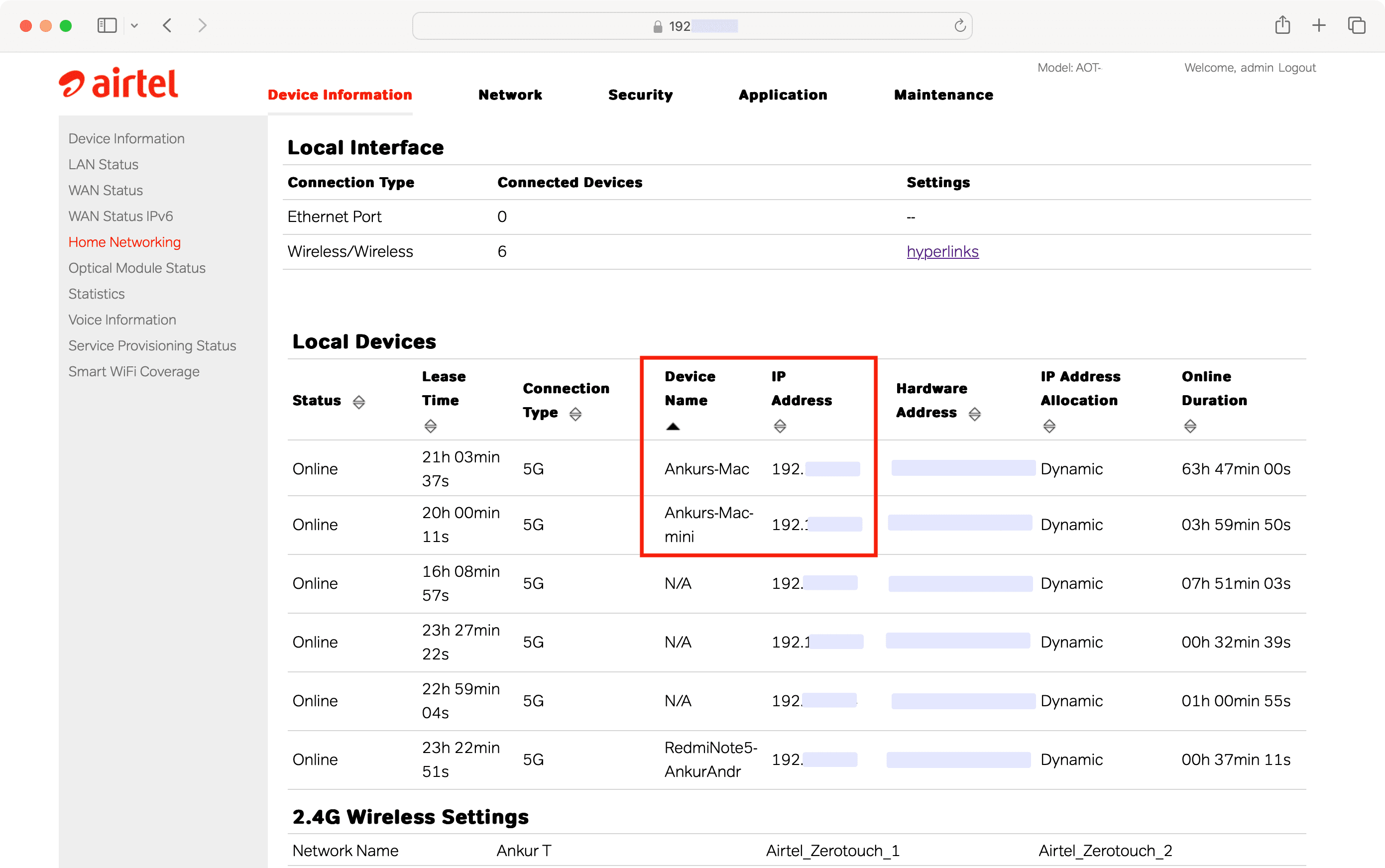
Without internet connectivity, your Ring doorbell becomes a basic doorbell with no recording, motion detection, or remote access capabilities. This router-based approach works for all models and doesn’t require physical access to the device.
Access Router Admin Panel for Device Control
Connect to your home network and open a web browser to access your router’s admin panel (typically 192.168.1.1 or 192.168.0.1). Log in with your router credentials—check the sticker on your router if you’ve forgotten them. Navigate to “Connected Devices,” “Device List,” or similar section depending on your router model. Locate your Ring doorbell, usually listed by model name or MAC address (often starting with “AC:84:C6” for Ring devices).
Select Targeted Disconnection Method
Choose one of these router-based approaches:
– Device blocking: Select your Ring doorbell and click “Block” or “Disconnect” to sever its internet access
– MAC filtering: Add your doorbell’s MAC address to your router’s block list for permanent disconnection
– Band disabling: Temporarily turn off your 2.4GHz Wi-Fi band if your Ring connects exclusively to this frequency
Critical note: Changing your Wi-Fi password works but affects all connected devices—use router-level blocking for targeted disconnection that leaves other devices unaffected.
Complete Physical Removal of Ring Doorbell Unit
When you need absolute certainty your Ring doorbell isn’t recording, complete physical removal provides the most definitive shutdown method. This approach works for all models but requires different preparation based on your power source.
Power Down Before Removal
For battery models: Remove the battery as described in the first section. For hardwired units: Switch off the correct circuit breaker and verify zero power with a voltage tester. Attempting removal while powered risks electrical shock or device damage. Use a T6 Torx screwdriver to remove the security screws at the base—these are the same screws used for faceplate access but secure the entire unit to the mounting bracket.
Safely Disconnect and Store Components
Gently pull the unit away from the mounting bracket—hardwired models require disconnecting the wiring harness first. Store the doorbell in a dry, temperature-controlled location with the battery at 50% charge if removed. Keep all security screws in a labeled container to prevent loss. If storing long-term, check the battery charge monthly to avoid deep discharge damage that could ruin the power cell.
Signal Blocking Techniques for Temporary Privacy
When you need quick privacy without permanent disconnection, signal blocking creates temporary shutdown while maintaining your doorbell’s physical installation. These methods work when you lack tools or prefer non-invasive approaches.
Aluminum Foil Faraday Cage Method
Wrap your Ring doorbell completely in several layers of aluminum foil, ensuring coverage around all sides including the back. Secure with waterproof tape to prevent movement in wind or rain. This creates a Faraday cage that blocks Wi-Fi signals, effectively disabling remote features. Test effectiveness by attempting live view from another device—complete signal loss confirms success. Limitation: This method looks unsightly and may trap moisture, so use only for short-term privacy needs.
Reset Button Shutdown Procedure
Some Ring models feature a small reset button on the side or back. Press and hold for 15-20 seconds until LED patterns change—typically from solid to flashing or color shifts. The device enters setup mode, stopping normal operation. Note: This varies significantly by model and may not disable all functions completely. Check your specific model documentation before attempting.
Model-Specific Power Down Methods

Your exact shutdown technique depends entirely on your Ring model’s power configuration. Applying the wrong method to your specific unit could damage components or leave recording functions active.
Ring Doorbell 1st Generation Shutdown
This original model requires complete faceplate removal for battery access—no quick-release mechanism exists. Hardwired versions still use the same battery with the transformer providing trickle charge only. Key fact: Complete battery removal is your only manual shutdown option since no physical power switch exists.
Ring Pro and Pro 2 Power Disconnection
These premium models connect exclusively to your home’s electrical system with zero battery backup. Power disconnection at the circuit breaker provides immediate and complete shutdown. Warning: These units often connect to specialized doorbell transformers—consult an electrician before modifying wiring beyond simple breaker switching.
Ring Doorbell Elite Ethernet Disconnection
Power over Ethernet (PoE) models require disconnecting either the Ethernet cable or deactivating the PoE switch. Business installations may need network administrator access to disable the correct port. Important: Complete shutdown occurs within seconds of power loss, but reactivation requires network privileges.
Post-Deactivation Security Measures
Turning off your Ring doorbell creates a security gap at your front door. Implement these measures to maintain safety while your smart doorbell remains offline.
Temporary Security Solutions
Place a smartphone-enabled security camera to cover the same area—many models offer quick setup without permanent installation. Position it where it can’t be easily spotted by potential intruders. Pro tip: Use motion-activated lights as a visual deterrent while your Ring remains offline.
Wiring Safety Verification
Hardwired systems leave exposed electrical connections that pose fire hazards if mishandled. Double-check that all copper strands remain capped with wire nuts and electrical tape. Moisture intrusion through exposed wires creates serious risks over time—ensure weatherproofing remains intact if leaving the mounting bracket installed.
Quick Reference Shutdown Checklist
Before starting: Identify your exact Ring model • Gather T6 Torx and Phillips screwdrivers • Locate electrical panel (hardwired models) • Plan temporary security coverage
During shutdown: Remove battery or switch off correct breaker • Verify complete power loss • Store components safely • Test to confirm deactivation
After completion: Secure all exposed wiring • Document your shutdown method • Maintain alternative security measures • Note reactivation requirements
You can completely disable your Ring doorbell without app access regardless of your model or power source. Choose your method based on whether you need temporary privacy, troubleshooting time, or permanent removal. Keep all components organized and labeled for easy reactivation when you’re ready to restore your digital door guardian. Remember that physical disconnection provides the most certain shutdown, while Wi-Fi blocking offers a convenient middle ground when you want to maintain basic doorbell functionality without recording capabilities.