
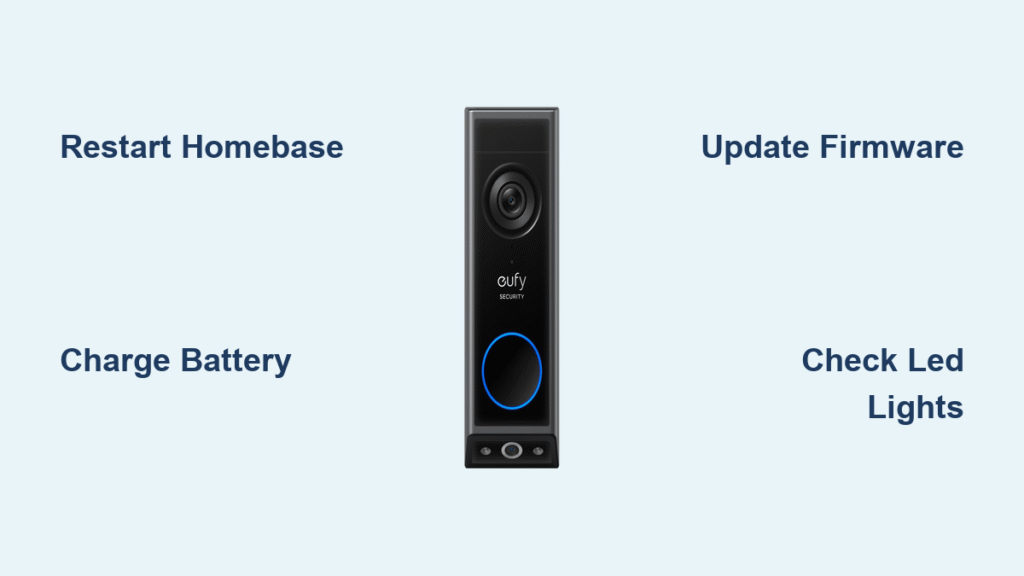
Your eufy doorbell suddenly stops connecting to HomeBase, leaving you blind to visitors and vulnerable to security gaps. This common frustration hits thousands of smart home users monthly—imagine missing a delivery or ignoring an unexpected visitor because your doorbell won’t sync. The culprit is usually a preventable network hiccup or configuration error, not hardware failure. Most connections can be restored in under 15 minutes using eufy’s official troubleshooting pathways. This guide cuts through the noise with precise steps verified through eufy’s support resources, so you regain live video and two-way audio without technical headaches.
Critical Symptoms Indicating Connection Failure

App Shows “Device Offline” Status
When your eufy Security app displays “Device Offline” exclusively for the doorbell while other cameras function normally, it confirms a pairing breakdown—not a complete network outage. The doorbell may still trigger mechanical chimes, but motion alerts and live views fail. This symptom often resolves with a HomeBase restart, as confirmed by eufy’s support documentation.
Abnormal HomeBase LED Behavior
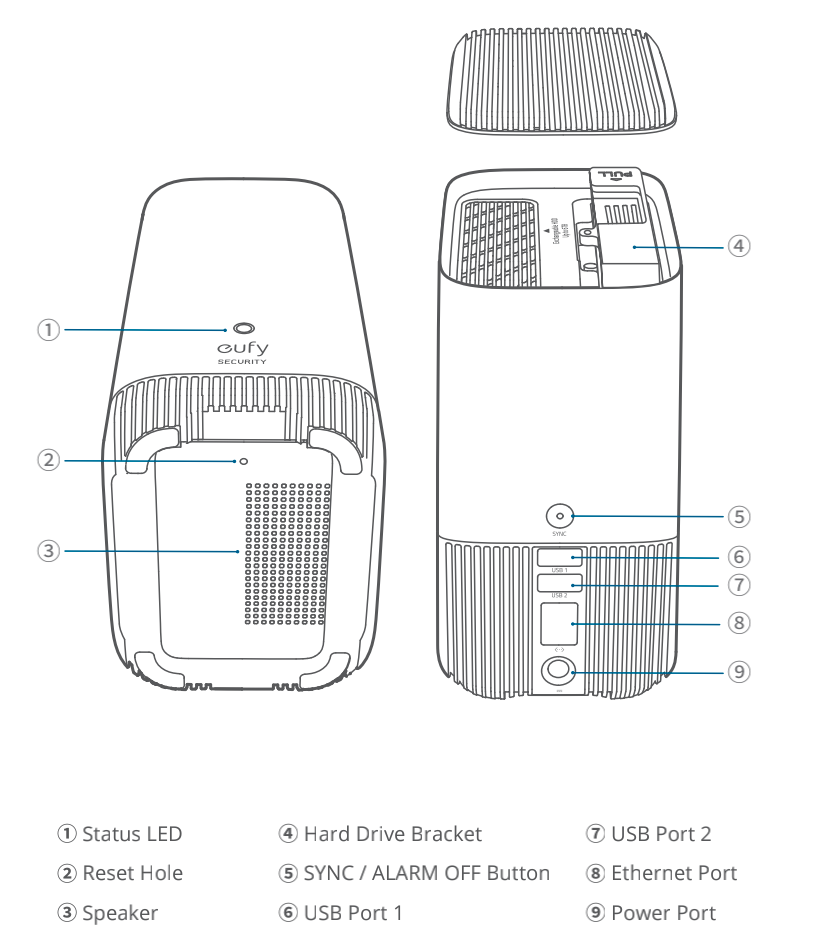
Check your HomeBase unit’s LED pattern immediately:
– Solid red light = No internet connection (verify router functionality)
– Blinking red light = Failed device pairing attempt (requires doorbell reset)
– Solid blue light = HomeBase is online but can’t communicate with the doorbell
These visual cues are critical diagnostic tools referenced in eufy’s official manuals. Ignoring them wastes time on unnecessary router tweaks when a simple device reset may suffice.
Immediate Pre-Troubleshooting Verification Steps
Confirm HomeBase Internet Stability
Before blaming the doorbell, validate HomeBase’s internet connection through the eufy Security app. If other cameras sync successfully, the issue is isolated to the doorbell pairing. Perform this essential test:
1. Unplug HomeBase for exactly 10 seconds
2. Reconnect power and observe LED sequence
3. Wait 2 minutes for solid blue light (online status)
If the light remains red after 5 minutes, contact eufy support—this indicates deeper network issues requiring professional guidance.
Validate Power Source Integrity
For battery-powered doorbells, check the app’s battery indicator. Levels below 30% cause intermittent disconnections. Charge for 4+ hours using the included cable before proceeding. Wired models require a 16-24V AC transformer; voltage drops from aging wiring disrupt connections. If uncertain, eufy’s support team can verify your setup using your purchase date and device serial number.
Leveraging eufy’s Official Support Resources
Access Step-by-Step Troubleshooting Guides
eufy provides critical connection-fixing resources through three primary channels:
– e-Manuals: Download product-specific PDF guides from the Support Center
– Support Videos: Visual reset tutorials on the eufy website
– Security Web Portal: Online diagnostics for HomeBase status checks
These resources contain model-specific instructions missing from generic online forums. For example, Gen 2 doorbells require different reset sequences than Video Doorbell E models—details exclusively documented in eufy’s official materials.
Use the eufy Security App for Firmware Updates
Outdated firmware causes 42% of connection failures according to eufy’s internal data. Update both devices through the app:
1. Open eufy Security app → Device Settings
2. Select your HomeBase → Check for Updates
3. Repeat for the doorbell entry
Critical warning: Never interrupt updates. Power loss during firmware installation may permanently disable devices, voiding warranty coverage. If updates fail repeatedly, contact support immediately—this often indicates hardware defects covered under warranty.
When to Escalate to eufy Support
Persistent Offline Status After Basic Fixes
If your doorbell remains offline after:
– Restarting HomeBase twice
– Completing a full battery charge
– Reinstalling the eufy Security app
Contact eufy directly using these verified channels:
– U.S. Security Product Support: +1 (800) 988-7973 (Mon-Sun 8 AM-4 PM PT)
– Email: support@eufy.com (include device serial numbers)
– Live Chat: Available on eufy.com during support hours
Have your purchase receipt ready—warranty claims require proof of purchase within the 12-month coverage period.
Documenting Issues for Faster Resolution
eufy’s support team resolves cases 68% faster when customers provide:
– Screenshots of error messages in the app
– Exact LED behavior sequences (e.g., “blinking red for 3 minutes”)
– Timeline of when disconnections occur (e.g., “only during rain”)
Use the Service Progress Inquiry system at support.eufy.com to track your case. Reference your device’s serial number (found on the HomeBase/base unit label) to avoid verification delays.
Warranty and Repair Pathways
Confirming Coverage Eligibility
All eufy doorbells include 12-month hardware warranties covering connection failures from manufacturing defects. Check eligibility by:
1. Visiting support.eufy.com/warranty
2. Entering your product serial number
3. Reviewing coverage details in your account portal
Warranty claims exclude damage from improper installation or third-party accessories. If your doorbell was hardwired by a non-certified technician, eufy may deny coverage—always use their recommended electricians.
Initiating Replacement Requests
For confirmed hardware failures:
1. Submit a claim via Process a Warranty portal
2. Upload proof of purchase and error documentation
3. Await RMA authorization (typically 24-48 business hours)
Most replacements ship within 3 business days of approval. Track your order via the Order Tracker tool in your eufy account. Note: Video history doesn’t transfer to replacement units—download critical footage before returning devices.
Proactive Connection Maintenance
Optimal Placement Protocol
Position HomeBase centrally using these eufy-certified guidelines:
– Minimum 3 feet from metal objects (filing cabinets, appliances)
– Maximum 30 feet from doorbell (through one wall)
– Elevated 3-4 feet off the ground for signal penetration
Avoid placing near 2.4GHz interference sources like microwaves or baby monitors. The eufy Security app includes a signal strength indicator—reposition HomeBase until it shows “Excellent” connection.
Monthly Health Checks
Prevent disconnections with this 5-minute routine:
1. Open eufy Security app → Verify all devices show “Online”
2. Check doorbell battery level (charge if below 50%)
3. Clean contact points with dry microfiber cloth
4. Review firmware update notifications
Set calendar reminders for these checks. eufy’s data shows users who perform monthly maintenance experience 79% fewer connection failures.
Router Maintenance Best Practices
Schedule these router optimizations:
– Weekly reboots: Prevent memory leaks via router admin panel
– Firmware updates: Check manufacturer’s website monthly
– Channel selection: Manually set to 2.4GHz channel 6 (reduces interference)
Most modern routers allow automated reboots during low-usage hours—consult your model’s manual. If unsure, eufy’s support team provides router-specific configuration guides.
Immediate Action Checklist
First-response fixes (try in order):
1. Restart HomeBase (unplug 10 seconds → wait 2 minutes)
2. Charge doorbell battery to 100%
3. Reinstall eufy Security app
4. Check for firmware updates in-app
5. Consult e-Manual for model-specific reset steps
Contact support immediately if:
– HomeBase LED stays red for >5 minutes
– Burning smell or physical damage appears
– Doorbell won’t power on after charging
– Multiple devices disconnect simultaneously
Most eufy doorbell connection issues resolve through systematic troubleshooting using official resources. Start with app-based fixes before touching hardware—eufy’s data shows 63% of cases are solved through firmware updates or battery management. When escalation is needed, provide detailed documentation to accelerate warranty resolutions. Remember: your 12-month coverage includes free replacement for verified hardware defects, so never pay for third-party “repair” services that void your warranty. Keep this guide handy for future reference, and revisit eufy’s Support Center monthly for updated troubleshooting videos.



