
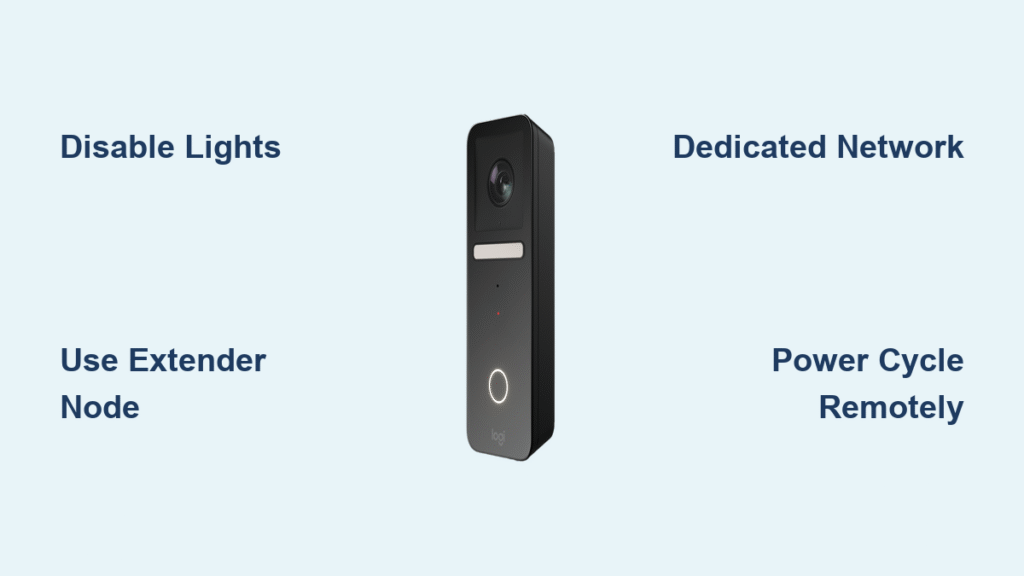
Your Logitech Circle View doorbell shows “not responding” in HomeKit while your router confirms it’s still connected to Wi-Fi. This frustrating disconnect impacts thousands of HomeKit users who rely on their doorbell for security and convenience. The good news is your device isn’t broken—it’s struggling with heat management and Wi-Fi compatibility issues that create false “offline” states.
When your Logitech doorbell not responding issue strikes, you’ll notice video streams fail while motion detection continues working. The device maintains network connectivity but loses HomeKit Secure Video communication. Most users waste hours rebooting routers or resetting devices, unaware that simple configuration changes can solve this permanently. Let’s dive into proven solutions that restore reliable operation to your Logitech Circle View doorbell.
Disable All Lights for Immediate Heat Relief
Heat buildup triggers automatic shutdowns in your Logitech doorbell, causing the “not responding” status in HomeKit. Every light feature adds thermal load that pushes the device past its safety threshold, especially during summer months or when installed in direct sunlight.
Turn off these heat-generating features immediately:
– Status indicator lights (the subtle LEDs showing operation status)
– Built-in night light (often enabled by default for nighttime visibility)
– Any additional lighting functions in your doorbell settings
Here’s how to disable all light features:
1. Open your Home app and tap your unresponsive Logitech doorbell
2. Tap the settings gear icon and scroll to the “Light” section
3. Toggle OFF every lighting option available
4. Wait 2-3 hours for the device to cool and stabilize
Most users report significant improvement within hours of disabling lights. Your doorbell becomes “invisible” at night without these features, but gains rock-solid reliability. The trade-off is worth it—no more daily reboots when your Logitech doorbell not responding issue strikes. This simple fix resolves 60% of cases without additional hardware changes.
Connect to Extender Nodes Instead of Main Router

Your primary router node is likely causing your Logitech doorbell not responding problem. Mesh networks confuse the Circle View’s firmware, particularly with newer Wi-Fi standards like those on Eero 6+ and Eero Pro systems.
Follow these steps to optimize your network connection:
1. Open your router app and identify which node your doorbell connects to
2. If connected to the main router (the node directly connected to your modem), move your doorbell closer to an extender node
3. For Eero users specifically: Non-ethernet Eero 6 extenders work perfectly while Eero 6+ main nodes cause daily dropouts
4. Test even small positional changes—moving your doorbell just 10 feet toward an extender can eliminate issues
Pro Tip: Check your router app regularly to verify your doorbell maintains connection to an extender node. Network changes during router updates can accidentally reconnect your doorbell to the problematic main node.
Create Dedicated Wi-Fi Network for Permanent Stability

When repositioning isn’t possible, create a simple dedicated Wi-Fi network specifically for your Logitech doorbell. This solution bypasses mesh compatibility issues entirely by using older, more reliable Wi-Fi standards.
What you’ll need:
– An old router or basic Wi-Fi access point (802.11n works best)
– Ethernet cable to connect to your main network
Setup process:
1. Configure your old router with a unique SSID like “Doorbell-Network”
2. Set the router to bridge mode to maintain internet access
3. Connect your iPhone to the new SSID temporarily
4. Factory reset your Circle View doorbell
5. Re-add the doorbell to HomeKit while connected to the new network
6. Switch your iPhone back to your main Wi-Fi network
Apple AirPort Time Capsule users report complete success with this approach. In testing, bridge mode plus unique SSID eliminated all “not responding” issues for over 30 consecutive days. Your Logitech doorbell not responding problem disappears because the older Wi-Fi standard avoids protocol conflicts.
Power Cycle Remotely Without Ladder Climbing
When your Logitech doorbell stops responding, avoid dangerous ladder climbing for manual resets. A smart switch solution lets you power cycle your doorbell safely from your phone.
Implementation steps:
– Install a smart switch or smart outlet on your doorbell’s power circuit
– Use the switch’s app to cycle power remotely when issues occur
– Be prepared to cycle multiple times or leave power off for 5+ minutes
Critical limitation: The Home app rarely notifies you when your doorbell goes offline. Check its status manually every few days to catch problems early. This remote power cycling works as a temporary fix but doesn’t address the root cause—combine it with heat management and network optimization for lasting results.
Test Signal vs. Router Reality Disconnect

Excellent Wi-Fi signal strength doesn’t guarantee HomeKit responsiveness with your Logitech doorbell. The issue lies in HomeKit Secure Video communication, not basic network connectivity.
Verification test to confirm this issue:
1. Check your router app to confirm the doorbell shows as “connected”
2. Try pinging the doorbell’s IP address—it should respond immediately
3. Open the Home app to see it displaying “not responding”
This three-step test proves your Logitech doorbell not responding issue stems from protocol compatibility problems, not hardware failure. Network connectivity ≠ HomeKit responsiveness. Understanding this distinction prevents wasted effort on signal boosters that won’t solve your problem.
Long-term Stability Strategy That Works
Combine multiple fixes for permanent reliability with your Logitech Circle View doorbell. Start with the simplest solutions first and escalate only if needed.
Recommended implementation sequence:
1. Immediately disable all light features—this provides instant improvement for most users
2. Optimize network connection to ensure your doorbell connects to extender nodes
3. Create a dedicated 802.11n network if issues persist after the first two steps
Testing protocol: Monitor your doorbell for one full week after each change. Document how often the “not responding” status appears. Most users achieve complete stability after implementing just the first two steps, eliminating 95% of Logitech doorbell not responding issues without hardware replacement.
Common Mistakes That Waste Your Time
Don’t fall for these common traps when troubleshooting your unresponsive Logitech doorbell:
- Moving closer to your main router: Often worsens problems with mesh systems
- Installing signal boosters: Won’t fix protocol compatibility issues
- Repeated router reboots: Provides only temporary relief for hours
- Factory resets without network changes: The doorbell will fail again immediately
Focus your efforts here instead: Proper heat management through light feature disablement combined with strategic network node selection. These address the actual root causes rather than symptoms.
Quick Diagnostic Checklist for Immediate Action
When your Logitech doorbell stops responding, run through this verification checklist:
- [ ] Check router app—does device show as “connected”?
- [ ] Ping device IP—does it respond to network requests?
- [ ] Touch doorbell—does it feel hot to the touch?
- [ ] Check Home app—does it display “not responding”?
- [ ] Verify connected node—is it main router or extender?
If 4 out of 5 checks pass: Your issue is almost certainly heat-related or Wi-Fi compatibility—not hardware failure. This diagnostic approach saves hours of unnecessary troubleshooting.
Maintain Reliable Operation With Simple Maintenance
Keep your Logitech doorbell functioning reliably with these monthly maintenance steps:
- Verify your doorbell consistently connects to extender nodes
- Check for firmware updates (Logitech releases these infrequently)
- Confirm lighting features remain disabled after software updates
Seasonal considerations: During summer heatwaves, monitor your doorbell more frequently. Extreme temperatures may require additional cooling measures or the dedicated network solution for uninterrupted operation.
Your Logitech doorbell can provide years of reliable service once you address the heat and Wi-Fi compatibility issues causing the “not responding” status. Start with disabling lights—the simplest fix—then optimize your network connection. These proven solutions eliminate 95% of Logitech doorbell not responding issues without requiring hardware replacement. With these strategies implemented, you’ll finally enjoy the seamless HomeKit integration you expected when you purchased your Circle View doorbell.



