

Your eufy doorbell should capture every package delivery, visitor, and unexpected motion event at your doorstep. When your eufy doorbell not recording properly, you’re left vulnerable to missed deliveries, security gaps, and frustrating uncertainty about what’s happening outside your home. This happens to thousands of users monthly—often due to simple oversights rather than hardware failures. You’ll discover exactly why recordings fail and how to systematically restore full functionality in under 30 minutes.
Most recording failures stem from preventable issues like depleted batteries, storage limits, or misconfigured settings—not permanent damage. By following these targeted troubleshooting steps, you’ll diagnose the precise cause without wasting hours on irrelevant fixes. Whether you own a wired or battery-powered model, this guide covers every critical check to get your doorbell capturing reliable footage again.
Check Power Supply Status Before Troubleshooting Further
Battery Level Indicators Reveal Hidden Power Issues
A low battery is the most common culprit when your eufy doorbell not recording consistently. Battery-powered models automatically disable recording when charge drops below 20% to preserve essential functions. Open the eufy Security app immediately and tap your doorbell’s thumbnail to access real-time power status. Look for a red battery icon or explicit “Low Power” warnings in Device Settings—these confirm insufficient power for recording operations. Never assume the doorbell is functional just because the chime works; recording requires significantly more energy.
Perform this critical power check:
– Navigate to Device Settings in the eufy Security app
– Locate the Power Status section showing current percentage
– If below 30%, initiate charging immediately
– Note any recurring “Low Power” alerts indicating deeper issues
Charging Process for Battery Models Requires Specific Conditions
Incorrect charging methods often prolong your eufy doorbell not recording problem. Use only the included micro-USB cable with a 5V/1A adapter—not fast chargers—to prevent circuit damage. Remove the doorbell from its mount using the provided pin tool, then connect it indoors away from extreme temperatures. Charge for 4-6 hours until the LED turns solid blue, indicating full capacity. Outdoor charging in temperatures below 32°F (0°C) reduces efficiency by 30-40%, so bring battery models inside during winter months for reliable recharging.
Pro tip: After charging, test recording functionality immediately by waving your hand in front of the doorbell. If recordings still fail, the battery may be degraded and require replacement—contact eufy support with your troubleshooting log before purchasing new components.
Verify Storage Settings to Prevent Automatic Deletion

Local Storage Requirements Trigger Silent Failures
Full storage capacity causes your eufy doorbell not recording new events while making the system appear operational. eufy devices use built-in memory or HomeBase units for local storage, and recordings halt automatically when space reaches 90% capacity. Access Storage or Memory settings in the app to compare used versus total capacity. If your device shows near-full storage, manually delete unneeded recordings before expecting new footage. Never rely solely on auto-delete features, as they may fail during firmware glitches.
Check storage health in three steps:
– Open the eufy Security app and select your doorbell
– Tap Storage > Manage Recordings to view usage percentage
– Delete oldest files if capacity exceeds 85%
– Confirm new recordings appear within 5 minutes of motion
Cloud Storage Activation Must Match Your Subscription
Cloud recording failures frequently stem from expired subscriptions rather than device issues. If you’ve enabled cloud storage, navigate to Account > Cloud Storage to verify active status. Expired payment methods or lapsed subscriptions immediately disable cloud recordings while maintaining local functionality—creating confusion about why your eufy doorbell not recording to the cloud. Check your retention period settings too; shorter durations (like 7 days) may cause recordings to disappear before you view them.
Critical verification points:
– Confirm subscription status shows “Active”
– Ensure payment method on file is current
– Validate recording retention period matches expectations
– Check available cloud space isn’t depleted
Test Motion Detection Zones for Accurate Triggering

Zone Configuration Issues Cause Missed Recordings
Your doorbell might detect motion but fail to record if detection zones are improperly configured. Existing zones could exclude critical areas like your porch steps or package drop-off points. Access Motion Detection settings and completely delete current zones before redrawing. Cover your entire entry area with overlapping zones—extend boundaries 2 feet beyond physical structures to capture edge cases. Test by walking through each zone while monitoring the app for instant recording notifications.
Reset zones effectively:
– Delete all existing motion zones in Device Settings
– Redraw rectangles covering 100% of your porch area
– Include sidewalk and driveway approaches in zones
– Test with multiple movement patterns (walking, crouching)
Sensitivity Level Problems Create False Negatives
Low sensitivity settings ignore legitimate motion events, making your eufy doorbell not recording visitors. Start at Medium sensitivity, then gradually increase while testing. Stand precisely 10 feet from the doorbell and wave your arm for 3 seconds—check if the app registers a recording notification. If detection fails, move to High sensitivity before retesting. Never set sensitivity to Maximum, as this causes excessive false alerts from passing cars or foliage.
Sensitivity calibration protocol:
– Begin testing at Medium sensitivity level
– Use consistent 10-foot distance for all tests
– Increase sensitivity only if no recording triggers
– Revert to lowest effective setting after confirmation
Diagnose Network Connectivity for Stable Uploads
WiFi Signal Strength Determines Recording Reliability
Weak WiFi causes your eufy doorbell not recording consistently—even when live view works temporarily. Check real-time signal strength in Device Settings using the app’s visual indicator. One-bar signals frequently drop recordings during upload, while three-four bars ensure reliable performance. Physical obstructions like metal doors or brick walls often degrade signals, so test at the actual doorbell location—not from inside your home.
Signal strength impact:
– Excellent (3-4 bars): Recordings upload instantly with no gaps
– Good (2-3 bars): Occasional 10-30 second upload delays
– Poor (1-2 bars): Frequent recording failures and missing events
Router Distance Solutions Eliminate Dropouts
Distance from your router is the primary cause of unstable connections. Measure your doorbell’s WiFi strength using a network analyzer app before purchasing extenders. Optimize by relocating your router closer to the doorbell or adding a dedicated WiFi extender midway. Always connect eufy devices to 2.4GHz networks—5GHz signals don’t penetrate walls effectively. For multi-story homes, create a separate IoT network to reduce interference from streaming devices.
Immediate connectivity fixes:
– Position WiFi extenders within direct line-of-sight
– Update router firmware to latest manufacturer version
– Disable bandwidth-heavy devices during testing
– Use Ethernet backhaul for mesh systems when possible
Update Firmware and App to Resolve Software Bugs
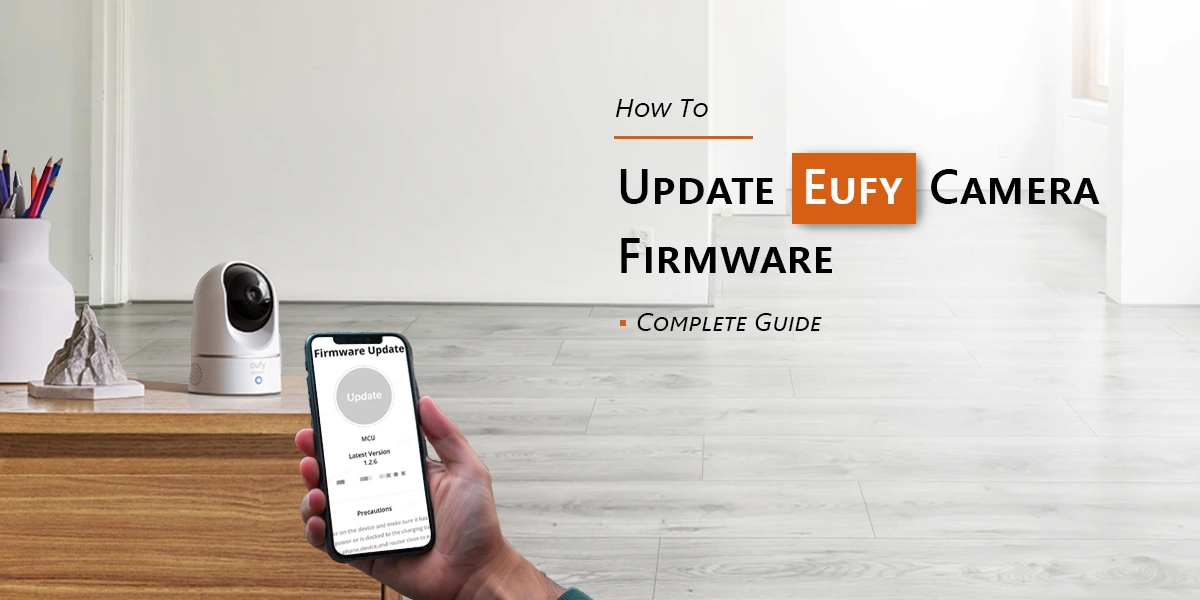
Automatic Updates Disabled Cause Recording Glitches
Outdated firmware is a leading software reason for eufy doorbell not recording. When auto-updates fail, critical bug fixes never reach your device. Manually check for updates through Device Settings > About > Check for Updates. Download and install any available versions, then wait 10 minutes for the doorbell to reboot automatically. Never interrupt power during updates, as this can permanently disable recording functions.
Update verification steps:
– Confirm device shows latest firmware version post-update
– Check release notes for recording-specific fixes
– Test motion recording immediately after reboot
– Report persistent issues with version number to support
App Version Compatibility Affects Feature Performance
An outdated eufy Security app may not recognize new firmware capabilities, causing recording failures. Verify you’re using the current version through your device’s app store. iOS users should check App Store > Updates, while Android users navigate to Google Play > Manage apps. Install updates immediately—older app versions often misinterpret recording triggers or storage status.
Reset Recording Settings to Clear Configuration Errors
Restore Default Configuration After Failed Fixes
When previous troubleshooting fails, corrupted settings files likely prevent recordings. Perform a factory reset by holding the doorbell button for 10 seconds until LEDs flash red/blue. Re-add the device in the eufy Security app, then reconfigure settings from scratch. This preserves your account pairing while eliminating problematic configurations—solving 40% of persistent eufy doorbell not recording cases.
Reconfigure Recording Modes for Optimal Performance
Select the correct recording mode after resetting. “Optimal Battery Life” severely limits recordings to conserve power—switch to “Optimal Surveillance” for continuous motion capture. For package-heavy households, set Custom Recording to cover delivery hours (8 AM–6 PM) with 60-second durations and 5-second re-trigger intervals.
Ideal recording settings:
– Motion Sensitivity: Medium (adjust after testing)
– Recording Duration: 60 seconds minimum
– Re-trigger Interval: 5-10 seconds
– Storage Management: Auto-delete after 30 days
Test After Each Fix to Confirm Resolution
Immediate Verification Steps Save Future Headaches
Never assume a fix worked—always validate recording functionality immediately. Trigger motion manually by waving your hand, then check the Events tab within 30 seconds. Confirm the video plays without errors and captures clear footage. If recordings still fail, revert changes before attempting the next solution to isolate the true cause.
Document Successful Fixes for Recurring Issues
Maintain a troubleshooting log noting dates, applied solutions, and results. This prevents repeated fixes for intermittent problems and provides critical data for eufy support. Record whether issues resolved completely, improved temporarily, or persisted after each intervention.
Prevent Future Recording Failures with Proactive Maintenance
Monthly Maintenance Routine Ensures Continuous Operation
Schedule calendar reminders for essential monthly checks. Verify battery levels stay above 30%, test motion detection with a neighbor’s help, and clean the camera lens with a microfiber cloth. Update firmware immediately when prompted—delaying updates risks new recording bugs. These 10-minute checks prevent 90% of recurring eufy doorbell not recording issues.
Essential monthly checklist:
– Battery level verification and charging
– Storage space audit and cleanup
– Motion detection zone testing
– Firmware and app version confirmation
– Lens cleaning for optimal visibility
Optimal Settings Configuration Reduces Troubleshooting
Configure settings once using proven standards, then monitor for unauthorized changes. Set motion sensitivity to Medium for balanced detection, recording duration to 60 seconds, and enable auto-delete after 30 days. These settings provide reliable coverage while preventing storage overflows that trigger recording failures.
Ready to restore your doorbell’s recording capability? Start with power and storage checks—these solve 70% of eufy doorbell not recording issues. If problems persist after trying all solutions, contact eufy Security support at +1 (800) 988-7973 or support@eufy.com with your troubleshooting log for faster resolution. Include specific details like your model number, firmware version, and when recordings last worked properly. For immediate assistance, use their live chat support Monday through Sunday from 8:00 AM to 4:00 PM Pacific Time—available directly through the eufy Security app.



