That familiar ding-dong chime plays every time someone approaches your door—but what if you could make it jingle like Christmas bells or sound like your favorite song? Learning how to change Ring doorbell sound transforms your home’s first impression without complicated wiring or technical skills. Whether you’re tired of the standard tone or want holiday-specific alerts, this guide reveals every method to customize your doorbell audio in under five minutes. You’ll discover app-based changes, premium customization options, and troubleshooting fixes when sounds won’t update properly.
Stop settling for the default chime that sounds just like your neighbor’s. Modern Ring doorbells support everything from seasonal tunes to custom MP3 uploads, letting you personalize alerts for different visitors or times of day. This guide covers all Ring models and subscription levels, so you’ll find exactly what works for your setup. By the end, you’ll know how to make your doorbell sound uniquely yours while avoiding common pitfalls that leave homeowners frustrated with failed sound changes.
Ring App Sound Customization
Your fastest route to changing Ring doorbell sound happens right in the mobile app—no extra tools needed. This universal method works across all Ring doorbell models and delivers instant results once you navigate the correct menus.
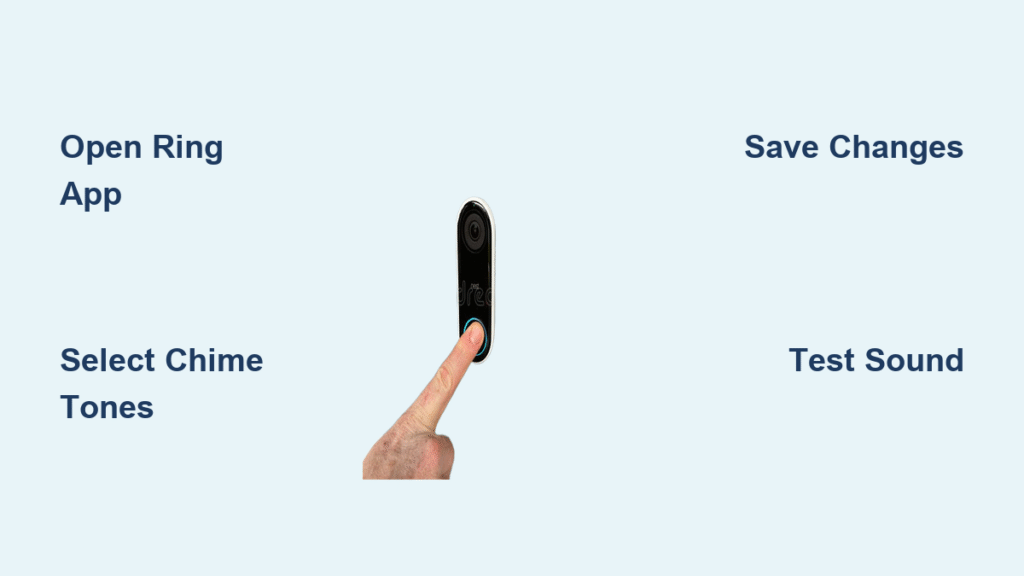
Open Ring App and Select Device
Launch the Ring app on your smartphone and verify you’re logged into your admin account. Tap the three-line menu icon (☰) in the top-left corner, then select “Devices” from the navigation menu. Critical step: Choose your specific Ring doorbell model from the list—whether it’s a Video Doorbell, Video Doorbell 2, 3, 4, Pro, or Elite. Selecting the wrong device means your sound changes won’t apply to your actual doorbell.
Navigate Audio Settings Menu
Inside your device menu, scroll until you see “Audio Settings” and tap to enter. This hub controls all sound-related functions including volume levels, notification preferences, and your actual doorbell chime. The interface clearly shows your current sound selection with visual indicators for volume levels and active schedules. Warning: Don’t confuse this with “Notification Settings”—those control your phone alerts, not the physical doorbell sound.
Browse Available Sound Library
Tap “Chime Tones” to access Ring’s extensive sound catalog. You’ll find four distinct categories:
– Classic chimes: Ding-dong, Westminster, bell tower, electronic beep
– Seasonal collections: Christmas carols, Halloween spooks, Thanksgiving themes
– Motion alerts: Separate tones for motion detection vs. doorbell presses
– Custom uploads: MP3 files (30-second max) for Ring Protect subscribers
Preview each sound by tapping it—your phone speaker plays the tone instantly. When you find your favorite, tap to select it. Pro tip: Test multiple options since some sounds play differently through your actual doorbell speaker versus your phone.
Save and Sync Changes
Tap “Save” in the top-right corner after selecting your new sound. Wait for the “Settings Updated” confirmation before closing the app. Immediate verification: Press your doorbell button to confirm the new sound plays correctly. This sync happens across all connected Ring devices within seconds—no manual refreshing required.
Ring Chime and Chime Pro Customization
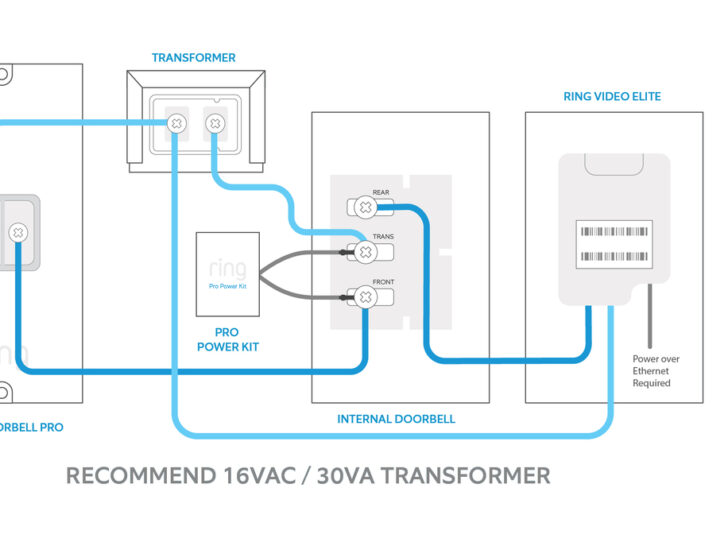
Own a Ring Chime or Chime Pro accessory? You’ve got extra sound layers beyond the doorbell itself. These plug-in devices amplify customization by letting you set different sounds for different alert types.
Access Chime Device Settings
Open the Ring app, go to Devices, and select your Chime or Chime Pro unit—not your actual doorbell. Tap “Audio Settings” followed by “Chime Tones” to reach separate sound controls. Key difference: Chime devices let you assign unique tones for doorbell presses, motion alerts, and linked device notifications all at once.
Set Individual Notification Sounds
Create audio signatures that tell you exactly what’s happening without checking your phone:
– Assign a cheerful jingle for regular doorbell presses
– Use a distinct bird chirp for motion detection alerts
– Set a gentle bell for package delivery notifications
This differentiation prevents unnecessary trips to the door when it’s just motion detection triggering false alerts. Expert note: Many homeowners set quieter sounds for nighttime motion alerts to avoid sleep disruption.
Troubleshooting Sound Change Problems
When your how to change Ring doorbell sound attempt fails, these fixes resolve most issues. 90% of sound problems stem from just three causes: outdated apps, poor connectivity, or subscription limitations.
Sound Won’t Update
Check these critical items:
– App version: Update to iOS 5.39.0+, Android 3.39.0+, or Fire OS 3.35.0+
– Internet speed: Minimum 2 Mbps upload required for sound changes
– Device restart: Hold your Ring doorbell’s setup button for 20 seconds
– App refresh: Force-close the Ring app completely before retrying
Time-saving shortcut: Test sound changes while connected to your home Wi-Fi—not cellular data—for faster sync times. If problems persist after these steps, check Ring’s system status page for service outages.
Missing Premium Features
Can’t find custom upload options? Verify your Ring Protect subscription status first—this feature requires active Premium service. Regional limitations: Some seasonal sounds aren’t available in all countries. Model restrictions: Battery-powered models (Video Doorbell 2, 3, 4) can’t upload custom sounds—only Pro and Elite models support this feature.
Device-Specific Sound Capabilities
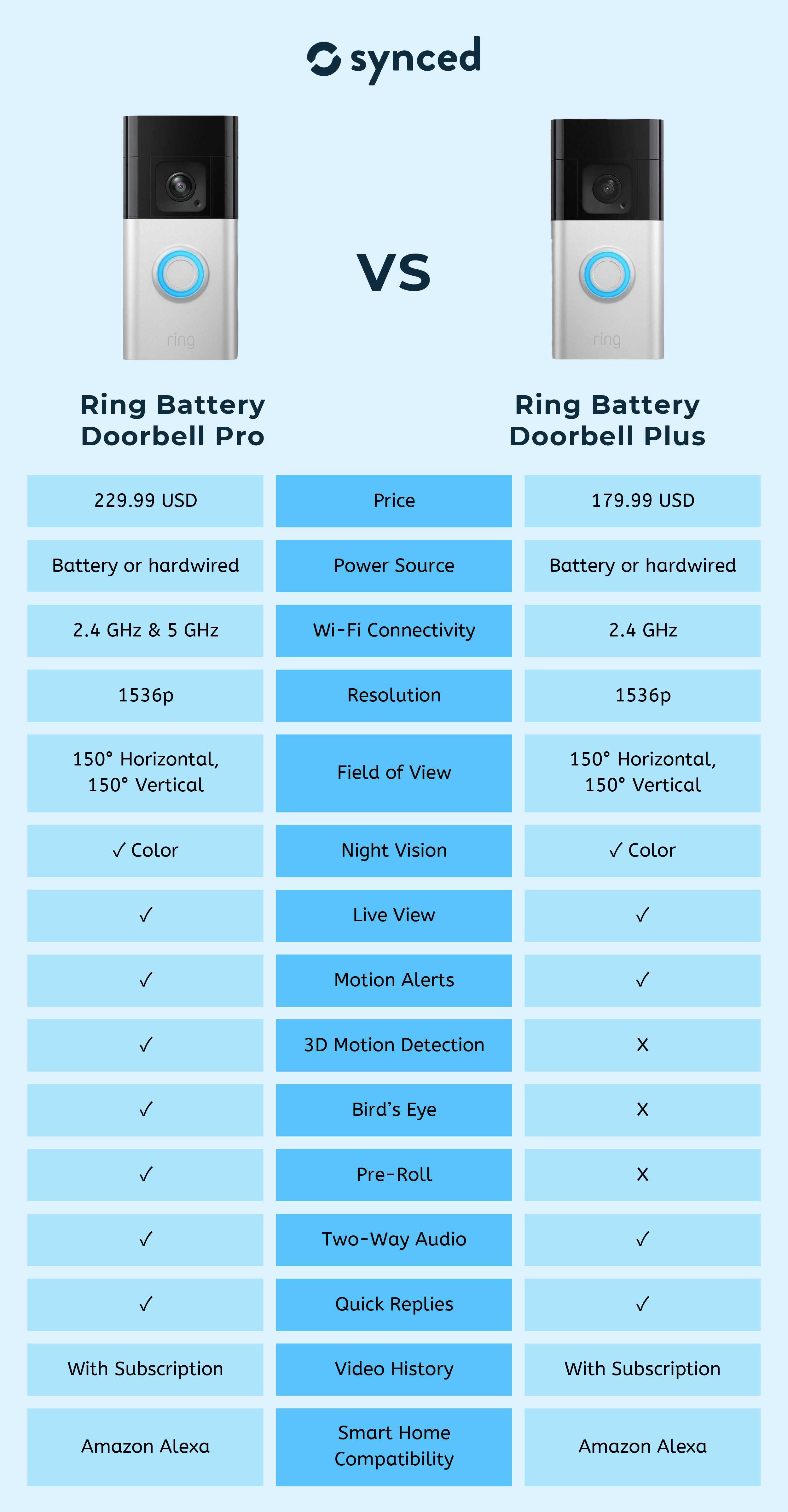
Your Ring model determines exactly how to change Ring doorbell sound options. Don’t waste time searching for features your device doesn’t support.
Ring Video Doorbell Pro Series
Pro models deliver the richest experience:
– 15+ built-in chime options including stereo sound with Chime Pro
– Custom MP3 upload capability (30-second maximum)
– Advanced scheduling based on time, day, or calendar events
– Separate tones for front/back door configurations
Battery Model Limitations
Battery-powered units (Video Doorbell, 2, 3, 4) have constraints:
– Standard and seasonal sounds only—no custom uploads
– Battery optimization may lower sound volume automatically
– Fewer scheduling options compared to Pro models
– Volume range limited to preserve battery life
Test New Sounds Effectively
Never assume your sound change worked—verify properly before relying on it. Critical testing steps:
1. Press your doorbell button within 30 seconds of saving changes
2. Check both indoor chime devices and mobile notifications
3. Test from different distances (front yard, inside house, bedrooms)
4. Verify motion detection sounds separately from doorbell presses
Neighbor consideration: Adjust volume based on your home’s layout and local noise ordinances. Set quieter tones for nighttime using the app’s scheduling feature to avoid disturbing others after 10 PM.
Create Sound Profiles for Different Scenarios
Build context-aware sound profiles that match your daily routines:
– Home Mode: Standard chimes at moderate volume during active hours
– Away Mode: Louder, more noticeable tones when you’re out
– Night Mode: Gentle sounds that won’t wake sleeping household members
– Holiday Mode: Festive tunes automatically activated December 1-25
Time-saving tip: Use the app’s scheduling feature to rotate between profiles—no manual changes needed when switching from “Workday Mode” to “Weekend Mode.”
Smart Home Integration Options
Link your Ring doorbell sound with other smart devices for voice control:
– Amazon Alexa: Say “Alexa, change Ring doorbell sound to Christmas”
– Google Assistant: Create routines like “Good Morning” that switch to cheerful tones
– IFTTT: Trigger sound changes based on weather (“rainy day = calming chimes”)
These integrations let you how to change Ring doorbell sound without opening the app—perfect when your hands are full carrying groceries.
Regular Maintenance Schedule
Keep your sound system functioning perfectly with these monthly checks:
– Verify app updates install automatically
– Test all sound profiles quarterly
– Confirm custom uploads remain active after firmware updates
– Check for new seasonal sounds before major holidays
Ring adds fresh audio options quarterly—especially around holidays—so revisit the sound library regularly. Pro reminder: Premium subscribers should back up custom sound libraries since uploads occasionally reset after major updates.
Your doorbell sound creates the first impression for every visitor—make it uniquely yours. Whether you prefer classic elegance, holiday spirit, or completely custom audio, these methods give you total control over your home’s welcome message. Start experimenting today and discover how a simple sound change can transform your daily interactions with visitors, deliveries, and neighborhood activity.