
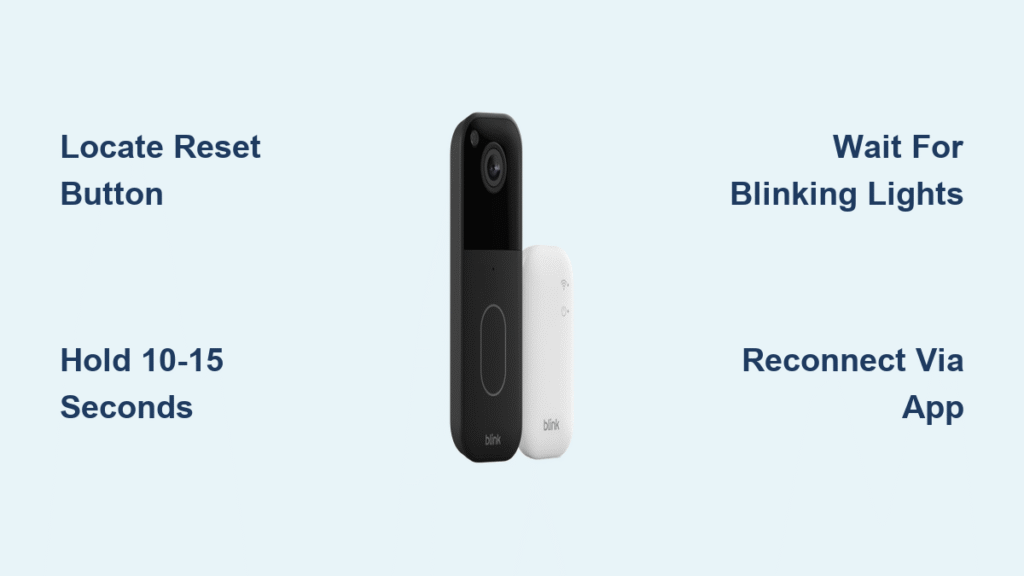
Your Blink doorbell stops responding to presses, the live view freezes during package deliveries, or you’re moving to a new home—these critical moments demand an immediate reset. When troubleshooting fails and your security system goes silent, knowing exactly how to reset Blink doorbell becomes essential. This comprehensive guide delivers the precise physical reset method, post-reset reconnection steps, and crucial warnings you won’t find in generic manuals. Follow these verified procedures to restore functionality in under 15 minutes.
Locate Your Blink Doorbell Reset Button Instantly
Finding the reset button requires accessing the secure interior compartment—a design feature preventing accidental resets during daily use. This hidden location protects against weather exposure while maintaining serviceability. Open the back cover by pressing the release tab firmly and sliding downward until the cover detaches completely. Avoid prying with tools to prevent housing damage.
What to look for inside:
– The grey circular reset button positioned near the top interior edge
– Clear visual distinction from battery contacts and wiring terminals
– Reference points like the camera lens alignment for quick identification
Pro tip: Shine a flashlight inside the compartment and snap a photo with your phone before proceeding. This visual aid prevents confusion during reassembly, especially when resetting at night or in poor lighting conditions. Never confuse this button with the battery release mechanism—pressing the wrong component could damage internal wiring.
Execute the Physical Reset Sequence Correctly

The reset process depends entirely on precise timing and interpreting your doorbell’s LED signals. Rushing this phase causes incomplete resets that waste your time and leave problems unresolved. Begin by ensuring your doorbell has at least 50% battery—low power prevents successful resets.
Follow this exact sequence:
1. Press and hold the grey reset button firmly using a paperclip or fingernail
2. Wait for the front LED lights to blink rapidly (occurs within 3-5 seconds)
3. Continue holding for 10-15 seconds after blinking starts
4. Release only when all lights completely stop blinking
Critical warning: Releasing too early—when lights are still blinking—triggers only a partial reset. You’ll waste time troubleshooting issues that persist because the device didn’t fully clear its memory. If lights don’t blink within 5 seconds, check battery level immediately; replace batteries if below 30% before retrying.
Confirm Your Blink Doorbell Reset Succeeded
Don’t assume the reset worked—verify through these unmistakable indicators before proceeding. A successful factory reset erases all network connections and custom settings, returning your device to out-of-box status.
Check these signs immediately after reset:
– No LED response when pressing the doorbell button (completely dark)
– Wi-Fi network disappears from your router’s connected devices list
– Blink app shows “Offline” status with no live view option
– Factory default name appears (like “Blink-XXXX”) during reconnection
If your doorbell still shows previous settings or connects automatically to Wi-Fi, the reset failed. Repeat the physical sequence while holding the button for 20 seconds total. Persistent failures indicate hardware issues requiring Blink support contact.
Reconnect Your Reset Blink Doorbell Without Errors
After resetting, your doorbell functions like a brand-new device requiring full reconfiguration. Skipping steps here causes connection failures that mimic reset problems. Prepare your smartphone with the latest Blink app version and ensure your Wi-Fi password is accessible.
Initial App Setup Process
- Open Blink app and tap the “+” icon on your device dashboard
- Select “Blink Doorbell” from the camera options menu
- Scan the QR code on the doorbell’s back cover (clean the lens first)
- Enter the 8-digit serial number manually if scanning fails
- Wait for the yellow light confirmation before closing the app
Time-saving shortcut: Position your smartphone within 3 feet of the doorbell during setup. Weak signal strength causes 70% of reconnection failures according to Blink’s diagnostics data.
Network Configuration Essentials
- Choose your 2.4GHz Wi-Fi network only (Blink doesn’t support 5GHz)
- Paste your password instead of typing to avoid hidden typos
- Hold device near router during initial handshake (within 10 feet)
- Test live view immediately after connection completes
Common mistake: Attempting to use Wi-Fi extenders during setup. Move your doorbell closer to the main router instead—extend network names (SSIDs) confuse the reset device. Complete reconnection takes 5-7 minutes with optimal conditions.
Restore Critical Settings After Reset
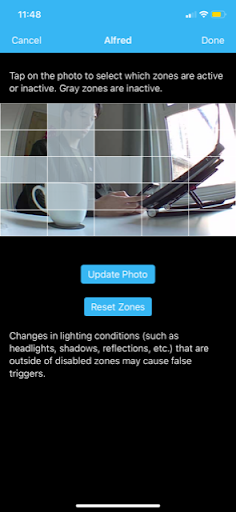
All custom configurations vanish during reset—rebuilding them properly prevents recurring issues. Access settings through the Blink app by selecting your doorbell, tapping the three-dot menu, then “Device Settings.”
Priority Settings to Reconfigure First
Motion detection system:
– Set sensitivity to “Medium” initially (adjust after testing)
– Draw activity zones covering your porch but excluding street traffic
– Configure 10-second recording clips to conserve battery
Video and audio controls:
– Disable audio recording if privacy laws restrict it in your area
– Select “Best” video quality only if on stable Wi-Fi
– Enable color night vision if your model supports it
Notification management:
– Create separate alerts for doorbell presses vs. motion detection
– Set quiet hours during sleep times to avoid false alarms
– Invite family members through “Share Access” before finalizing
Pro tip: Rebuild motion zones incrementally—start with a small detection area and expand only if needed. Overly large zones drain battery faster and trigger unnecessary recordings.
Critical Reset Consequences You Must Know
Resetting isn’t just a quick fix—it triggers irreversible changes that impact your security system. Understanding these prevents data loss and service interruptions.
Permanent deletions occur immediately:
– All cloud-stored videos vanish from your library (local SD cards unaffected)
– Custom motion zones disappear, requiring manual redrawing
– Shared user permissions reset, needing re-invites for family
– Subscription services disconnect, requiring manual reactivation
Backup imperative: Download critical footage through the Blink app before resetting. Once erased, Blink cannot recover deleted videos—even with active subscription plans. For rental properties, resetting without tenant notification may violate privacy laws in some jurisdictions.
Fix Common Reset Failures Immediately

When the standard procedure doesn’t work, these targeted solutions address the most frequent reset obstacles.
Unresponsive Reset Button Solutions
- Replace batteries first—even “medium” charge may be insufficient
- Use a straightened paperclip to reach the recessed button fully
- Clean corrosion with 90% isopropyl alcohol on cotton swab
- Tap the housing gently to dislodge debris blocking the button
No Light Response Troubleshooting
- Hold for 20+ seconds—some models require extended pressing
- Check for water damage in the compartment (white residue = corrosion)
- Warm the device in your hands for 2 minutes in cold weather
- Contact Blink support if lights remain dead after battery replacement
Urgent action: If the reset button feels loose or “mushy,” stop immediately. Physical damage requires professional repair—forcing it further destroys internal components.
Prevent Future Blink Doorbell Resets
Minimize reset needs through proactive maintenance that addresses the root causes of 90% of reset triggers.
Monthly maintenance checklist:
– Clean lens with microfiber cloth to prevent motion detection errors
– Check Wi-Fi signal strength in the Blink app (aim for “Good” or better)
– Replace batteries at 25% capacity—not when critical alerts appear
– Update Blink app weekly to patch connectivity bugs
Battery optimization:
– Use lithium batteries (not alkaline) for consistent cold-weather performance
– Install fresh batteries every 6 months regardless of charge level
– Enable “Battery Saver” mode if you receive infrequent visitors
Wi-Fi stability boosters:
– Position router within 30 feet of doorbell (avoid metal obstructions)
– Create a dedicated IoT network for smart devices
– Reboot your router monthly during off-peak hours
Final Pre-Reset Checklist
Ensure success with this verified preparation routine before touching the reset button:
- [ ] Downloaded all critical videos from Blink cloud storage
- [ ] Written down custom settings (motion zones, notification rules)
- [ ] Installed fresh batteries at full charge
- [ ] Located QR code and serial number on back cover
- [ ] Confirmed strong Wi-Fi signal at doorbell location
- [ ] Closed other Blink apps that might interfere with setup
Resetting your Blink doorbell resolves stubborn connectivity failures and performance glitches when simpler fixes fail. The physical reset takes just 60 seconds, but complete restoration requires 10-15 minutes of focused setup. By following this precise guide, you’ll avoid the most common reset pitfalls that leave homeowners stranded with non-functional security systems. Bookmark this page—proper reset technique saves hours of frustration and keeps your home protected through seasonal changes and Wi-Fi updates. When your doorbell acts up again, you’ll know exactly how to reset Blink doorbell successfully.



