
Your new Nest doorbell should connect seamlessly, but when setup fails, it’s incredibly frustrating. Whether you’re staring at a blinking blue light, getting endless “Device not found” messages, or watching the app spin endlessly during Wi-Fi pairing—you’re not alone. Many homeowners experience setup issues that prevent them from enjoying their smart doorbell’s full capabilities right out of the box.
This guide walks you through proven fixes for the most common Nest doorbell setup failures, from Wi-Fi connection problems to app crashes. You’ll learn exactly what to check, in what order, and how to get your doorbell working today. No more guessing or wasting hours on forums—just clear, actionable steps that solve real problems.
Diagnose Weak Wi-Fi Signal at Installation Location

Weak Wi-Fi is the primary culprit behind most failed Nest doorbell setups. Your doorbell needs consistent signal strength at your front door, not just where your router sits inside your home.
Measure Actual Signal Strength Where Doorbell Will Mount
Stand precisely where you plan to install your doorbell and run a speed test on your smartphone. Your connection must meet specific thresholds to support reliable doorbell operation. You need at least 2 Mbps upload speed for basic functionality, though 5+ Mbps is optimal for smooth video streaming. Check your phone’s signal bars—anything less than two bars indicates insufficient signal strength for stable connection. If your measurements fall below these requirements, your doorbell will either fail setup completely or disconnect frequently after installation.
Temporarily Reposition Your Router for Setup
During initial setup, move your Wi-Fi router within 10 feet of your doorbell location if possible. This temporary relocation eliminates signal strength variables from the troubleshooting equation. Once your doorbell successfully connects and completes setup, you can return your router to its original position. Many users skip this critical testing step and waste hours troubleshooting other potential issues when the problem is simply inadequate signal strength at the doorbell location.
Force Connection to 2.4GHz Network Band
Nest doorbells typically connect more reliably to 2.4GHz networks during initial setup compared to 5GHz bands. If your router broadcasts separate network names for each band, look for identifiers like “_2.4GHz” or “_5GHz” in your available networks. Always select the 2.4GHz option first for setup, then consider switching to 5GHz afterward if your signal strength supports it. The 2.4GHz band travels farther through walls and obstacles, making it ideal for connecting devices at the perimeter of your home like doorbells.
Execute Proper Hardware Reset Procedures
When setup repeatedly fails, a precise hardware reset clears corrupted data that prevents successful connection without triggering unnecessary factory resets.
Locate and Access the Reset Button Correctly
Find the small reset button on the back of your Nest doorbell. This button is intentionally recessed to prevent accidental presses, so you’ll need a paperclip or similar tool to reach it. Take care not to force anything into the opening, as this could damage the sensitive electronics inside your device.
Perform the Exact 10-Second Reset Technique
Hold the reset button for precisely 10 seconds while watching the status light. Release immediately when the light turns solid yellow—this indicates a successful reset without triggering a full factory reset. Continuing to hold beyond 12 seconds initiates a factory reset that takes 5 minutes to complete and erases all previous settings. After releasing, wait the full 2 minutes for your doorbell to restart completely before attempting setup again.
Verify Reset Success Before Proceeding
After a proper reset, your doorbell’s status light should pulse blue slowly, signaling it’s ready for setup. Any other light pattern—such as solid red, rapid blinking, or no light at all—indicates the reset wasn’t successful. In these cases, repeat the reset process exactly as described, paying special attention to the timing. Many users make the mistake of attempting setup too soon after resetting, before the doorbell has fully rebooted.
Resolve Google Home App Connection Failures
App-related issues cause more setup failures than most users realize. These targeted fixes address the most frequent Google Home app problems that prevent doorbell pairing.
Force-Close and Relaunch the App Correctly
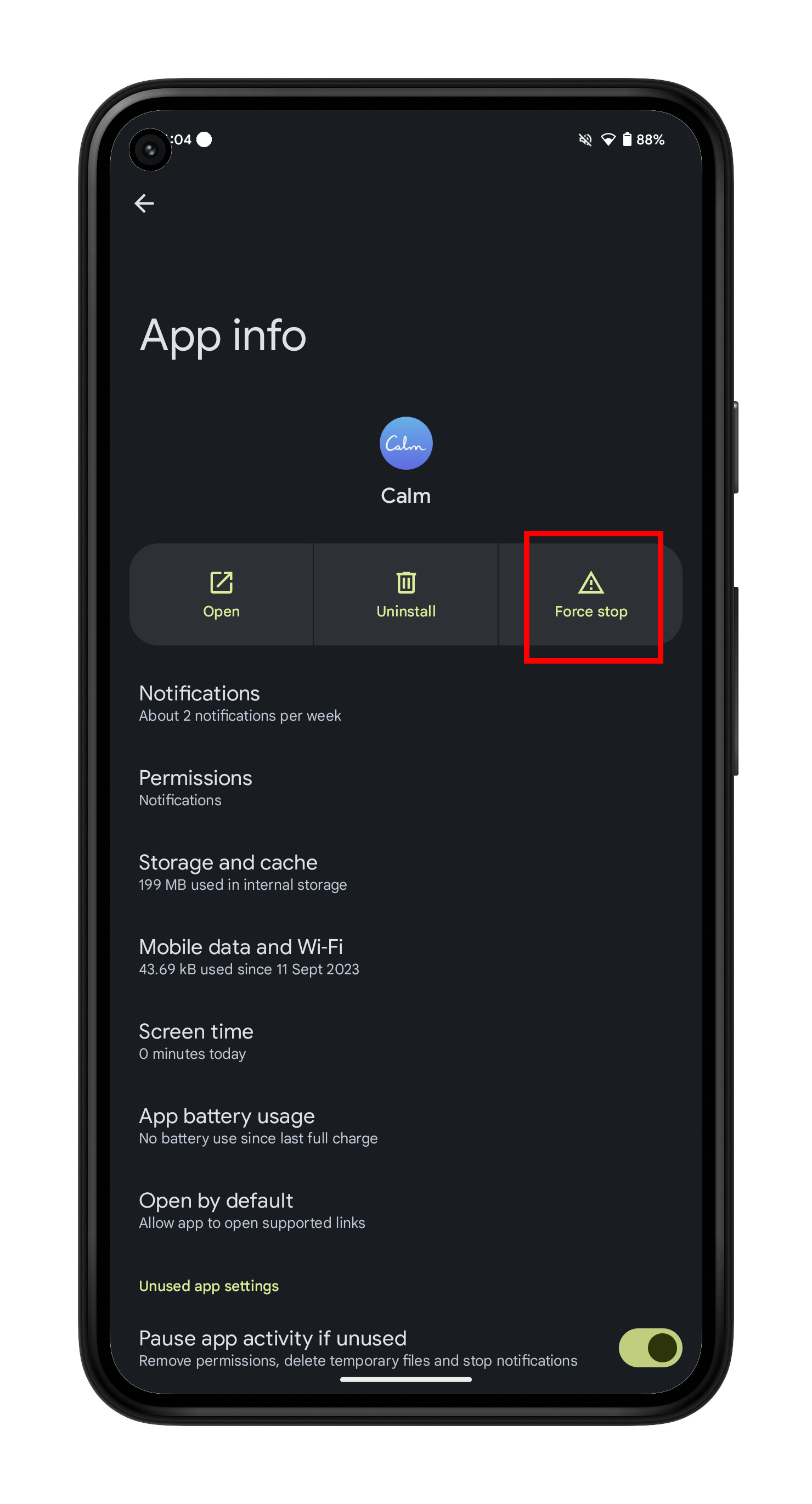
Completely close the Google Home app rather than just minimizing it. On iPhone, swipe up from the bottom, find Google Home in your app switcher, and swipe it away. On Android, go to Settings > Apps > Google Home and select “Force Stop.” Then reopen the app and restart setup from the beginning. This clears temporary memory glitches that often cause devices to appear “not found” during setup.
Clear App Cache Without Losing Settings
For Android users experiencing persistent setup failures, clearing the app cache can resolve the issue without deleting your entire home setup. Navigate to Settings > Apps > Google Home > Storage, then select “Clear Cache.” Never choose “Clear Data” during setup troubleshooting, as this erases all your smart home configurations and requires starting over completely.
Update to the Latest App Version Immediately
Check your app store for Google Home updates before spending time on other troubleshooting steps. Nest frequently releases patches specifically addressing setup issues. On iOS, visit the App Store, tap your profile icon, and check for available updates. Android users should go to Play Store > Manage apps & device > Updates. Installing the latest version often resolves obscure setup bugs that have already been fixed.
Verify Account Configuration and Permissions
Setup failures frequently stem from account issues rather than hardware or network problems. These checks ensure your Google account has proper configuration.
Confirm Nest Service Status Before Troubleshooting
Visit status.nest.com to check for widespread service outages before diving into complex troubleshooting. If Nest services show orange or red indicators, no amount of local troubleshooting will succeed—you simply need to wait until services are restored. Many users waste hours adjusting their home network when the problem is actually on Google’s end.
Use the Correct Google Account for Setup
Ensure you’re signed into the Google Home app with the exact account that purchased or received the doorbell invitation. Shared home setups often fail because users attempt setup with a secondary account that lacks proper permissions. Your primary Google account should match the one associated with your Nest purchase or invitation.
Enable Critical Location Permissions
The Google Home app requires precise location access to discover nearby devices and connect to your Wi-Fi network. On iPhone, go to Settings > Privacy > Location Services > Google Home and select “While Using App.” Android users should navigate to Settings > Apps > Google Home > Permissions > Location and choose “Allow.” Without these permissions, your phone cannot detect the doorbell during setup.
Address Power Supply Issues During Setup

Battery and power problems frequently cause setup failures that appear to be network or app issues.
Fully Charge Battery-Powered Models First
For battery-operated Nest doorbells, connect the included USB cable and charge for a minimum of 3 hours before attempting setup. Look for a solid green light indicator showing full charge—never attempt setup with orange or red battery indicators. Many users make the mistake of trying setup with insufficient battery, causing the device to shut down mid-process.
Verify Wired Power Connections Thoroughly
For wired installations, check that your transformer delivers 16-24V AC and that doorbell wires aren’t reversed. Ensure the chime connector is installed correctly and test voltage at the doorbell location with a multimeter. Inconsistent power during setup causes intermittent failures that are difficult to diagnose.
Perform Power Cycle Reset Properly
For battery models, remove the battery for exactly 30 seconds before reinstalling. Wired models require turning off the circuit breaker for 1 full minute before restoring power. After power cycling, wait for the doorbell to complete its full boot sequence—indicated by the status light behavior—before starting setup. Rushing this step is a common mistake that leads to repeated setup failures.
When Standard Fixes Fail: Advanced Solutions
If you’ve tried all basic troubleshooting without success, these advanced techniques often resolve stubborn setup issues.
Attempt Setup with Alternative Devices
Try the setup process using a different smartphone or tablet, preferably switching between iOS and Android platforms. Some doorbells develop compatibility issues with specific phone models or operating system versions. Using a friend’s device can quickly determine if the problem is device-specific rather than with your doorbell or network.
Perform Factory Reset as Last Resort
Hold the reset button for 12+ seconds until the light turns solid yellow, then release. This triggers a complete factory reset that takes approximately 5 minutes to finish. All previous settings and configurations will be erased, so only use this option after exhausting other troubleshooting steps. After resetting, begin the setup process entirely from scratch.
Contact Nest Support with Critical Information Ready
When all else fails, prepare these details before contacting support: your doorbell’s serial number (found on the device or packaging), exact purchase date, and specific error messages with timestamps. Have your router model and firmware version available as well. This information dramatically speeds up the support process and increases your chances of a successful resolution.
Prevent Future Setup Problems
Once you get your doorbell working, implement these strategies to avoid repeating the setup nightmare.
Document Your Successful Configuration
Write down the exact Wi-Fi network name used, password format characteristics, and any router settings you modified during setup. This documentation becomes invaluable if you ever need to reconnect your doorbell after router changes or firmware updates.
Enable Automatic Updates for All Components
Turn on automatic firmware updates for your doorbell and enable app auto-updates on your smartphone. Monthly manual checks ensure you don’t miss critical updates that could prevent future setup issues. Automatic updates provide security patches and compatibility fixes before problems arise.
Create Multiple Access Paths
Add a trusted family member to your Google Home setup and enable two-factor authentication for account security. Save Nest support contact information directly in your phone for quick access. These precautions ensure you always have alternative ways to manage your doorbell if your primary setup encounters issues.
Key Takeaway: Most Nest doorbell setup failures stem from Wi-Fi signal issues, app glitches, or account permissions—not defective hardware. Approach troubleshooting systematically: start with signal strength verification, proceed through precise reset procedures, then address app and account configuration. When standard fixes fail, advanced network adjustments or factory resets typically resolve stubborn issues. Document your successful setup process to save hours of frustration during future maintenance.



