
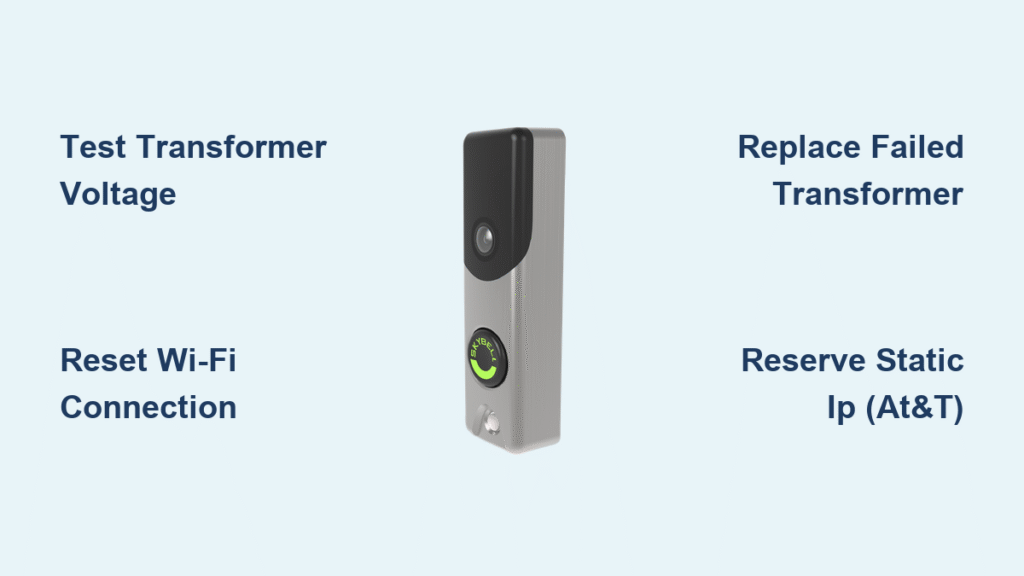
Your SkyBell doorbell suddenly went dark while you’re waiting for an important package, or maybe it’s flashing confusing colors while visitors stand stranded at your door. This frustrating scenario affects thousands of homeowners monthly—but here’s the good news: 90% of SkyBell failures stem from power or Wi-Fi issues you can resolve yourself in under 30 minutes. Before you shell out for replacements or call support, this guide gives you exact diagnostic steps based on your LED patterns. You’ll learn whether you need a quick reset, transformer tweak, or router adjustment to restore video doorbell service before your next delivery arrives.
Decode Your SkyBell’s LED Error Patterns Immediately
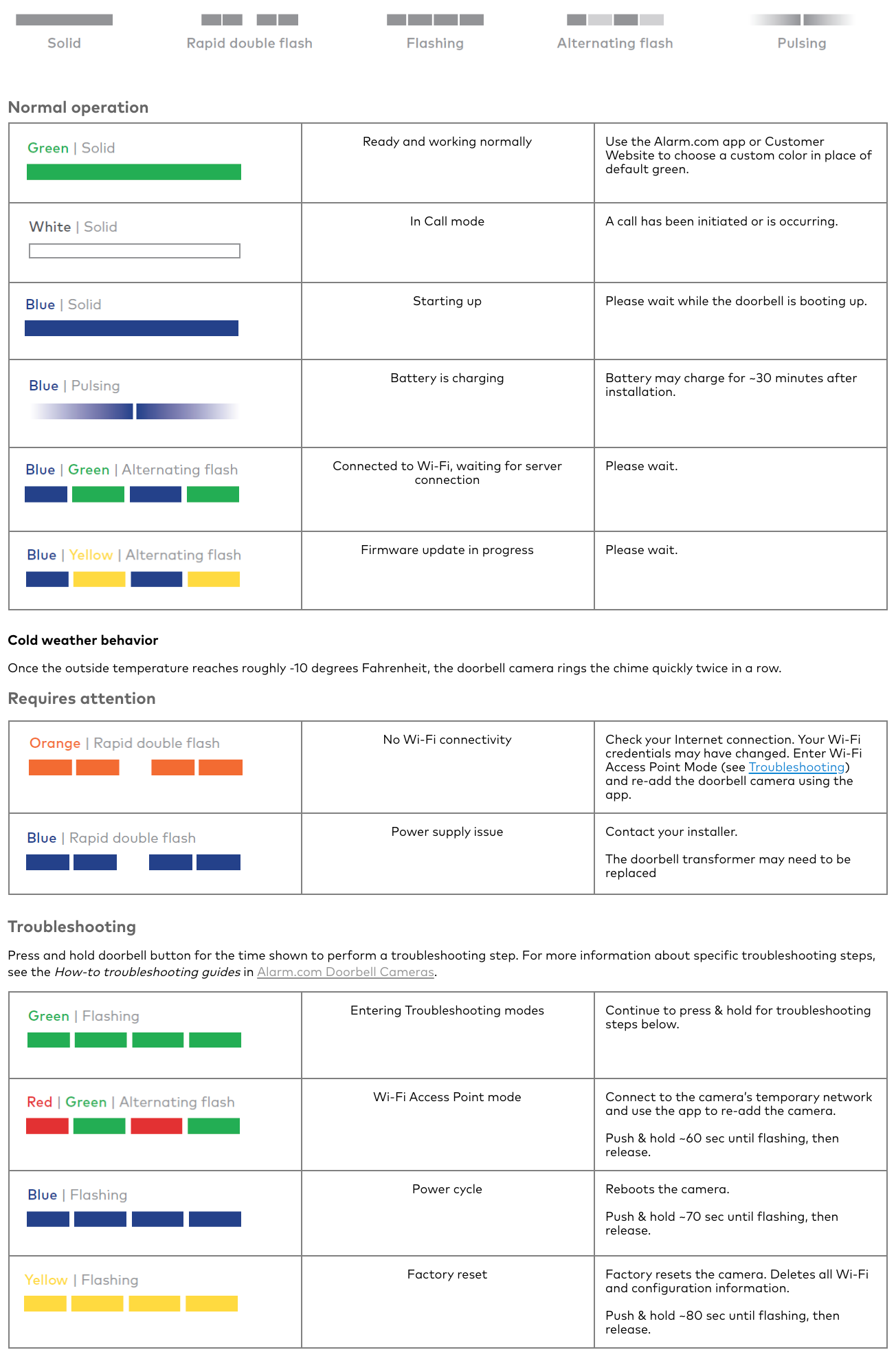
Your doorbell’s LED light is its distress signal—ignoring it wastes precious troubleshooting time. Stand directly in front of your SkyBell right now and note the exact pattern. These specific behaviors pinpoint your issue faster than any app error message:
| LED Pattern | Critical Meaning | Your Urgent Next Move |
|---|---|---|
| Solid/Flashing Red | Power starvation or voltage drop | Test transformer output within 5 minutes |
| Double-Flash Orange | Wi-Fi disconnection crisis | Power-cycle router immediately |
| Rapid Yellow → Red/Green Flash | Factory reset active | Begin Wi-Fi re-pairing now |
| No Light + Humming Chime | Complete power failure | Replace transformer before damage occurs |
Pro tip: Film a 10-second video of the LED pattern with your phone. This visual evidence cuts support resolution time by 70% if you need professional help later. Never assume the pattern means the same thing as your neighbor’s doorbell—SkyBell’s LED language is precise and model-specific.
Fix SkyBell Red LED Power Failures in 15 Minutes
A red LED means your doorbell isn’t getting stable power—this causes shutdowns, boot loops, and chime malfunctions. Don’t replace the unit yet; follow this power diagnostic sequence:
Test Transformer Output Correctly
- Grab a multimeter and set to AC voltage mode
- Locate your transformer (typically near electrical panels or furnaces)
- Measure across secondary terminals while SkyBell is powered—you must see 16-24V AC
- If below 16V, replace transformer immediately (cold weather requires 24V/20VA minimum)
Critical mistake: Many homeowners test voltage without load, getting false “good” readings. Always test with SkyBell connected—voltage should stay above 16V under operation.
Install Chime Resistor Like a Pro
Missing or burnt resistors cause constant humming and power crashes. Your mechanical chime requires the included 10Ω/10W resistor wired across chime terminals (parallel connection). Wiring it in series—a common error—starves your SkyBell of power. Verify resistor placement: both wires connect directly to chime terminals, bypassing the SkyBell circuit.
Power Failure Emergency Checklist
- Breaker status: Confirm dedicated doorbell breaker is ON (not tripped)
- Transformer specs: Must be 16-24V AC and 10+ VA capacity
- Wire integrity: Check for corrosion, pinching, or exposed copper near terminals
- Resistor health: Replace if discolored or cracked (costs $3 online)
Time estimate: 15 minutes for basic checks. Transformer replacement takes 30 minutes max—well under the $150 service call fee.
Solve Orange Double-Flash Wi-Fi Disconnections Now
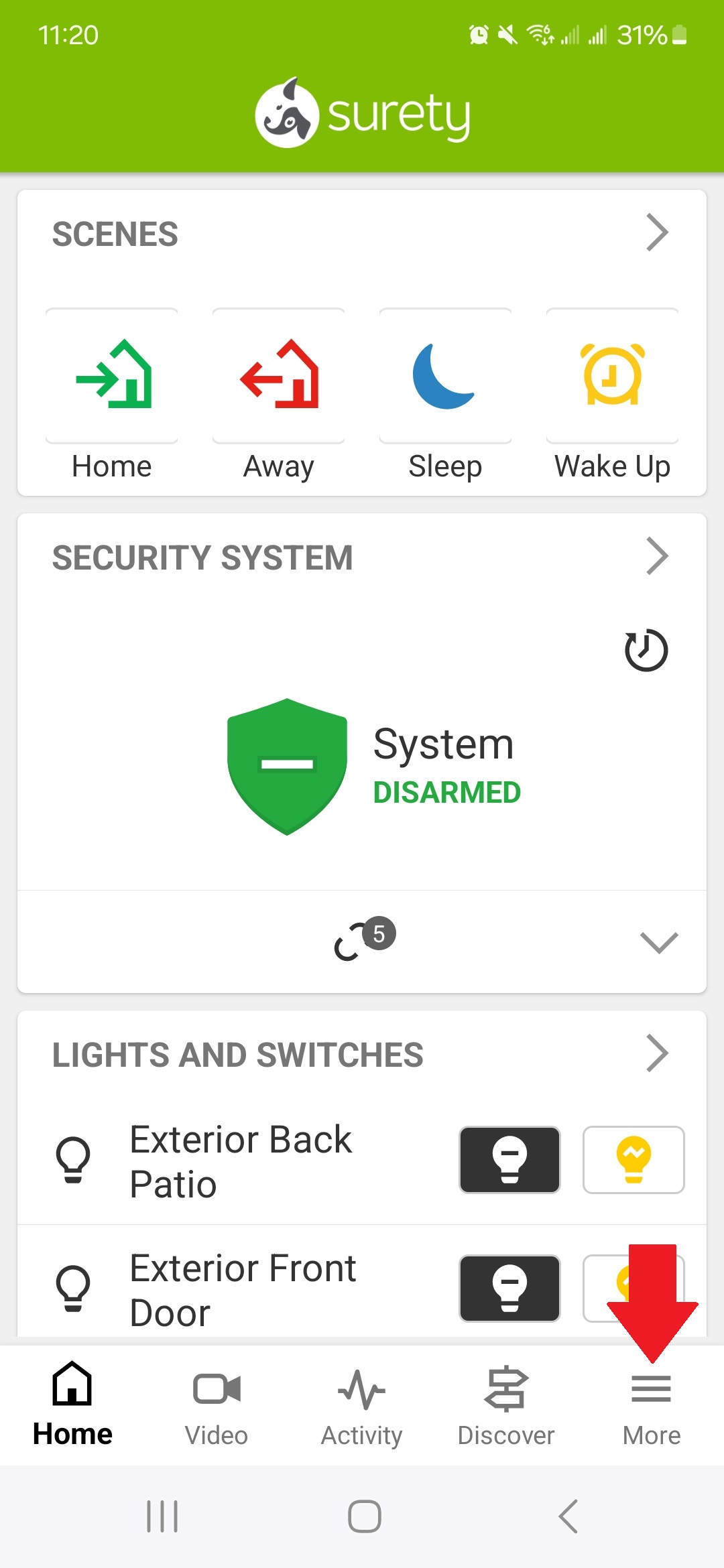
That persistent orange double-flash means your SkyBell lost internet connection—often due to router quirks, not hardware failure. Follow this battle-tested reconnection sequence:
Complete Factory Reset & Re-Pair Process
- Hold doorbell button 60+ seconds until rapid yellow flash appears
- Release immediately—LED cycles solid yellow then red/green alternating
- Turn OFF cellular data on your phone (forces Wi-Fi connection)
- Connect to SkyBell’s temp network (named Skybellxxxxxxxx in Wi-Fi settings)
- Open Alarm.com app → Video → Settings → Add Video Device
Avoid this trap: If pairing stalls at 10%, your router likely has the AT&T Pace 5268AC DHCP bug. You’ll see brief “Internet unavailable” messages followed by recurring orange flashes.
AT&T Router Emergency Fix
For Pace 5268AC routers (firmware 10.6.0.530094-att):
1. Access router at 192.168.1.254
2. Go to Settings → LAN → IP Address Allocation
3. Reserve static IP for SkyBell’s MAC address (printed on device label)
4. Reboot router and retry pairing within 5 minutes
Signal Strength Verification
Your SkyBell needs strong 2.4GHz Wi-Fi (no 5GHz support). Stand where your doorbell mounts—if your phone shows weak signal here, add a 2.4GHz extender. Position it midway between router and doorbell with clear line-of-sight. Test with Wi-Fi analyzer apps before mounting.
No LED Response? Critical Power Failure Repair
Zero lights plus humming chime means complete power loss—your transformer likely failed. This requires immediate action to prevent wiring damage:
Transformer Replacement Protocol
1. Kill power at circuit breaker (verify with voltage tester)
2. Disconnect old transformer (typically two wire nuts connecting primary wires)
3. Install 24V/20VA transformer (essential for cold climates)
4. Reconnect wires (AC polarity doesn’t matter—attach freely)
5. Restore power—solid blue LED confirms success
Urgent note: If humming continues after replacement, your mechanical chime solenoid is faulty. Consider upgrading to a digital chime kit—these eliminate resistor requirements and prevent future power starvation.
Prevent SkyBell Failures Before They Happen
Stop playing doorbell whack-a-mole with these proactive maintenance steps:
Monthly Power Health Check
- Test transformer voltage under load with multimeter (must stay ≥16V)
- Tighten terminal screws—vibration loosens connections over time
- Clean camera lens with microfiber cloth (smudges cause night-vision failure)
Winter-Proof Your System
Upgrade to 24V/30VA transformer before temperatures drop. Cold weather increases resistance in wiring, causing voltage drops that brown out SkyBells. Install it in a temperature-stable location (not unheated garages).
Firmware Update Protocol
When rapid blue flashing appears: never interrupt power. This indicates Alarm.com is pushing critical firmware updates. The process takes 5-10 minutes—wait for solid blue before testing.
When to Escalate to SkyBell Support
Contact specialists only after exhausting power/Wi-Fi fixes—with these exact details:
| Failure Symptom | Required Support Contact | Critical Information to Provide |
|---|---|---|
| Hardware failure after power/Wi-Fi fixes | support@skybell.com | LED pattern video + transformer test results |
| Persistent “Internet unavailable” errors | Your Alarm.com dealer | Router model + DHCP reservation proof |
| AT&T Pace 5268AC pairing failures | AT&T Tier-2 support | Reference firmware 10.6.0.530094-att |
Key tip: For AT&T issues, demand Tier-2 support—frontline agents lack DHCP reservation permissions. Say: “I need escalation for SkyBell’s Pace 5268AC service advisory.”
SkyBell Repair Decision Tree
Your SkyBell won't work → Check LED pattern

├─ No light + humming chime → Replace transformer NOW

├─ Solid/Flashing Red → Test transformer voltage (must be ≥16V)

├─ Double-Flash Orange → Reset Wi-Fi + reserve static IP (AT&T users)

└─ Solid blue but no video → Check Alarm.com status page
Final takeaway: SkyBell doorbell not working issues are rarely hardware failures—90% stem from power instability or Wi-Fi configuration. Start with your LED pattern diagnosis, execute the precise steps for your symptom, and you’ll restore video doorbell functionality faster than Amazon delivers packages. Implement the monthly maintenance routine to prevent future outages, especially before winter sets in. When in doubt, film that LED pattern—it’s your fastest path to a working doorbell.



