You resize a window, close your app, and reopen it only to find it back at full screen. Or maybe you need a window at exactly 800×600 for testing but cannot get it precise. These frustrations are common, and learning how to change the window size properly saves time every single day.
This guide walks through every reliable method for resizing windows in Windows 7 through 11. You will learn keyboard shortcuts, precision tools, automation scripts, and troubleshooting tips that make window management effortless.
Use Keyboard Shortcuts to Resize Windows Instantly
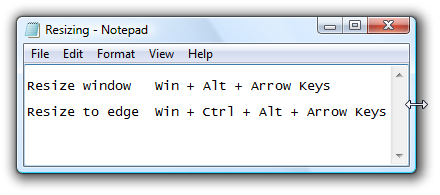
No mouse needed. Windows includes native shortcuts that let you resize any active window quickly.
Activate Resize Mode with Alt + Space
Press Alt + Space to open the system menu of your current window. Then press S to enter resize mode. Your cursor changes into directional arrows.
Use the arrow keys to adjust each edge:
– Left or Right arrows change width
– Up or Down arrows change height
Hold an arrow key to resize faster. Press Enter to confirm or Esc to cancel.
This method works in nearly all desktop apps including File Explorer, Notepad, and Chrome.
Snap Windows with Win + Arrow Keys
For fast positioning and resizing, try these combinations:
– Win + Left or Right snaps the window to half the screen
– Win + Up maximizes the window
– Win + Down minimizes or restores it
After snapping, fine-tune the dimensions using Alt + Space → S and arrow keys.
Force Windows to Remember Your Preferred Size
Tired of apps resetting to full screen every time? Windows can save your custom dimensions with a simple trick.
Save Window Size Using Shift + Close
- Manually resize the window to your desired dimensions.
- Hold the Shift key.
- Click the X (Close) button while still holding Shift.
- Reopen the application.
Windows stores the size in the registry. This technique works for most standard applications like Notepad, WordPad, and many third-party tools.
Some modern apps (especially UWP or Electron-based programs) may ignore this command due to internal state management.
Resize Windows to Exact Pixel Dimensions
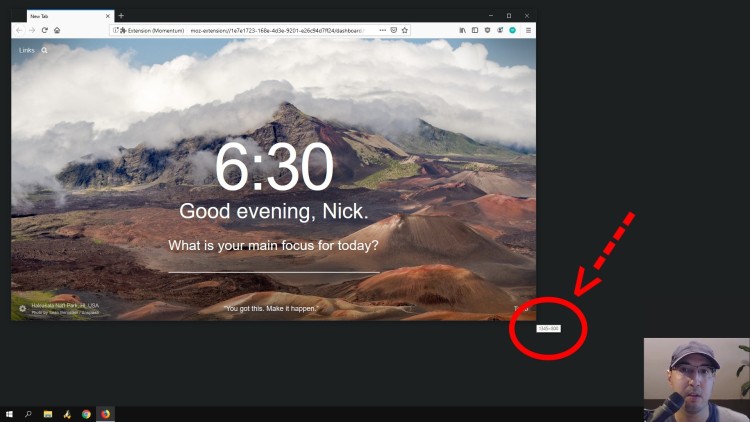
Need a window at exactly 800×600, 1024×768, or any custom size? Dedicated tools deliver precision that manual dragging cannot match.
Install Sizer for Pixel-Perfect Control
Sizer and its updated version Sizer 4 let you resize any window to exact pixel dimensions instantly.
Key features include:
– Right-click the tray icon to apply preset sizes like 1920×1080 or 1366×768
– Set custom dimensions manually
– Works across Windows 7, 10, and 11 with 64-bit support
If you notice transparency glitches after installing Sizer, disable Transparency Effects in Settings under Personalization, then Colors.
Try MindGems or Window Resizer
Both tools activate with Ctrl + Shift + R:
– A popup dialog appears for entering width and height
– Changes apply instantly to the active window
MindGems adds screenshot and annotation tools, making it ideal for testers and technical writers.
Automate Window Resizing with AutoHotkey Scripts
For full control and custom workflows, AutoHotkey (AHK) scripting lets you build personalized resizing commands.
Simple AHK v1 Script for Quick Resizing
This script prompts you for width and height when pressing Win + =:
“`ahk
=::
WinGet, window, ID, A
InputBox, width, Resize, Width:, , 140, 130
InputBox, height, Resize, Height:, , 140, 130
WinMove, ahk_id %window%, , , , width, height
return
“`
Smarter AHK v2 Script with Current Size Display
The modern version shows current dimensions and suggests rounded values (multiples of 4px):
“`ahk
Requires AutoHotkey v2.0-
resizeWindow(window) {
WinGetPos , , &W, &H, window
width := InputBox(“Width: ” W “px”, “Resize”, “w100 h84”, W – Mod(W, 4))
if (width.Result = “OK”) {
height := InputBox(“Height: ” H “px”, “Resize”, “w100 h84”, H – Mod(H, 4))
if (height.Result = “OK”) {
WinMove , , width.Value, height.Value, window
}
}
}
+w::resizeWindow(WinGetID(“A”))
“`
Bind this to Win + Shift + W for quick access. Remember that AHK resizes the outer window frame, so the inner content area will be smaller due to borders and title bars.
Fix Inner vs Outer Window Size Mismatch
You set a window to 800×600 but the content area shows only 784×592. This happens because operating system UI elements consume space.
Calculate the Right Offset for Inner Content
To get accurate inner dimensions, add offsets:
– Add approximately 16px to width
– Add approximately 8px to height
For example, to achieve 800×600 inner content, set the outer window to 816×608.
Offsets vary based on Windows version, application UI, DPI scaling, and theme. Use trial and error or inspect with developer tools for accuracy.
Use Fancy Zones for Visual Window Layouts
Microsoft PowerToys Fancy Zones offers a visual approach to window management with custom grids.
Create Fixed-Size Zones in Fancy Zones
- Install Microsoft PowerToys from the official GitHub repository.
- Open Fancy Zones from the PowerToys settings.
- Design a custom layout with exact dimensions like an 800×600 panel.
- Hold Shift and drag any window into the zone.
The window automatically resizes and snaps into place with real-time visual feedback.
This tool works on Windows 10 and 11 and excels at dual-monitor workflows.
Use Command-Line Tools for Scripted Resizing
Control window size from scripts or batch files using specialized utilities.
ExpandWnd to Fill Work Area
ExpandWnd forces a window to fit the screen’s work area (excluding the taskbar) without triggering full maximize.
Basic syntax:
expandwnd "Notepad"
The command matches any window containing “Notepad” in the title and is case-sensitive. This tool is ideal for automation scripts and multi-monitor setups where standard maximization behaves inconsistently.
Explore Advanced Window Managers
For power users managing complex desktop environments, professional tools offer additional features.
WS Grid+ Window Manager
This paid tool costs €4.99 with a 7-day trial and includes:
– Fixed resizing rules per application
– Stable performance on Windows 11
– Zone snapping and position locking
WinSize2 for Lightweight Control
A simple utility that forces exact window dimensions with:
– Minimal user interface
– Fast execution
– No background processes
Troubleshoot Common Window Size Problems
Even with the right tools, you may encounter issues. Here are solutions to the most frequent problems.
Window Size Won’t Stick After Closing
If your app keeps resetting to default size:
1. Try the Shift + Close method first.
2. Clear app configuration files in the %AppData% folder.
3. Reset window state in Registry Editor by navigating to HKEY_CURRENT_USER\Software\Microsoft\Windows\CurrentVersion\Explorer\StreamRestore.
Always back up the registry before making manual edits.
Multi-Monitor DPI Scaling Breaks Layouts
When moving between a laptop (100% DPI) and a 4K monitor (150% DPI), standard maximize distorts fonts and buttons. Use Sizer 4 or Fancy Zones to maintain pixel-accurate sizing because these tools respect absolute dimensions rather than relative scaling.
Compare Window Resizing Tools at a Glance
| Tool or Method | Precision | Cost | Best For | OS Support |
|---|---|---|---|---|
| Alt + Space + S | Manual | Free | Quick fixes | Win 7 to 11 |
| Shift + Close | N/A | Free | Saving size | Win 7 to 11 |
| Sizer or Sizer 4 | 1 pixel | Free | Web testing | Win 7 to 11 |
| AutoHotkey | 1 pixel | Free | Automation | All versions |
| Fancy Zones | Zone-based | Free | Workflows | Win 10 to 11 |
| MindGems Resizer | 1 pixel | Free | Screenshots | Win 10 to 11 |
| WS Grid+ | 1 pixel | Paid | Pro management | Win 11 |
| ExpandWnd | Full screen | Free | CLI scripts | All versions |
Frequently Asked Questions About Changing Window Size
What is the fastest way to change the window size in Windows?
Press Alt + Space, then S, and use the arrow keys to resize. Press Enter to confirm. This native method works in all Windows versions without installing software.
Why does my window size reset every time I reopen an app?
Some applications ignore saved window states due to internal configuration or corrupted registry entries. Try the Shift + Close technique first, then clear app config files in %AppData% or reset the StreamRestore registry key.
How do I resize a window to an exact pixel size?
Use tools like Sizer, Sizer 4, or MindGems Resizer. These utilities let you enter precise width and height values and apply them instantly to any active window.
What is the difference between outer and inner window size?
Outer size includes the title bar, borders, and frame. Inner size is the actual content area. To get a specific inner dimension, add approximately 16px to width and 8px to height to compensate for borders.
Can I resize windows using a command line?
Yes. ExpandWnd is a command-line tool that expands any window to fit the work area. Run expandwnd "WindowTitle" in Command Prompt or scripts to resize windows programmatically.
Does Fancy Zones work for exact pixel dimensions?
Fancy Zones uses zone-based layouts rather than precise pixel input. You define zones with specific dimensions visually, then drag windows into them while holding Shift for automatic resizing.
Key Takeaways for Mastering Window Size Changes
Changing the window size becomes simple once you know the right tools. Start with the keyboard shortcut Alt + Space → S for quick manual adjustments. For persistent sizing, use Shift + Close to lock in your preferred dimensions. When you need pixel-perfect accuracy, install Sizer or explore PowerToys Fancy Zones for visual layouts.
Your next step: pick one method from this guide and test it today. Whether you choose a keyboard shortcut for speed or a dedicated tool for precision, you will gain complete control over how every window appears on your desktop.