You click the app icon on your taskbar, expecting the program to pop into view, but nothing appears. The app is clearly running because Alt + Tab shows it in the switcher, yet the window stays invisible. This is the classic off-screen window problem, and it happens to almost everyone who uses a laptop with an external monitor, docking station, or projector.
The root cause is simple: Windows saves each window’s last position. When you disconnect a second screen, change your resolution, or misalign your display layout, apps can get stranded in a virtual space your mouse cannot reach. The good news is that you do not need to restart your computer or reinstall anything. With a few keyboard tricks and built-in tools, you can drag that lost window right back where it belongs.
This guide walks you through every proven method to recover off-screen windows, starting with the fastest fix and moving to advanced tools and prevention tips.
Use Alt + Space + M to Move the Window
This is the most reliable trick for retrieving off-screen windows in Windows, and it works even when you cannot see the window at all.
Activate the Window and Open the System Menu
First, make sure the missing window is the active focus. Click its icon on the taskbar or press Alt + Tab until it is selected. Once active, press Alt + Space to open the hidden system menu. You will not see the menu if the window is off-screen, but the command still registers.
Select Move and Reposition
Press M to choose the Move option. The window is now in movement mode but still invisible. To activate the repositioning, press any arrow key once (up, down, left, or right). The window will either snap to your mouse cursor or begin moving with your arrow presses.
You now have two options for repositioning:
- Use the arrow keys to nudge the window gradually into view
- Move your mouse to drag the window instantly to your cursor’s position
Once the window is fully visible, click the left mouse button or press Enter to lock it in place. This method works on nearly all traditional desktop applications and should be your first attempt every time.
Pro Tip: If
Alt + Spacedoes nothing, the app might be a modern UWP (Windows Store) app. These sometimes ignore system menu commands. Skip ahead to the WinLister tool or resolution method if that happens.
Restore or Maximize the Off-Screen Window
If the Move command does not respond, forcing a state change can reset the window’s position and bring it back into view.
Use the Restore Command
With the off-screen window active, press Alt + Space, then R. This sends the Restore command, which returns a maximized window to its previous size. If the app was maximized on a disconnected monitor, this often snaps it back to your current screen.
If the window remains off-screen after restoring, follow up immediately with Alt + Space, then M, and use the arrow keys as described earlier.
Force Maximize to Fill the Screen
Press Alt + Space, then X. This sends the Maximize command, forcing the window to fill your entire active display. Since a maximized window must fit within your screen, this guarantees visibility.
Once visible, you can resize or move the window normally. This method is especially useful when the window is stuck just beyond the screen edge and refuses movement commands.
Expert Note: Some users report success by combining both steps, Restore then Move, because it resets the window’s internal positioning data before re-engaging movement.
Snap the Window with Keyboard Shortcuts
Windows 10 and 11 include powerful window snapping features that can override off-screen positioning.
Use Win + Arrow to Reposition
Activate the missing window via the taskbar. Then press Windows Key + Left Arrow or Windows Key + Right Arrow. This tells Windows to snap the window to one side of your screen.
Even if the window is off-screen, this command often forces it into the visible area, docked to the left or right half of your display. If it does not appear, try Windows Key + Up Arrow to maximize it instead.
Force Restore from a Minimized State
If the window is minimized, press Windows Key + Up Arrow to restore and maximize it in one step. This shortcut bypasses system menus entirely and directly manipulates the window state.
Limitation: Snapping may not work with legacy applications, full-screen programs, or certain UWP apps that do not support the Windows Snap API.
Shift-Click the Taskbar Icon
When keyboard shortcuts fail, a hidden context menu can still give you control over the off-screen window.
Access the Full Context Menu
Locate the app’s icon on the taskbar. Hold down the Shift key and right-click the icon. This reveals advanced options like Move, Size, Minimize, Maximize, and Close, which are not always visible in the standard right-click menu.
Select Move from the list. Then press any arrow key to activate movement mode. Use the arrows to guide the window into view, or move your mouse to drag it manually.
Why Shift? The
Shiftmodifier forces Windows to show the full system menu, even for apps that normally hide these options in the taskbar context menu.
Maximize the Window via Task Manager
For unresponsive or frozen windows, Task Manager can override the app’s current state.
Force Maximize from the Processes Tab
Press Ctrl + Shift + Esc to open Task Manager. Go to the Processes tab and find your app, such as Chrome, Word, or Photoshop.
Right-click the process. If available, select Maximize from the context menu. This command forces the window to expand to full screen, bringing it back into view.
Note: Not all Windows versions or app types show the Maximize option here. If it is missing, try the “Go to details” method below.
Use the Details Tab to Reset the State
In Task Manager, right-click the app under Processes and choose Go to details. This switches to the Details tab and highlights the exact executable, such as firefox.exe.
Right-click that entry. While a direct “Move” option is rare, this action can sometimes refresh the window’s state or help you identify the correct process for command-line termination.
Change Screen Resolution Temporarily
Altering your display resolution forces Windows to reflow all open windows, often pulling off-screen ones back into view.
Lower Resolution to Reset the Layout
Right-click the desktop and select Display settings. Scroll to Display resolution and change it to a lower setting, such as 1280×720 or 1024×768.
Click Keep changes. Windows will rearrange all windows to fit the smaller screen area. Your missing window should now be visible.
Return to your original resolution. The window should stay within the visible desktop.
Warning: Avoid this method if you are using multiple monitors with complex arrangements, because it can temporarily disrupt your layout.
Toggle Project Mode with Win + P
This method is ideal if you recently disconnected a second monitor and suspect the window is stuck on the “ghost” display.
Switch to Duplicate Mode
Press Windows Key + P. A sidebar appears with projection options. Select Duplicate.
This setting mirrors your display across all connected screens, even if only one is active, effectively collapsing the virtual desktop space. Windows often pulls off-screen windows into the primary display when this happens.
Once the window appears, drag it to the center of your screen. Then press Win + P again and select PC screen only to return to single-display mode.
Why It Works: Duplicate mode forces Windows to treat the desktop as a single, unified space, eliminating the gap where windows get lost.
Fix Monitor Arrangement in Settings
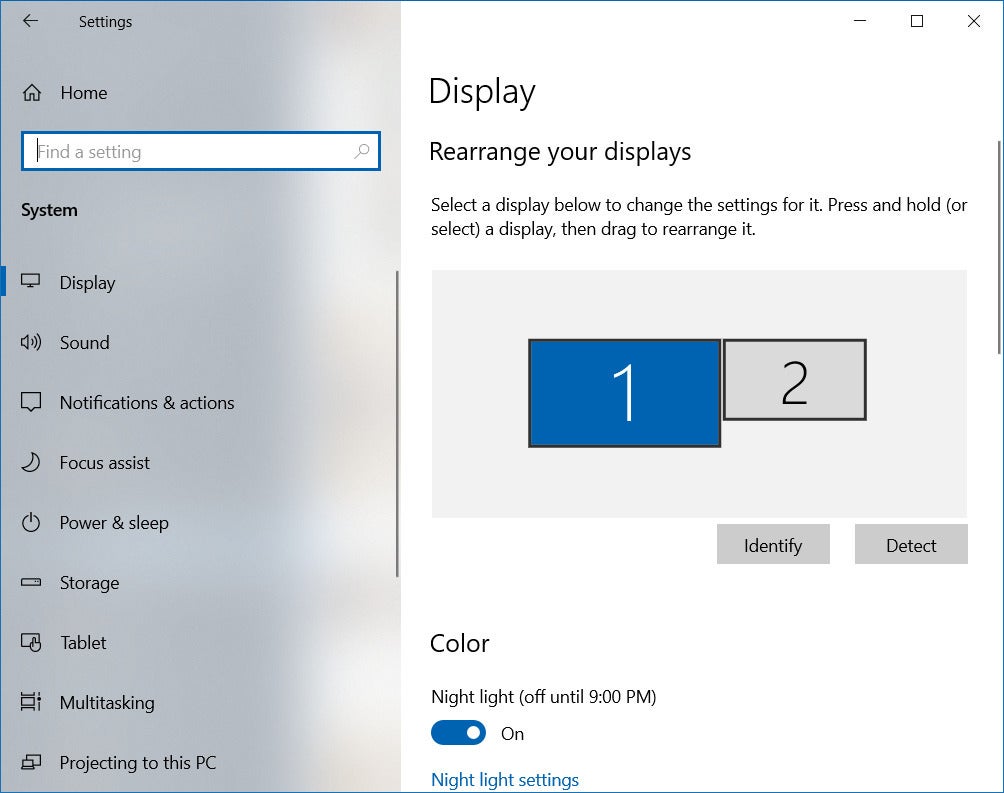
Misaligned virtual monitors can create invisible zones where windows disappear during dragging.
Align Virtual Screens Correctly
Go to Settings (Win + I) > System > Display. Click Identify to see which number corresponds to each physical screen.
Then drag the monitor thumbnails to match your actual setup. Ensure edges are flush with no gaps or overlaps. If Monitor 2 is positioned below Monitor 1 in the settings but sits beside it physically, dragging a window could send it off-screen.
Click Apply. The corrected layout prevents future off-screen drift and may recover windows stuck in alignment gaps.
Pro Tip: After realigning, use Cascade windows (right-click taskbar > Cascade windows) to gather all open apps on the primary screen.
Restart the Application
If all else fails, restarting the app forces it to reload its window position, often defaulting to the center of your main display.
End Task and Relaunch
Open Task Manager (Ctrl + Shift + Esc). Find the app in the Processes tab. Right-click and select End Task.
Relaunch the application. Most programs open in a default, visible location unless they strictly save their last position.
Caveat: Some apps, like older versions of Adobe software, save window coordinates on exit. If the app reopens off-screen again, combine this with a resolution change before relaunching.
Use WinLister to Center Any Window
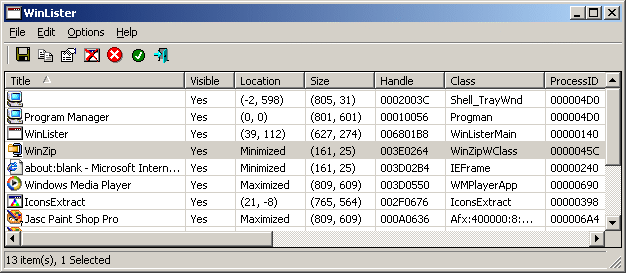
When native methods fail, third-party tools offer deeper control. WinLister by NirSoft is the most effective free utility for this problem.
Download and Run WinLister
Visit the NirSoft website and download WinLister. It is portable, so no installation is needed. Run the executable.
The tool lists every open window, including invisible ones. Find your missing app in the list. Select it, then press Ctrl + F6 or right-click and choose Center Selected Windows.
The window instantly appears centered on your primary screen.
Why WinLister Wins: It bypasses Windows’ UI limitations and directly manipulates window handles. It works on UWP apps, legacy software, and even some virtual machine windows that resist standard methods.
Prevent Off-Screen Windows
Avoid the problem entirely with a few smart habits and settings.
Disconnect Monitors Properly
Before unplugging an external monitor, press Win + P and select PC screen only. This tells Windows to migrate all windows to your primary display before the second screen disconnects.
Avoid Mid-Session Resolution Changes
Changing display resolution or scaling while apps are open can shift window coordinates unexpectedly. If you must change settings, minimize or close critical apps first.
Update Graphics Drivers
Outdated GPU drivers can cause display handling bugs. Keep your Intel, NVIDIA, or AMD drivers up to date through Device Manager or the manufacturer’s app.
Use Window Management Tools
Consider DisplayFusion or Actual Window Manager if you frequently switch between single and multi-monitor setups. These tools let you create rules like “always open Chrome on primary screen” or “snap all new windows to center.”
Frequently Asked Questions About Off-Screen Windows
Why does my window go off-screen when I disconnect my monitor?
Windows remembers the last position of every window, including those on external displays. When you disconnect a second monitor, the window stays in the virtual space where that screen used to be, leaving it invisible on your primary display.
What is the fastest way to bring an off-screen window back?
Press Alt + Space, then M, then any arrow key. This activates the Move command and lets you drag the window back into view with your mouse or arrow keys. It works on most traditional Windows applications.
Do these methods work on Windows 11?
Yes. All keyboard shortcuts, system menus, and Task Manager techniques described here work on both Windows 10 and Windows 11. The Snap functionality is built into both versions.
Why does Alt + Space not work on some apps?
Modern UWP apps installed from the Microsoft Store sometimes ignore system menu commands. For these apps, try the WinLister tool or temporarily change your screen resolution to force the window back into view.
Will restarting my computer fix an off-screen window?
Sometimes, but it is not necessary. The keyboard and Task Manager methods above recover the window without any restart. Restarting only helps if every other method fails.
Can I prevent this from happening in the future?
Yes. Always use Win + P to switch to “PC screen only” before disconnecting an external monitor. Keep your graphics drivers updated, and avoid changing resolution while apps are open. Tools like DisplayFusion can automate window placement rules for multi-monitor workflows.
Key Takeaways for Recovering Off-Screen Windows
The Alt + Space + M method solves roughly 90% of off-screen window issues, so always start there. If it fails, try the Restore and Maximize commands, then move to Windows Snap shortcuts and the Shift-click taskbar technique. For stubborn UWP apps or legacy software, WinLister is your most reliable fallback.
Prevention is just as important as recovery. Switch to “PC screen only” before disconnecting monitors, keep your graphics drivers current, and consider a window management tool if you frequently toggle between single and multi-monitor setups. With these habits and techniques, you will never lose a window to the edge of nowhere again.