
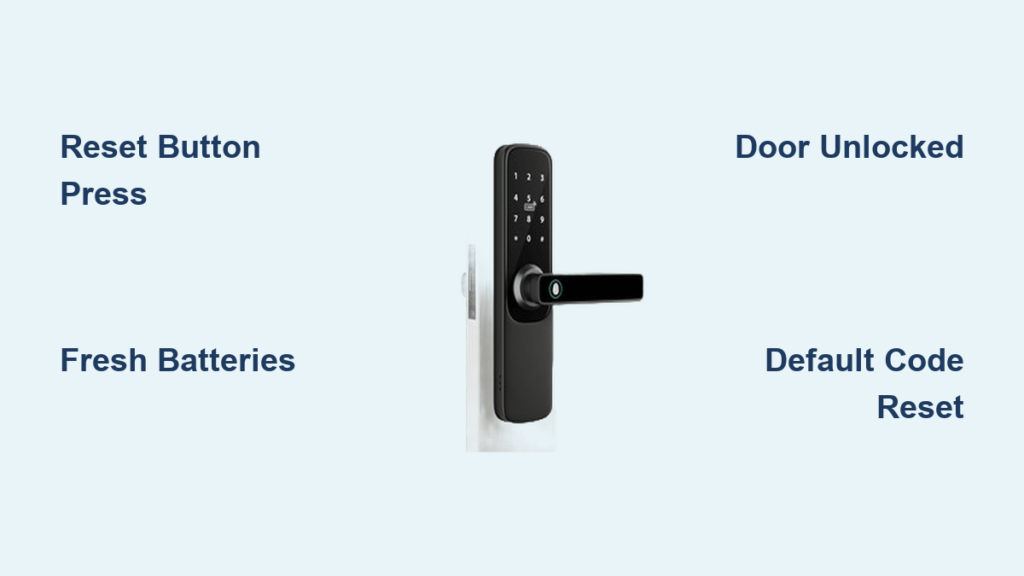
Smart door locks bring convenience and advanced security to your home, but what happens when you forget your PIN, lose your phone, or move into a new house? The answer is to reset the smart lock. A factory reset restores your lock to its original state, wiping all user data and settings. This is essential for security during ownership changes or after persistent malfunctions. Whether you are troubleshooting connectivity issues or preparing to resell your device, knowing how to reset a smart door lock is critical for maintaining control of your home security.
When to Reset Your Smart Lock
Knowing when to reset your smart lock is just as important as knowing how. Several situations demand a factory reset to ensure your security remains intact.
Change of Ownership or Tenants
Whenever someone moves out, whether a tenant, roommate, or previous homeowner, you must perform a factory reset. This ensures all access codes, fingerprints, and app-linked credentials are erased completely. Without a reset, former users may still unlock your door remotely, creating a serious security vulnerability.
Forgotten Master PIN
If you have lost access to the administrative code, most modern smart locks support no-code resets via a physical button. Models like the Yale Assure and Philips DDL603E allow full resets without requiring prior login, making recovery possible even when locked out digitally.
Lost Phone or Stolen Device
Your smartphone may serve as a primary key. If it is lost or stolen, resetting the lock removes Bluetooth pairings and invalidates app-based access. Always remove the device from your account first, then reset the lock for maximum protection.
Persistent Technical Issues
A factory reset clears corrupted settings and firmware glitches, often restoring normal operation. Common signs that a reset is needed include keypad unresponsive, fingerprint sensor failing, app shows offline permanently, or auto-lock not engaging.
Types of Resets: Soft vs Factory
Understanding the difference between reset types helps you choose the right approach for your situation.
Soft Reset (Change Code Only)
A soft reset only updates PINs or user codes. It does not delete fingerprints, schedules, or app connections. You will need the current master code to enter programming mode.
Typical steps include:
• Enter master PIN
• Press # or * plus admin command like *99
• Input new code twice
• Confirm with beep or light
After three to five failed attempts, many models disable programming for 30 to 60 seconds.
Factory Reset (Full Erase)
This hard reset wipes everything including all PINs and temporary codes, fingerprint templates, Bluetooth and Wi-Fi pairings, user names and access logs, and smart home integrations. The lock reverts to default settings with a known admin code like 123456, ready for reconfiguration. A factory reset is irreversible and should only be done when necessary.
Pre-Reset Checklist
Before initiating any reset, complete this checklist to ensure success.
Ensure Door Is Unlocked
Most smart locks block programming when the bolt is extended. Always unlock manually before starting the reset process.
Install Fresh Batteries
Low power causes 70% of failed resets. Use new alkaline batteries, not rechargeables, and ensure correct polarity.
Keep Physical Key Nearby
If the reset fails, you will need the mechanical override key to open the door and access internal components.
Back Up Current Settings
Write down current user codes and names, access schedules, and smart home routines. This saves time when reconfiguring post-reset.
Locate the User Manual
Search online using your model number, such as Yale YRD226 reset. Many brands offer downloadable PDFs or video guides.
Remove Lock from App
In your smart lock app, delete the device and forget it in phone Bluetooth settings. This prevents pairing conflicts after reset.
Universal Reset Procedure

While details vary by brand, most smart locks follow a similar hardware-based process.
Remove Battery Cover
Use a screwdriver or finger grip to open the interior panel. Some models have tamper-resistant screws, so keep the right tool handy.
Take Out Batteries
Wait 30 to 60 seconds to let residual power drain. This helps clear system memory effectively.
Press and Hold Reset Button
Use a paperclip or SIM tool on the recessed pinhole. Common locations include inside battery compartment, behind interior mounting plate, or near circuit board.
Hold for 10 to 30 Seconds
Timing matters significantly. Too short results in no reset, while too long may trigger error mode. Check your model specifications. Some require holding during battery reinsertion.
Reinsert Batteries
For certain Yale and Ultraloq models, press and hold the reset button while inserting batteries.
Wait for Confirmation
Look for LED flash where green indicates success and red indicates error, beep or chime, or voice prompt for Philips and Schlage models. If nothing happens, try again with fresh batteries.
Enter Programming Mode
Use the default admin code, often 123456, 000000, or printed on lock label, followed by # or * to begin setup.
Re-Pair with App
Add the lock as a new device in your manufacturer app such as August, Kwikset, Yale Access, or others.
Reconfigure All Settings
Restore user access codes, temporary guest codes, auto-lock timer, and smart home integrations with Alexa, Google Home, or Apple HomeKit.
Model-Specific Reset Instructions
Different brands require specific procedures. Here is how to reset the most common models.
Kwikset Halo Select
Remove interior assembly, press reset pinhole for 15 to 20 seconds, release when long beep or red/green LED flashes, reattach cover, and re-pair via Kwikset app. Note that codes may still appear in app but are invalid after reset.
Kwikset Aura Reach
Open battery compartment, hold reset button for at least 15 seconds, watch for LED color shift from blue to red, release when light stabilizes, reinstall and set up via app. This clears all codes, schedules, and network pairings.
Philips DDL603E 5HWS
Open battery cover, double-tap the R hole quickly, listen for voice prompt saying Restoring to default settings, lock resets automatically. This is ideal for forgotten passwords with no app or code needed.
August Smart Lock
Remove back cover, press reset button for 10 seconds, release when LED flashes white, reinstall via August app. Must be added as a new device with no data retained.
Schlage Encode / Sense
Enter current programming PIN, press 0 plus Schlage button, follow voice prompts to erase all settings, re-program new codes. Cannot reset without valid admin code.
Yale Assure (YRD226, YRD256)
Remove batteries, press and hold Program button, reinsert batteries while holding, release when LED flashes, enter programming mode with default code. This bypasses forgotten PIN effectively.
Ultraloq U-Bolt Series
Open battery compartment, hold reset button for 5 seconds, LED blinks to confirm, re-pair via Ultraloq app. May require app reinstall if connection persists.
Blackview Smart Locks
These likely use hidden reset button. Try long-press for 10 to 15 seconds or double-press, then follow app instructions post-reset.
What Happens After a Reset
Understanding post-reset behavior helps you prepare for reconfiguration.
Default Admin Code Activated
Your lock will accept the factory default code. Common defaults include 123456, 000000, or # plus 00000. Change this immediately to prevent unauthorized access.
All Users and Codes Deleted
Every PIN, fingerprint, key fob, and temporary access code is erased. You must re-add each user manually.
Smart Home Links Broken
Integrations with Amazon Alexa, Google Assistant, Apple HomeKit, and Samsung SmartThings must be reconnected from scratch.
Firmware May Need Update
After reset, check the app for available updates. New firmware often fixes bugs related to pairing and stability.
Post-Reset Setup Checklist
After a successful reset, complete these steps to restore full functionality.
Set a Strong Master PIN
Use 6 to 8 digits and avoid sequences like 123456 or birthdays. Store securely in a password manager.
Re-Pair with Mobile App
Open manufacturer app, select Add Device, follow Bluetooth/Wi-Fi prompts, and grant location and notification permissions.
Add Users and Temporary Codes
Assign named codes like Housekeeper, create time-limited access for guests, and enable notifications for entry logs.
Reconnect to Smart Home Systems
Restore automations such as unlock when I arrive home, lock at bedtime, or notify me if door left open.
Test Every Function
Verify keypad entry works, app can lock/unlock, fingerprint or card access functions properly if applicable, mechanical key turns smoothly, and auto-lock engages correctly.
Troubleshooting Failed Resets

When reset does not work, these solutions address common issues.
Lock Unresponsive to Reset
Cause is low battery. Replace with brand-new alkaline batteries. Rechargeables often lack the voltage needed for reset.
No LED Flash or Sound
Cause is wrong button or timing. Confirm you are pressing the correct pinhole. Try holding for 15 to 30 seconds. Some models require action during battery reinsertion.
Door Locked During Reset
Cause is bolt engaged. Manually unlock using key or thumb turn. Most locks disable programming when locked.
App Will Not Recognize Lock
Cause is device still paired. In app, delete lock and forget in Bluetooth settings. Restart phone if needed.
Cannot Enter Programming Mode
Cause is wrong code or sequence. Try common commands like # plus 00000, * plus 99, or # plus 123456. Consult manual for exact syntax.
No Voice Prompt (Philips)
Cause is long press instead of tap. The Philips DDL603E requires quick double-tap on the R hole, not a hold.
Continuous Beeping After Reset
Cause is firmware corruption. Remove batteries for 60 seconds, then retry. If problem persists, contact support.
Emergency Access When Reset Fails

If electronic reset fails, these methods provide backup access.
Use Mechanical Key
All smart deadbolts include physical keyway. Insert and turn to unlock manually.
Access Interior Reset Button
Once inside, remove interior panel to expose reset pinhole. Most are located on the indoor unit.
Perform Battery Reboot
Remove batteries for 60 seconds, then reinsert. This forces soft reboot, often restoring responsiveness.
Security Best Practices
Maintain optimal security after resetting your smart lock.
Change Codes Regularly
Update master and user PINs every 3 to 6 months, especially in rental properties.
Enable Multi-Factor Authentication
Use combinations like PIN plus fingerprint, phone unlock plus keypad, or app approval plus code.
Monitor Access Logs
Review entry history in your app to detect suspicious activity.
Keep Firmware Updated
Install updates as soon as they are available. Many patch critical vulnerabilities.
Store Spare Key Safely
Keep it in fireproof safe, trusted neighbor home, or waterproof lockbox.
Avoid Oil-Based Lubricants
Use graphite powder on bolt mechanism annually. Oil attracts dust and grime.
When to Contact Support
Seek professional help if reset fails after three correct attempts, keypad remains unresponsive with new batteries, lock emits continuous beeping, app shows offline permanently, or voice prompt plays but lock will not program.
Support contacts by brand include Kwikset at 1-800-327-5625, Schlage at 1-800-847-1860, Yale at 1-800-243-0820, August via support@august.com, Philips at 1-888-744-5477, Ultraloq via support@ultraloq.com, and Blackview via support@blackview.com.
Final Tips for Success
Know Your Model Number
It is usually on back of exterior keypad, inside battery compartment, or product packaging. Search model plus reset for exact instructions.
Watch Video Guides
Eighty-five percent of users consult YouTube or online forums due to poor in-box documentation. Visual walkthroughs help avoid mistakes.
Test Reset Annually
Practice once a year to ensure you are prepared during emergencies.
Choose Locks with Clear Feedback
Prioritize models with voice confirmation like Philips, color-coded LEDs, or app-based success alerts.
Frequently Asked Questions About Resetting Smart Door Locks
How do I reset my smart door lock without the app?
Most smart locks have a physical reset button inside the battery compartment. Press and hold it for 10 to 30 seconds using a paperclip. Some models like Philips DDL603E use double-tap instead of hold. You do not need the app to perform factory reset.
Will resetting my smart lock delete all my codes?
Yes, a factory reset erases all PINs, fingerprints, temporary codes, and user data. You must re-add every user after reset. A soft reset only changes codes without deleting other data.
What is the default code after resetting a smart lock?
Most locks use 123456, 000000, or # plus 00000 as default admin code. Check your manual or product label for your specific model default.
Why does my smart lock not respond to reset?
Low batteries cause 70% of failed resets. Replace with fresh alkaline batteries. Also verify correct button location and hold duration. Some models require holding reset while reinserting batteries.
Can I reset my smart lock if I am locked out?
Yes, use the mechanical key to unlock the door first. Most locks block programming when bolt is engaged. Once inside, access interior reset button.
How often should I reset my smart lock?
Reset only when necessary such as change of ownership, forgotten code, lost phone, or persistent malfunction. Test the reset procedure annually to ensure you are prepared.
Key Takeaways for Resetting Your Smart Door Lock
A factory reset is your most powerful tool for regaining control of a smart door lock. By following the correct steps using fresh batteries, ensuring the door is unlocked, and verifying timing, you can securely wipe and reconfigure any model. Always keep a mechanical key on hand, consult official guides, and reprogram thoroughly after resetting. With this knowledge, you are ready to handle forgotten codes, ownership changes, and technical glitches with confidence.



